
Ask the coach about a session
Attach a session or race with @, and read how the answer is built from your own data.
Updated 4 November 2026
The coach reads your own sessions, recovery and goals before it answers, so you do not paste workouts or screenshots into a chat. Ask the way you would ask a coach who has your training log open. This article covers where the Coach is, how to attach a session, race, course, photo or file, what the coach can look up, what you see while it works, and what happens when something goes wrong.
Where to find it
Open the Coach
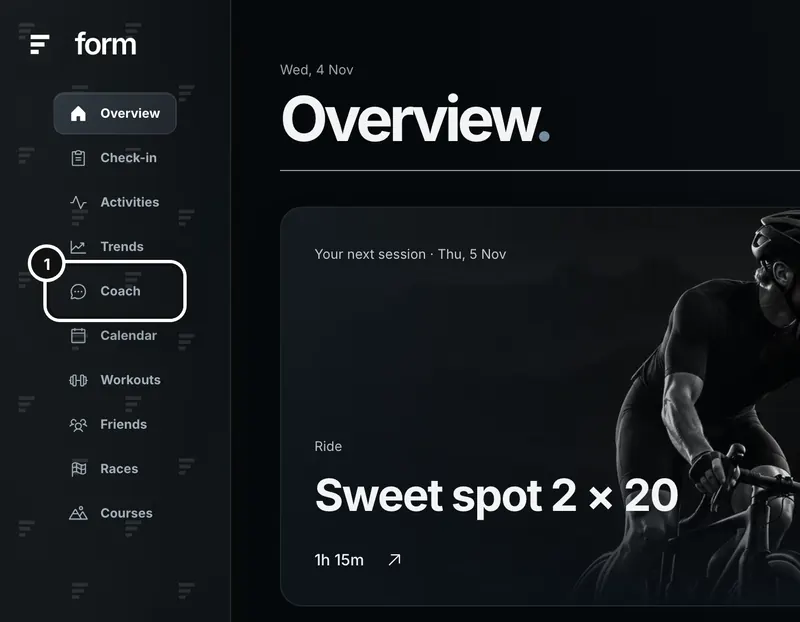
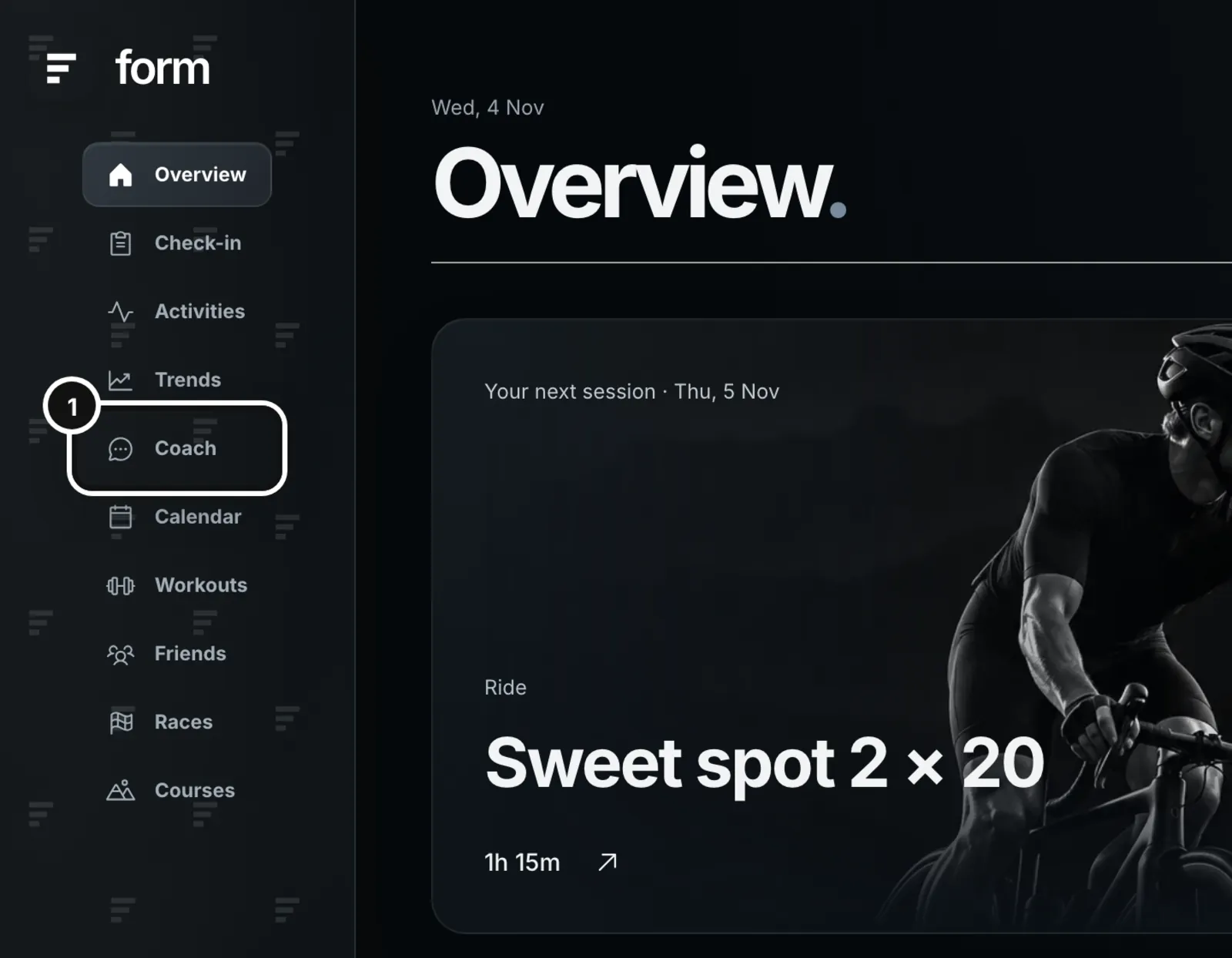
1Click Coach in the left sidebar.
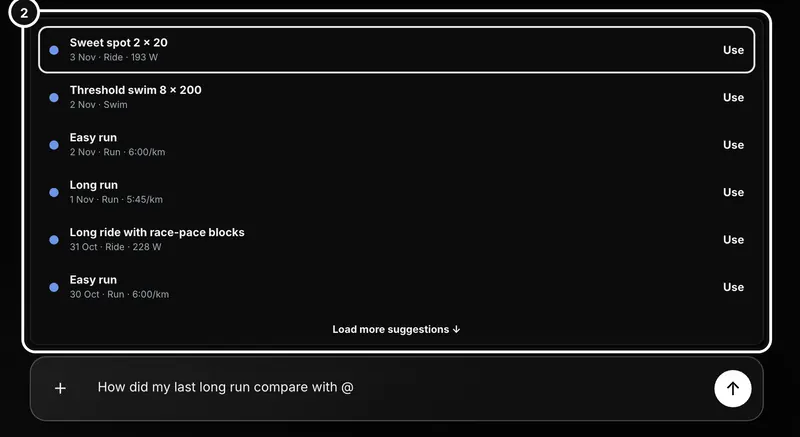
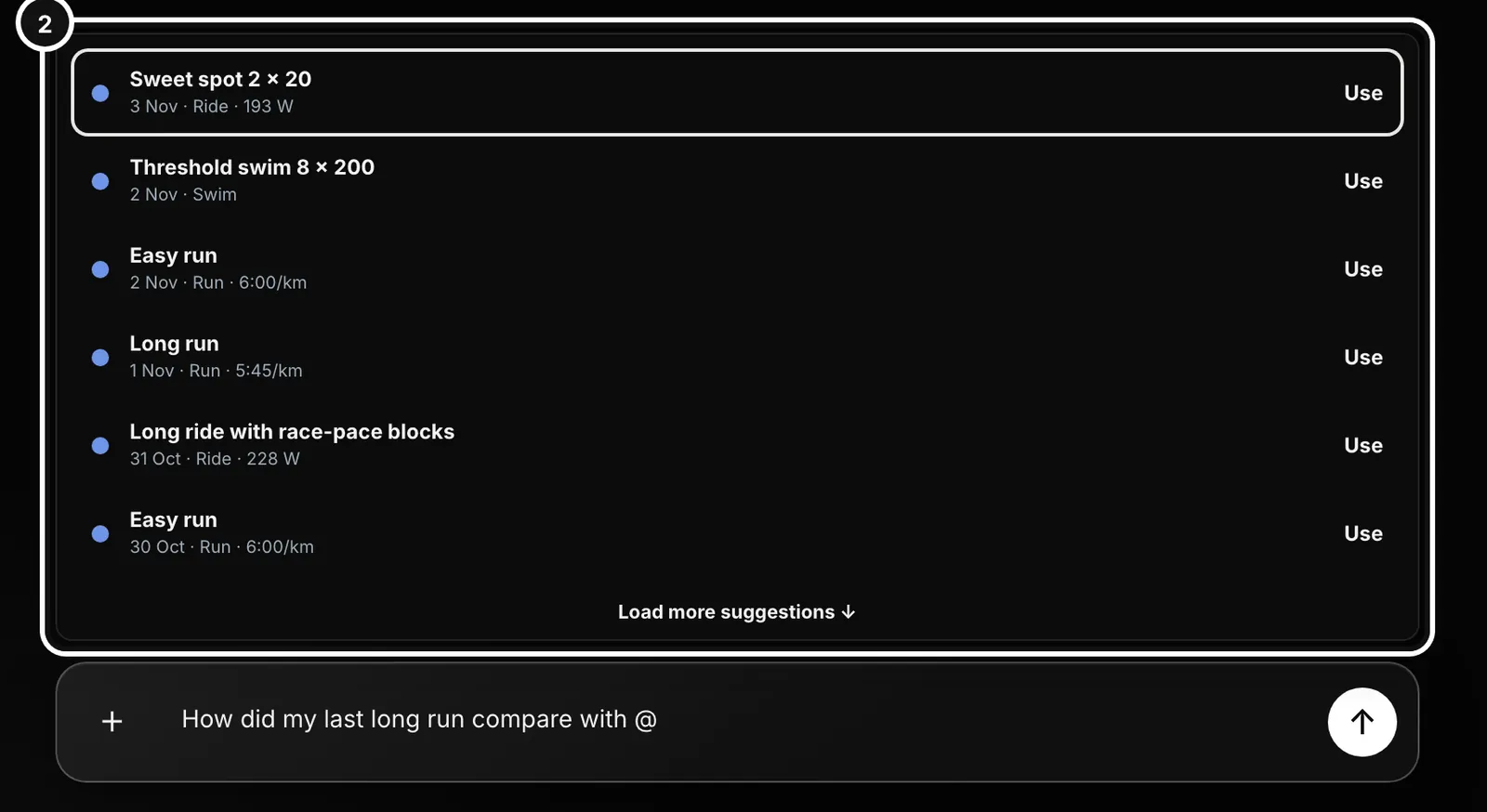
2Type @ in the message box to attach a session, race or course.
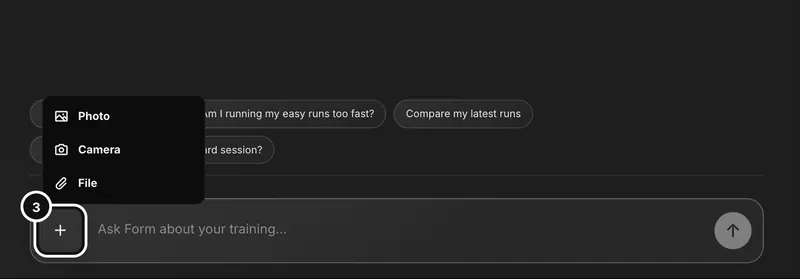
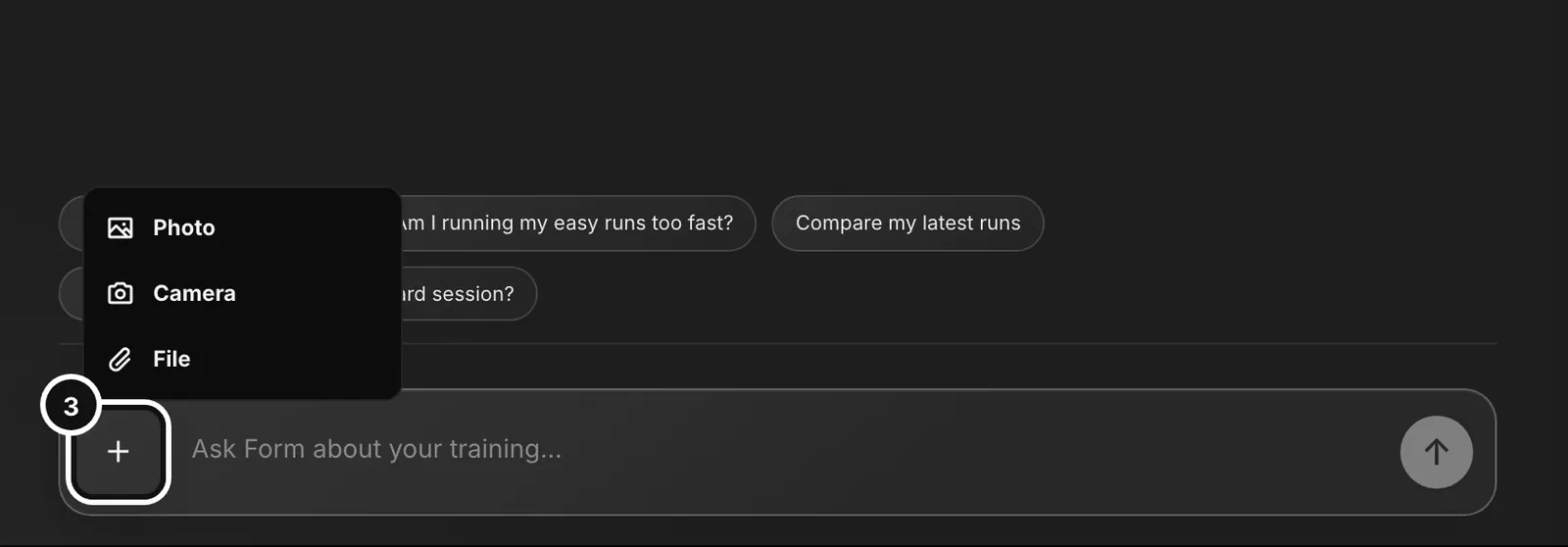
3Use the + beside the message box to attach a photo or file.
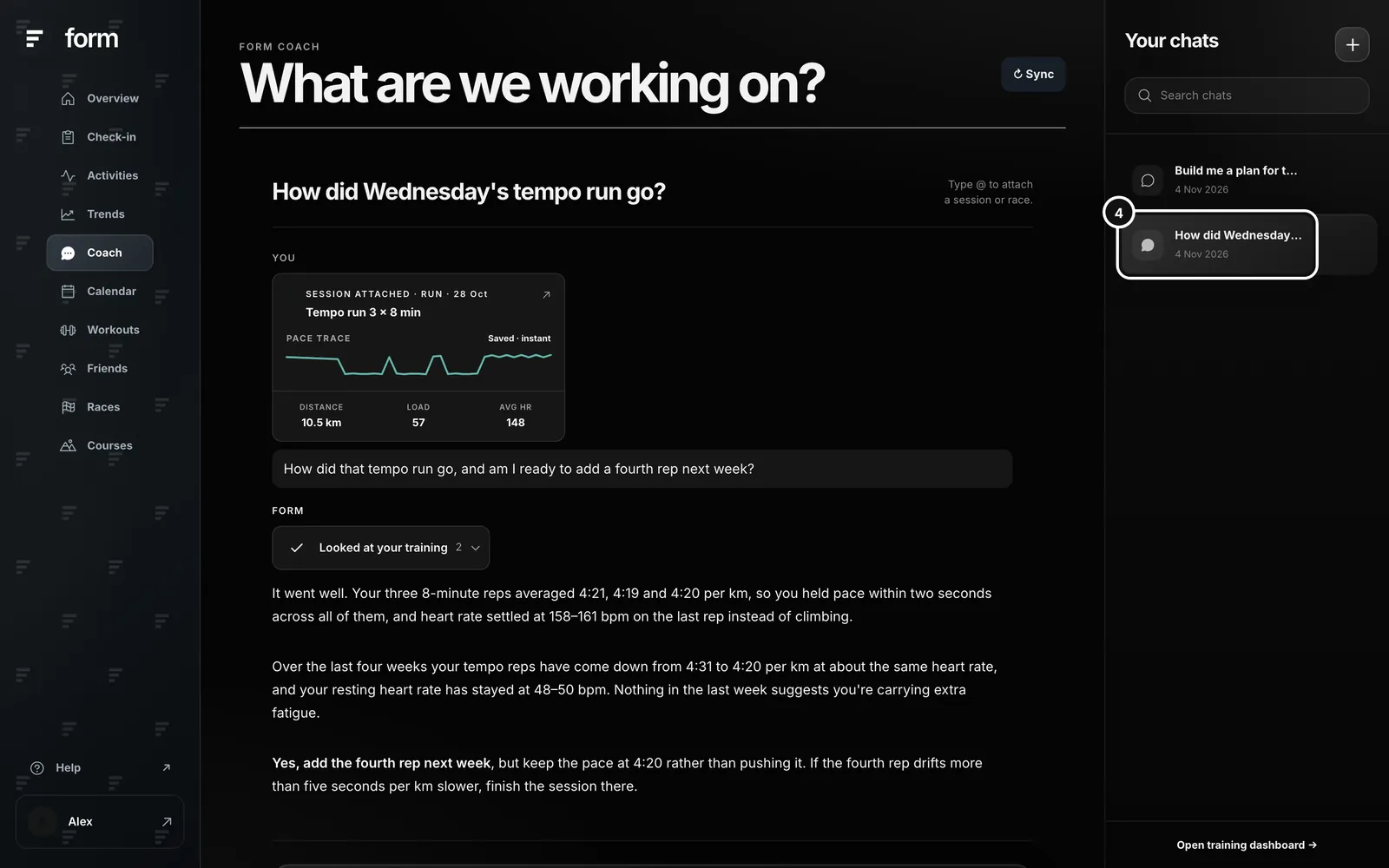
4Your earlier chats are listed on the right under Your chats. Click one to carry on in it.
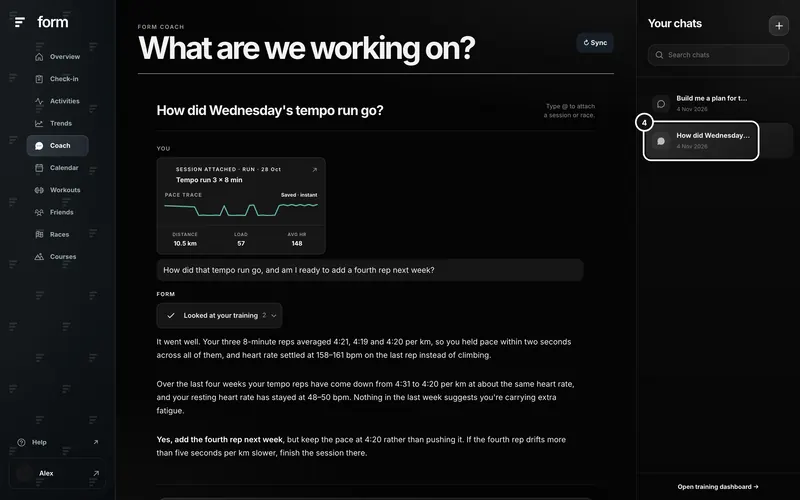
The sidebar’s Coach link always opens a new, empty conversation. On a phone-sized screen the coach fills the screen: the button at the top right opens your chats, and the Form logo at the top left opens the menu. The Form app has the same Coach.
Ask a question
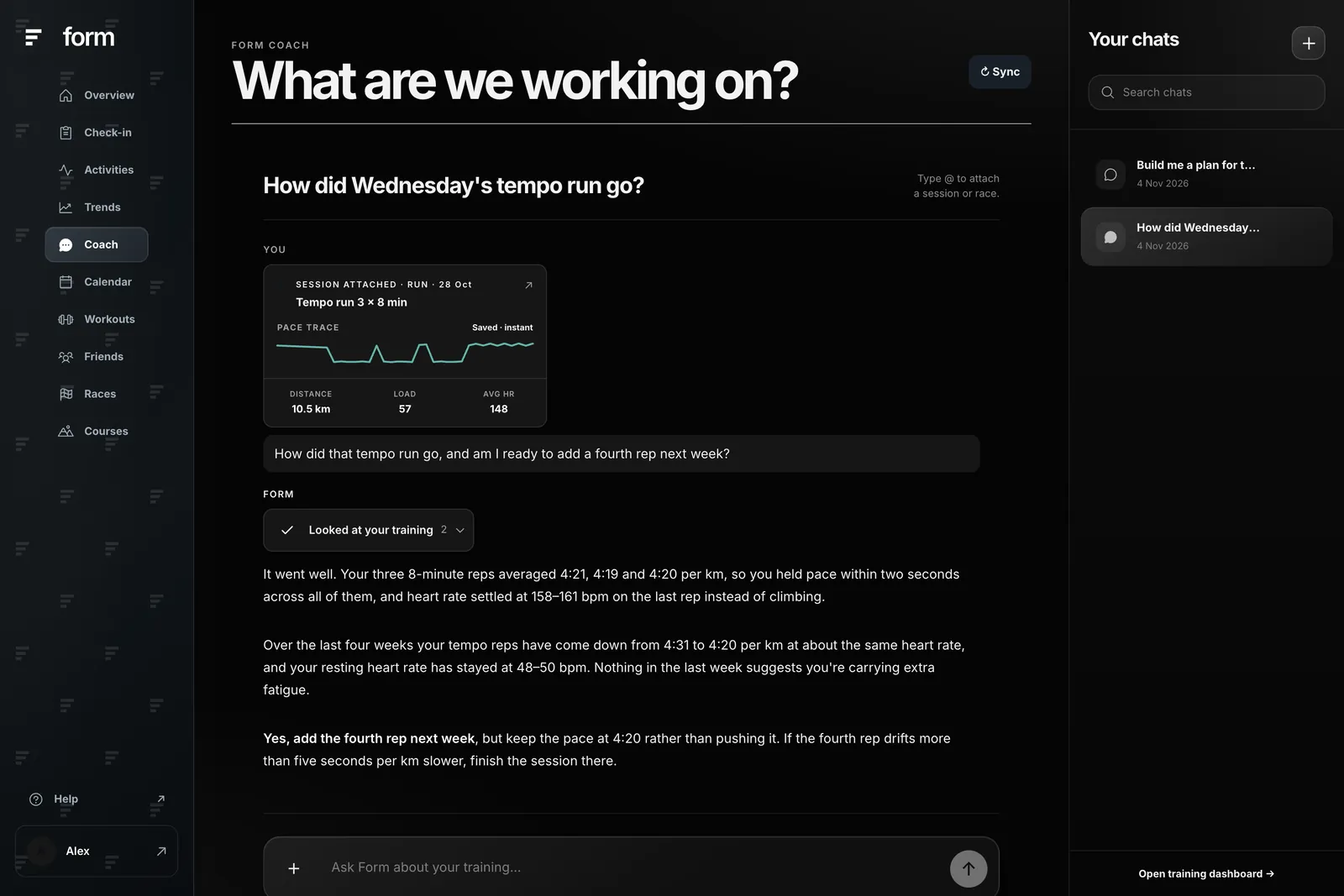
- Open Coach. A new conversation shows four quick questions you can tap. They follow what you have been doing: your last session, a busy or quiet week, a race coming up, or tomorrow’s planned session, with a general question or two. They change each time you start a chat. A question about a session or race attaches it for you. Or type your own into “Ask Form about your training…”.
- Optionally attach context with @ (see the next section) or the + button.
- Press the arrow, or Enter, to send. Shift and Enter starts a new line. (While the @ list is open, Enter picks the first suggestion instead.)
- Watch the reply arrive. While the coach works you see short work steps (for example, “Looking up recent sessions”), and then the answer is written out as the coach produces it, not all at once.
- Ask a follow-up in the same chat. The coach keeps the sessions and races you attached earlier in that chat as context, and reads the last 16 messages of the conversation.
A message can be up to 4,000 characters. Answers that draft a plan take longer than a plain answer, because the coach writes the sessions as well, and a long plan can take more than a minute.
Attach a session, race or course with @
Type @ anywhere in the message box. A list opens with your recent sessions (newest first), your saved races and your saved GPX courses. Keep typing to narrow it: it matches the name, the sport, and the date, so “@18 aug” finds a session from 18 August. Press Use, or Enter, on the one you want. “Load more suggestions” shows older ones.
- Sessions: up to four per message. The coach gets the full detail of each, including laps and splits, not just the summary. The session shows as a card above your question; a gym session’s card lists its exercises, working sets and the muscles worked. If Form cannot load a session’s detail, the message is not sent, and you are told to try again.
- Races: up to three per message. A race with a date is treated as a fixed plan constraint. You can also just name a saved race in your message and Form attaches it.
- Courses: picking a course writes its name into your message and Form finds it from the text, so the coach gets its distance, elevation and profile. It is not counted as an attachment, and the reply shows the course card as confirmation.
You can also start from a session’s own page: the Discuss session button opens a new chat with that session already attached.
Attach a photo or file
The + button offers Photo (from your library), Camera (on a phone) and File. You can also drag files onto the chat, or paste an image.
- Photos: up to 8 per message. JPG, PNG, WebP and GIF; iPhone HEIC photos are converted in your browser.
- Files: up to 4 per message. PDF, Word, Excel, PowerPoint or plain text, such as a race brochure or a plan from a previous coach.
- Each attachment can be up to 10 MB. Anything larger, or another file type, shows a message under the box and is left off.
- If you send an attachment with no words, the coach is asked to look at it and explain what it sees. With several images, it is told to look at every one and refer to them in order.
What the coach can look up
You do not need to ask for these by name. The coach decides which to use and you can see them in the work steps.
- Your current fitness, fatigue and form, and the thresholds it needs to set targets: bike FTP, run threshold pace and heart rate, swim critical speed. A value Form does not have is reported as unknown, not guessed.
- A 42-day overview of your training: sessions, sport mix, hours, load and latest weight.
- Your recent sessions, up to a year back, filtered by sport, for exact comparisons of pace, power or heart rate.
- Your wellness trend: weight, resting heart rate, HRV and fatigue.
- Garmin health data (sleep, stress, Body Battery and the rest), only if you have Garmin connected. It names Garmin when it uses it.
- Gym sessions you logged in Form: top sets, volume and effort.
- The web, when it needs current facts such as a race’s date or course.
- Your saved memories, if you have turned memory on. See “What the coach can and can’t do”.
What good questions look like
- How did this session fit my week?
- Am I carrying more fatigue than usual?
- How have my tempo reps changed over the last four weeks?
- What should I prioritise before my next race?
- Compare my last two long rides.
Answers name the sessions and dates they use, so you can check the reasoning. If your data is thin, a good answer says so rather than guessing.
The coach’s work, and what it can change
Above an answer, a small button names what the coach did, such as “Looked at your training”, with the number of steps. Press it to see each lookup and what it found.
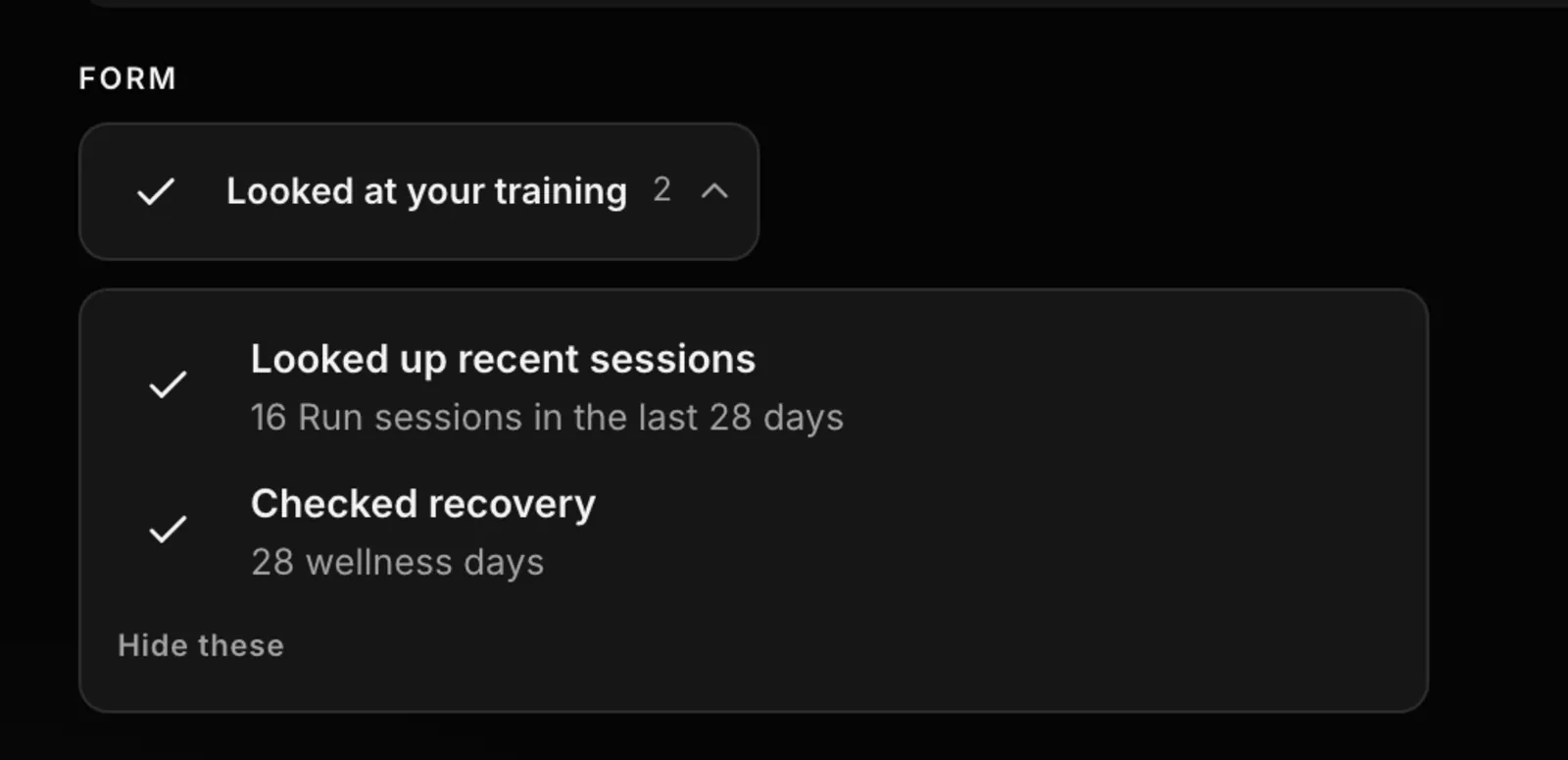
“Hide these” hides the work buttons in every chat; a “Show work” button at the top of the conversation brings them back. Mostly the coach only reads. It changes a saved setting only when you state the value or ask for the change: your FTP and your run, heart rate and swim thresholds; a saved race’s estimated finish time or one of its splits (“set my bike split for Noosa to 1:05”); and a memory you asked it to keep. It never saves a race, sends a plan or edits your calendar by itself: those are buttons you press on a card.
Your chats
- The chat list is under Your chats on the right of a wide screen (behind the button at the top right on a phone). Search chats filters by title.
- Hover a chat to rename it (pencil) or delete it (bin). Deleting asks you to confirm.
- The + beside “Your chats” starts a new conversation.
When something goes wrong
- No sessions yet. Until Form holds at least one session (synced from Garmin or Intervals.icu, uploaded, or recorded in Form), the coach tells you to record or connect first and does not send your question.
- The reply failed. A “Form · delivery issue” box appears in the chat with what to do. Your message is saved, so you can send it again.
- You have used this month’s allowance. You are told your usage has run out and the date it refreshes, which is the first of next month.
- A session would not load. You are told Form could not load the full attached session, and the message is not sent. Try again in a moment.
- The Sync button at the top of Coach only appears if Intervals.icu is your training source. Garmin sends its data on its own, so there is nothing to press.
Common questions
- Does the coach see my whole history?
- It can look up your recent sessions (up to a year), your fitness trend and your wellness data as it answers, and it reads in full the sessions you attach. It works from what Form holds, so a short history gives a thinner answer.
- Does it remember earlier chats?
- Within a chat, yes: it reads the last 16 messages and keeps the sessions and races you attached. Across chats it only knows your saved memories, and only if you turned memory on.
- Can I attach a screenshot from another app?
- Yes. Attach it as a photo. The coach reads what is in the image, but it is not as exact as a session Form already holds, so attach the session itself when you can.
- Is the coach a replacement for a human coach?
- No. It is a coaching companion for athletes who want clearer feedback between decisions. It can’t examine you, diagnose an injury or replace medical advice.