
Friends, the feed and live tracking
Add friends, see their finished sessions, and choose who can see where you are.
Updated 4 November 2026
Friends in Form do two separate things. Being friends lets you see each other’s finished sessions in a feed, and give a chapeau or a comment on them in the Form app. Seeing someone live on a map while they ride or run is a second permission, chosen by the person being tracked, and it works in one direction at a time. This article covers adding friends, the feed, who can track whom, starting a live share, what a friend sees, group rides, and how to stop.
Where to find it
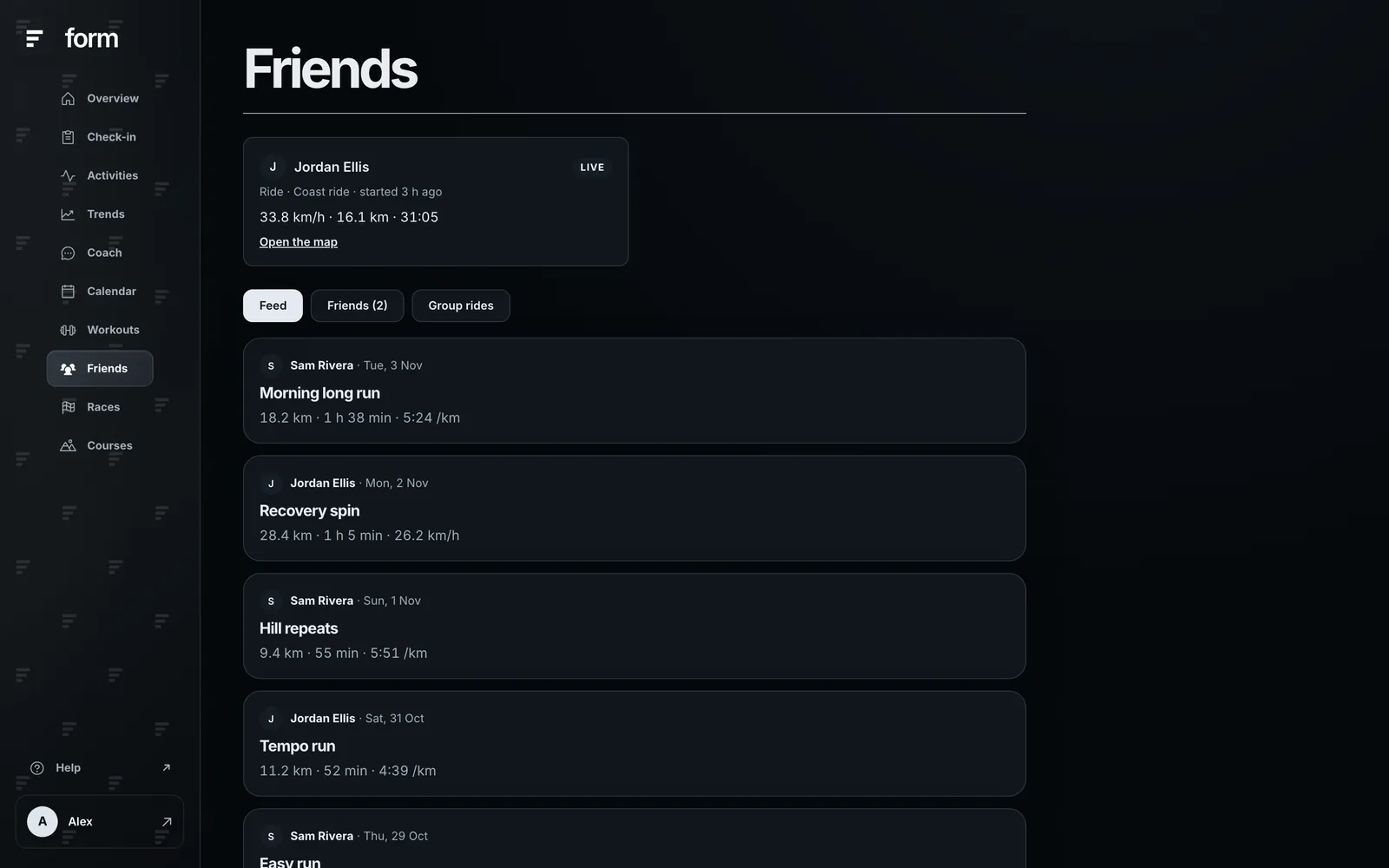
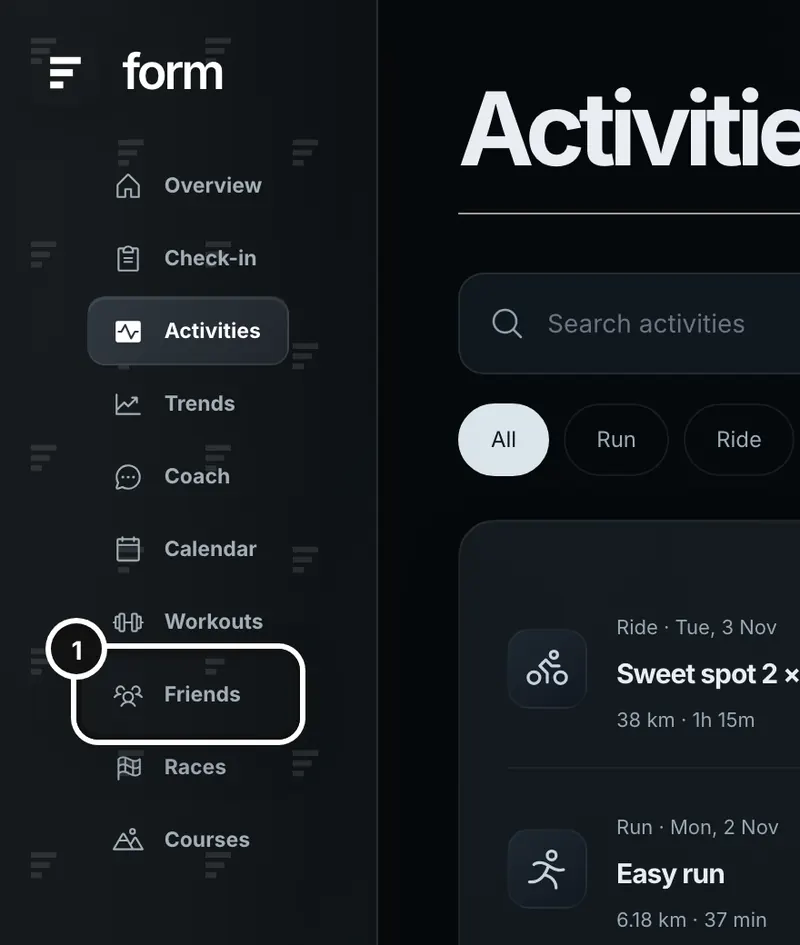
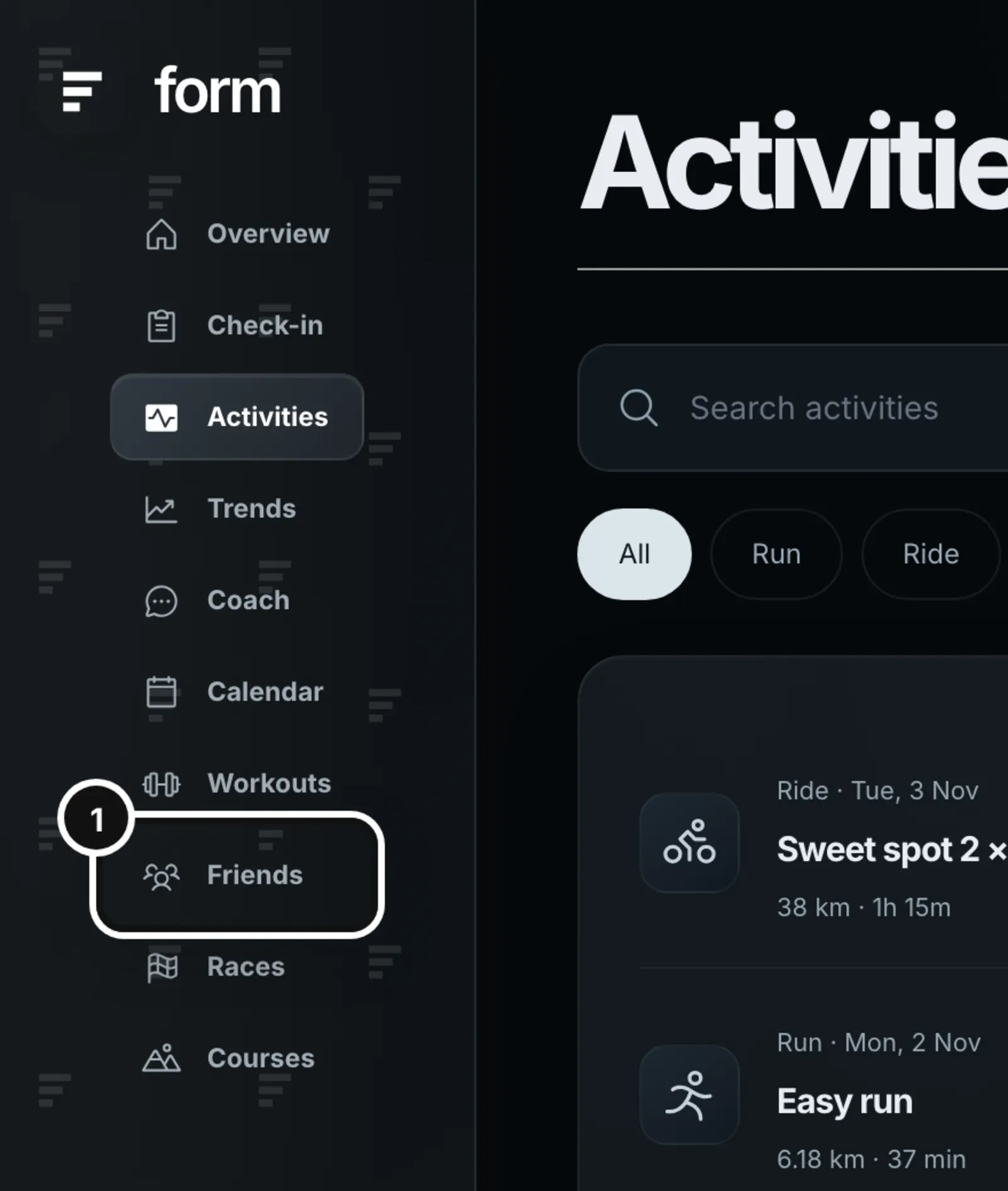
On the web, open Friends in the left sidebar. The page has three tabs: Feed, Friends and Group rides. In the Form app, Friends is in the app’s menu.
Add a friend
1Click Friends in the left sidebar.
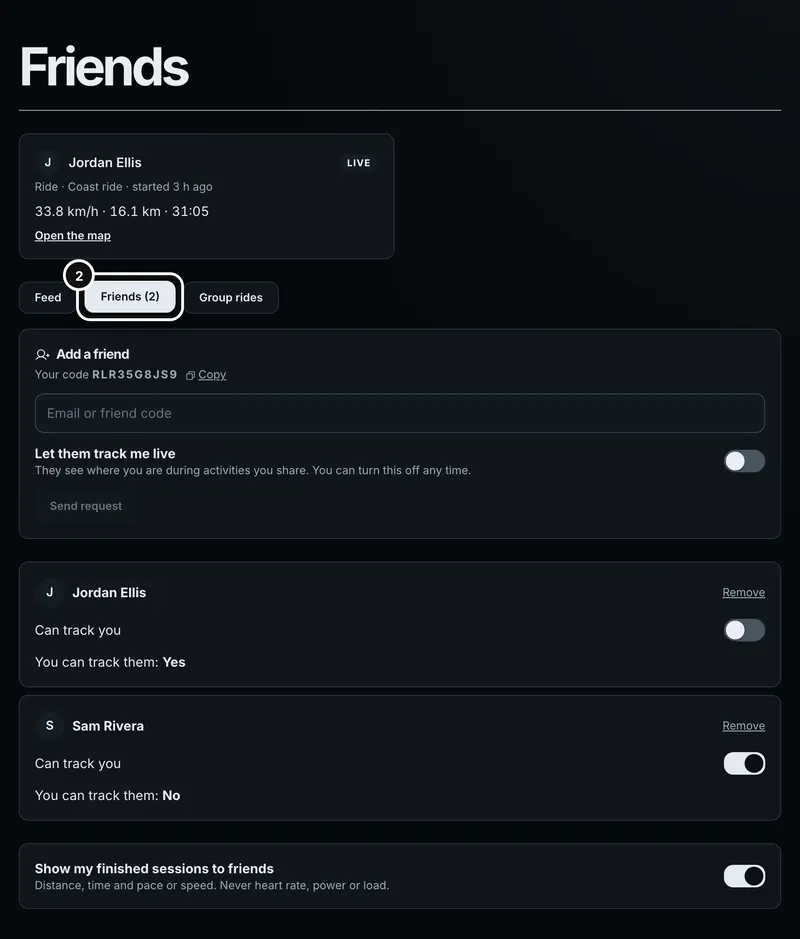
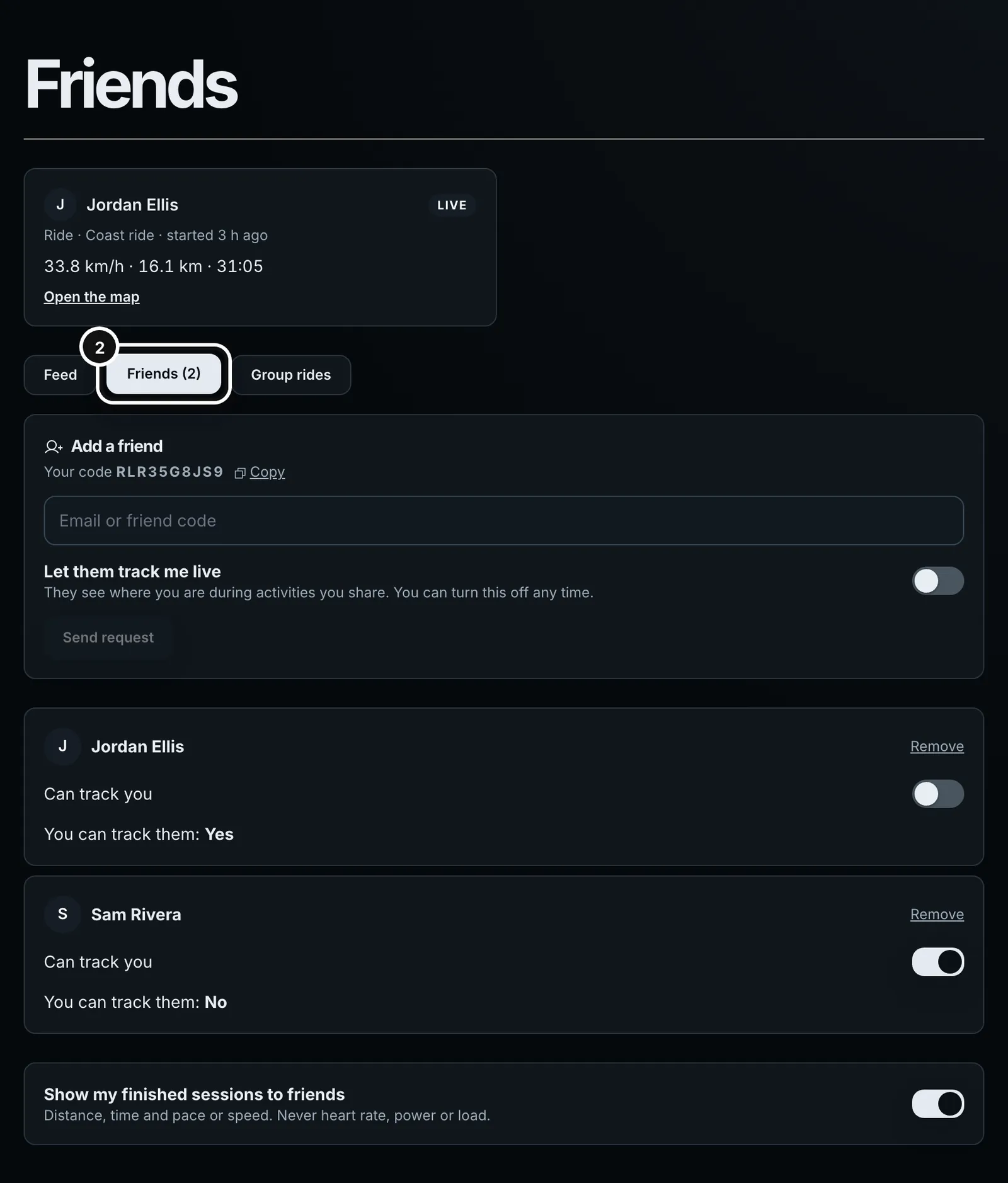
2Open the Friends tab. Your friend code is at the top of the Add a friend card. Enter a friend’s email or code and press Send request.
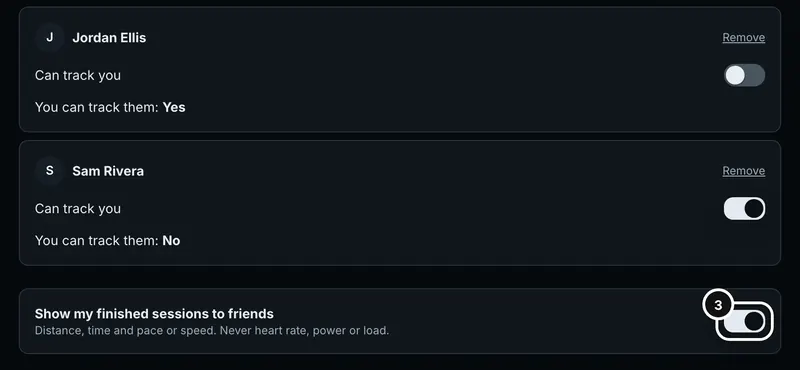
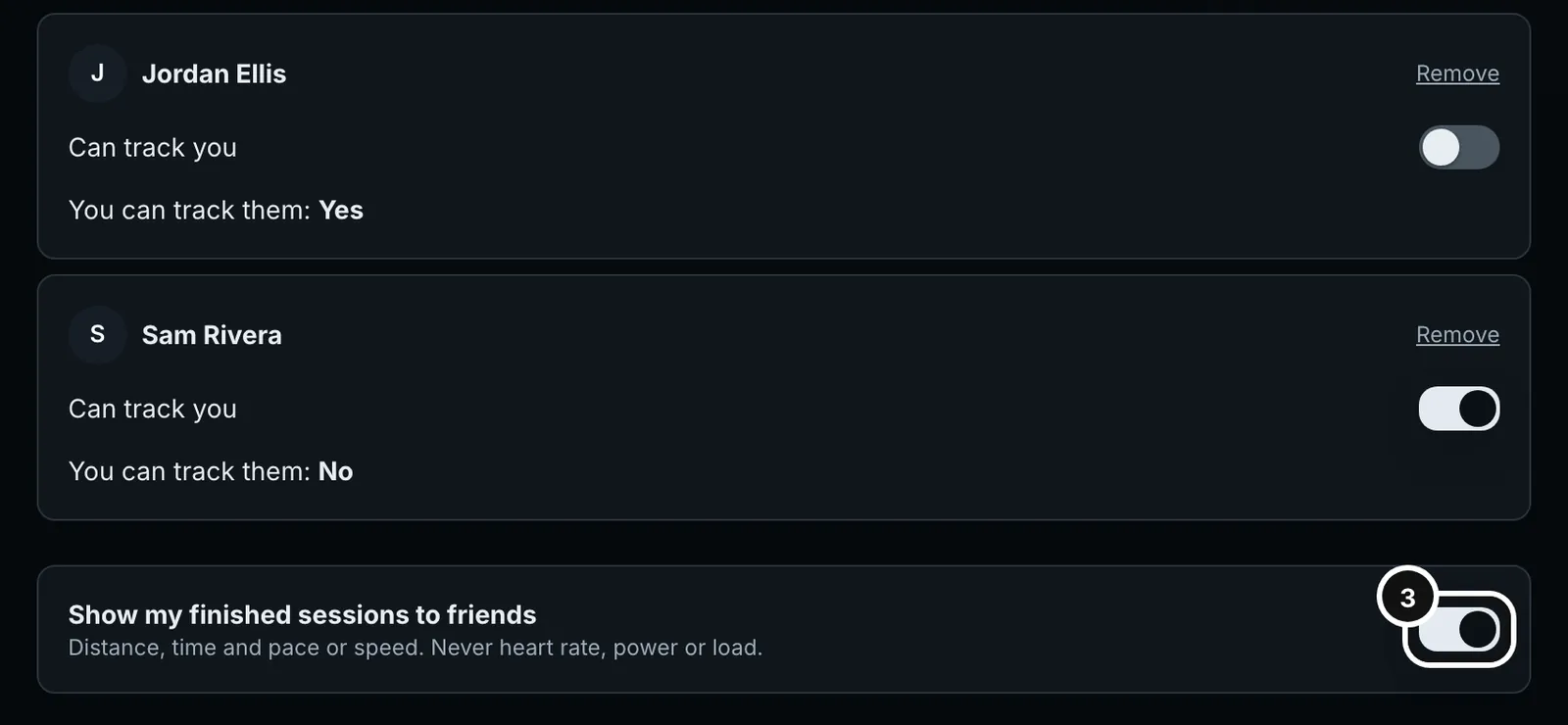
3Below your friends, one switch turns the sharing of your finished sessions on or off.
Add a friend
- Open Friends and then the Friends tab. Your own friend code is shown on the Add a friend card, with a Copy link to share it.
- Type your friend’s email address or friend code into the Email or friend code box. A friend code is 10 characters.
- Decide whether to Let them track me live. The switch is off by default. It says “They see where you are during activities you share. You can turn this off any time.” Turning it on offers tracking with the request; it does nothing until they accept.
- Press Send request. Form replies with the same message however it goes: “If that person has a Form account, they will see your request. You will be friends once they accept.” This is on purpose, so nobody can use Form to find out who has an account.
- Your friend sees the request on their own Friends page: “[Name] wants to be your friend.” They choose Accept, Accept and let them track me, or Decline. Until then the request sits under your friends as “waiting for them to accept”, with a Cancel button.
- You cannot add yourself. If you and a friend both send a request at the same time, the second one accepts the first rather than making two.
- If someone declines, you can ask again later, up to five times per person in 30 days.
- Sending requests is limited to 20 a minute.
- Either of you can remove the friendship at any time with Remove. It ends the feed, the live list and any open live map for both of you straight away.
The feed
The Feed tab lists your friends’ finished sessions, newest first, 30 at a time with a Show more button. Each card has the friend’s name and picture, the day, the session’s title and the numbers a watch face would show: distance, time, and pace for a run or speed for a ride. A gym session shows its set count. The feed never shows heart rate, power or training load.
- It includes sessions from every source Form holds for that friend: recorded on the phone, uploaded, or synced from Garmin or Intervals.icu. A session recorded on two devices appears once.
- If a friend has no sessions or is not sharing, the feed shows an empty state, “Nothing here yet.”, not an error.
- To stop sharing yours, turn off Show my finished sessions to friends at the bottom of the Friends tab. It applies to everyone at once, and your past sessions disappear from their feeds immediately, because the feed reads them on demand.
Chapeaus and comments
In the Form app, each card in the feed has a CHAPEAU button with a top hat, and a COMMENT button. The web Friends page doesn’t show them yet.
- A chapeau is a like. Press CHAPEAU once to give one and again to take it back; the button shows how many the session has, as CHAPEAU · 3. You can give one chapeau per session.
- When a friend gives you a chapeau, your phone gets an alert, “[Name] gave you a chapeau”, with the session’s name. Tapping it opens the session. Taking a chapeau back and giving it again doesn’t send a second alert.
- COMMENT opens the comments, oldest first (COMMENTS · 2 once there are some). Type in Add a comment and press POST. A comment is plain text, up to 500 characters.
- You can delete your own comments, and anything on your own sessions. Nobody else can.
- Only friends who can see the session in their feed can give a chapeau or comment on it. If you stop sharing your finished sessions, or remove a friend, they can’t any more.
Two separate permissions
Under each friend’s name on the Friends tab you see both directions:
- Can track you: a switch. On means this friend can see where you are during an activity you choose to share. You can turn it off at any time.
- You can track them: Yes or No. It shows the friend’s choice for you, and you cannot change it. They change their own.
Each one is one-way. If you let a friend track you, you do not automatically get to track them. A friend request says whether the sender lets the other person track them, and accepting says the same for the person who accepts, using Accept (no tracking) or Accept and let them track me. A friend who is not allowed to track you cannot see a live activity of yours anywhere: not in the list, not by guessing a link. Turning the switch off while you are riding closes their map on its next refresh; turning it on shows your activity from then on, with the trail you have already ridden.
Start a live share on the phone
Live sharing is switched on per activity, on the phone only, and only for runs and rides. In the Form app’s WORKOUT tab choose Run or Ride. On the setup screen, switch on Share live with friends. It is off until you turn it on. The line under it tells you who can see you: “No friends can track you yet. Add one under Friends and let them track you.” or “N friends can see where you are, your speed and laps.” Then press Start.
- Friends who can track you get a phone alert when you start: “[Name] started a ride” (or a run), “Tap to follow live.” Tapping it opens your map. Each friend gets one alert per activity.
- The phone sends an update at most every 5 seconds while you move and every 30 seconds while stopped, and never when you are not recording.
- With no signal, the recording is unaffected. The phone keeps your recent points and sends them together when the signal returns, so the trail fills in.
- If you start a second share, any earlier open one ends.
Who is watching, and live chapeaus
While you share, your phone tells you when a friend opens your map: “Sam is watching you” shows for a few seconds, then goes quiet, so it doesn’t cover a long ride. A friend counts as watching while their map is open, and drops off within about 20 seconds of closing it. Only you see who is watching; a friend’s map never shows who else is.
A friend watching you in the Form app can press the chapeau button on your map to cheer you on, as often as they like. Your phone shows “Sam sent a chapeau”, or “Sam sent 4 chapeaus” for a burst, for about 4 seconds without covering your speed or the Stop button. With the screen off it also posts a notification, silent on a ride.
What a friend sees
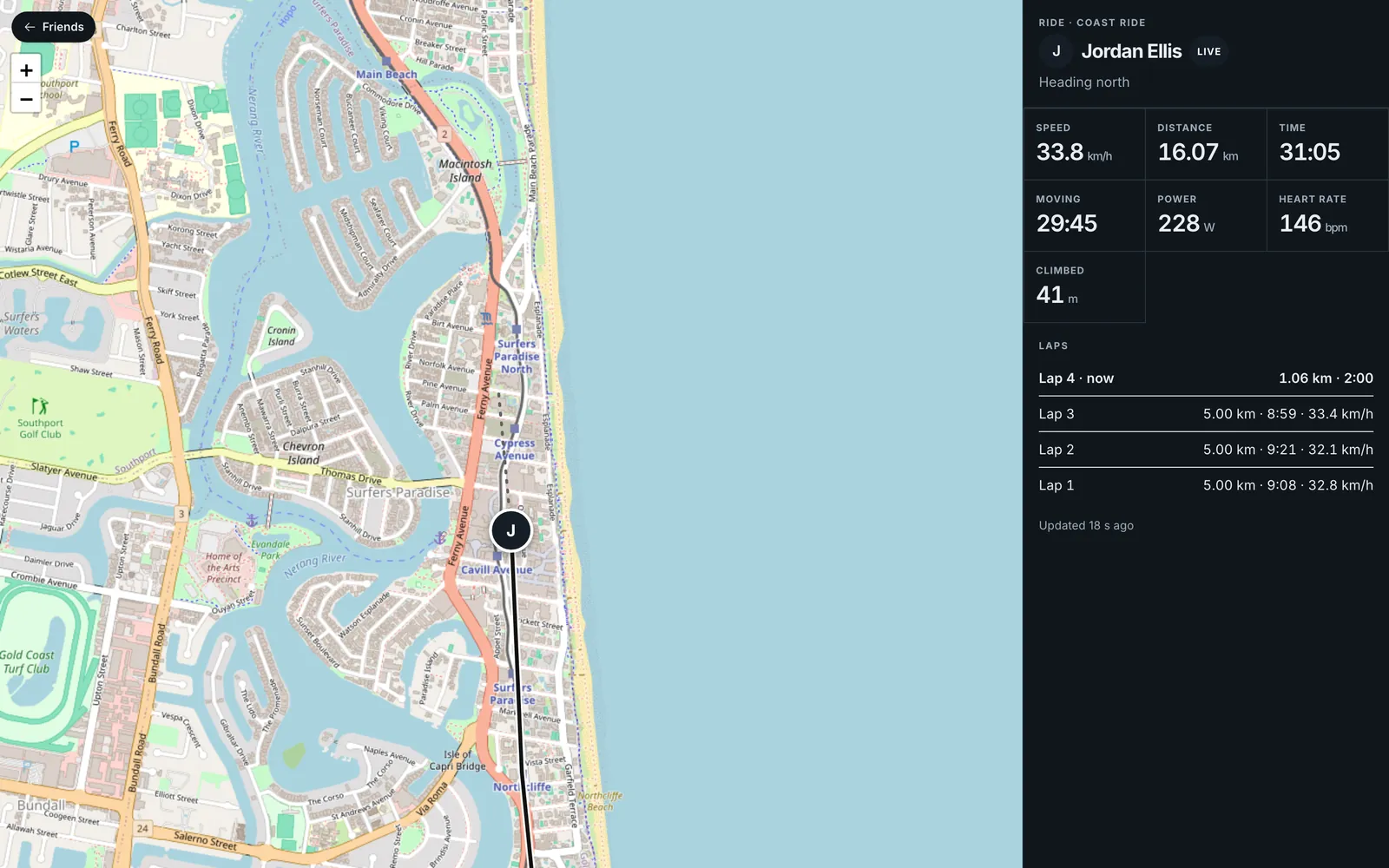
A friend who can track you sees a Live now card at the top of their Friends page, and can open the map. The map shows your trail so far and your current position, with a short dotted line ahead in the direction you are heading. The panel beside it shows pace (runs) or speed (rides), distance, elapsed and moving time, climb, laps (each finished lap with its distance, time and average pace or speed, and the current lap so far) and, when you have the sensors connected, heart rate and, on a ride, power. So while the feed never shows heart rate or power, a live share does show them to the friends who can track you.
The status badge reads Live, Stopped (paused or auto-paused, with your clock time), Signal lost, Offline or Finished. The map keeps the last position and says when it last heard from you. A viewer needs to be signed in to Form. There is no public link, and nobody without an account can watch. The map refreshes about every 5 seconds, so allow roughly 10 seconds plus network delay for what you see to catch up.
When the signal drops
- After 30 seconds without an update the viewer shows Signal lost with how long ago it last heard from you, “Their last position stays on the map.” Speed, power and heart rate grey out. The page never presents an old position as current.
- After 15 minutes without an update the badge reads Offline and says “Not heard from” with the time.
- The viewer’s own connection failing shows Reconnecting… and keeps the last good map instead of blanking.
- A silent share closes on its own after six hours. A finished share’s detailed trail is deleted 24 hours after it ends; your finished session keeps its own route.
End a share
- Finish the run or ride. The share ends, the phone stops sending, and your activity leaves your friends’ live list straight away.
- Turn off Can track you for one friend. Their map closes on its next refresh with “[Name] is no longer sharing their location with you.”
- Remove the friend. Their view closes at once.
- Delete your account. Your friendships and live sessions go with it.
Group rides
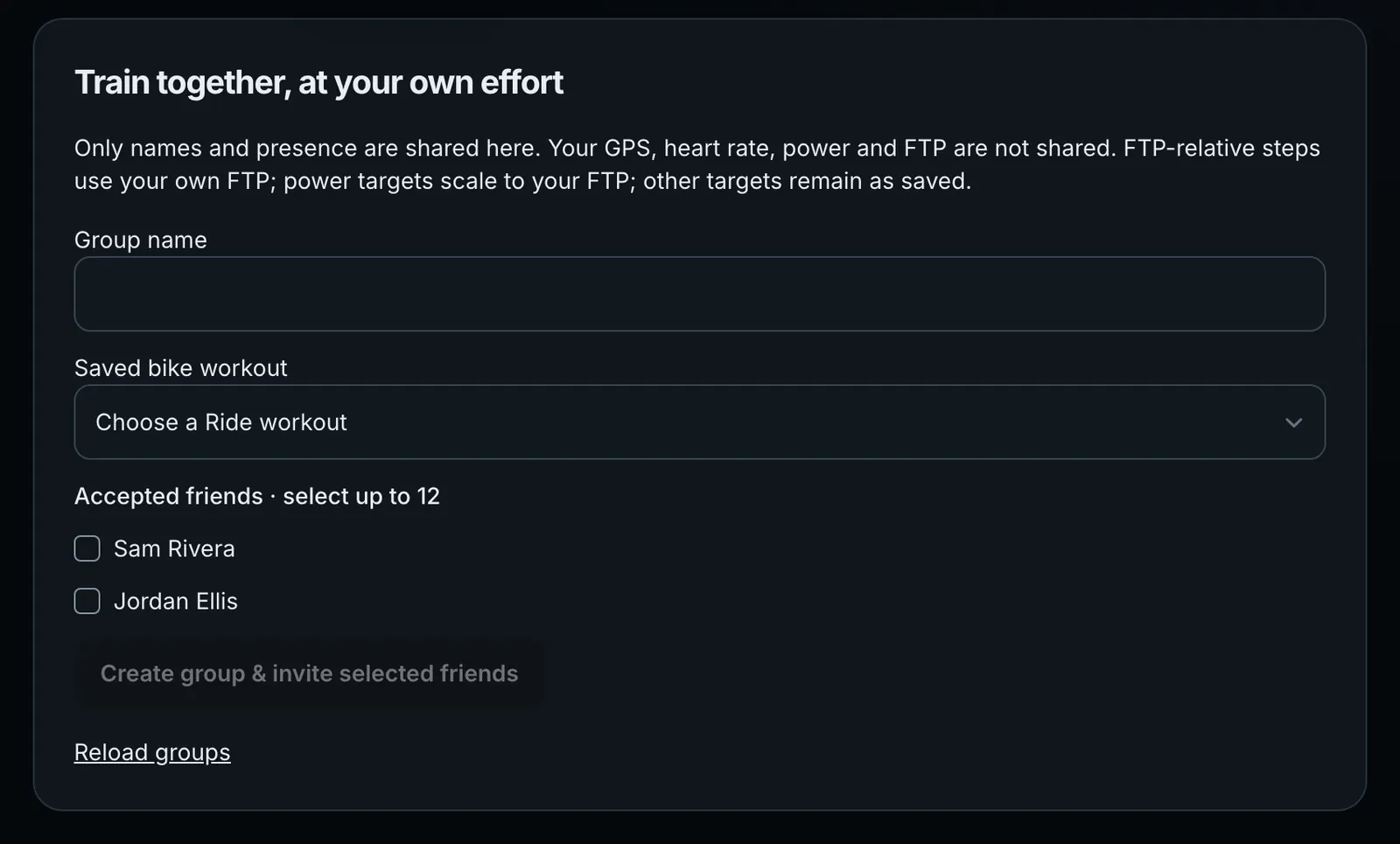
The Group rides tab sets up an indoor ride with friends on the same saved bike workout. Give the group a name, choose one of your saved Ride workouts, tick up to 12 accepted friends and press Create group & invite selected friends.
- Each friend sees the invitation on their own Group rides tab, with Accept invitation and Decline.
- Each group card lists who is in it, and who is present now.
- Open my workout opens the workout on your trainer, at your own FTP. The host can press Start shared countdown, which counts down to the same start time for everyone.
- Nothing starts on its own. Each rider starts their own workout, and each ride is recorded separately.
- Leave group takes you out; the host can Cancel group, which doesn’t stop anyone’s recording.
Profile pictures
Add a picture on the Profile page with Add a picture, Change picture or Remove. It appears beside your name in friend lists, requests, feed cards and the live map. You can also change it from the profile in the Form app. Form accepts JPEG, PNG, WebP or GIF up to 10 MB, centres a square crop and re-draws it as a 512-pixel picture, which also removes any location data stored inside the photo. A friend, including someone with a pending request, can see it; nobody else can. With no picture, your initial shows instead.
What friends do not do
- Chapeaus and comments are in the Form app only, not on the web Friends page yet.
- There is no alert when a friend comments.
- The map shows your heading, not a planned route ahead.
- You cannot share a link with someone who has no Form account.
- Swims are not shared live.
Common questions
- Can my partner see where I am while I ride?
- Yes, if they have a Form account, you are friends, you let them track you, and you switch on Share live with friends on the ride or run setup screen. Nothing is shared live unless you switch it on for that activity.
- Does being friends let someone track me?
- No. Friends only see your finished sessions. Seeing you live needs your separate Can track you permission for that friend.
- What does my friend see in the feed?
- Distance, time, pace or speed, and set counts for gym. Never heart rate, power or load.
- What is a chapeau?
- A like, named after the cyclist’s hat-tip. Give one on a friend’s session in the Form app’s feed, or send them during a friend’s live ride to cheer them on.
- Will I know who is watching my live ride?
- Yes. Your phone shows “Sam is watching you” when a friend opens your map. Your friends don’t see who else is watching.
- Can I stop sharing my finished sessions?
- Yes. Turn off Show my finished sessions to friends on the Friends tab.
- Will a friend know I declined?
- A declined request is deleted so they can ask again later, up to five times in 30 days.
- Can I track a friend without them knowing?
- No. They choose it, and it shows on their side as Can track you.