
Build a training plan
What the coach asks first, how a draft works, and what approving does.
Updated 4 November 2026
Ask the coach for a plan and it builds structured Run, Ride and Swim sessions, and gym sessions if you want them, that you review before anything reaches your calendar. This article covers what the coach asks first, the plan form, how the sessions are built, how the draft works, what approving does, and how to change a plan afterwards.
Where to find it
Start a plan in the Coach
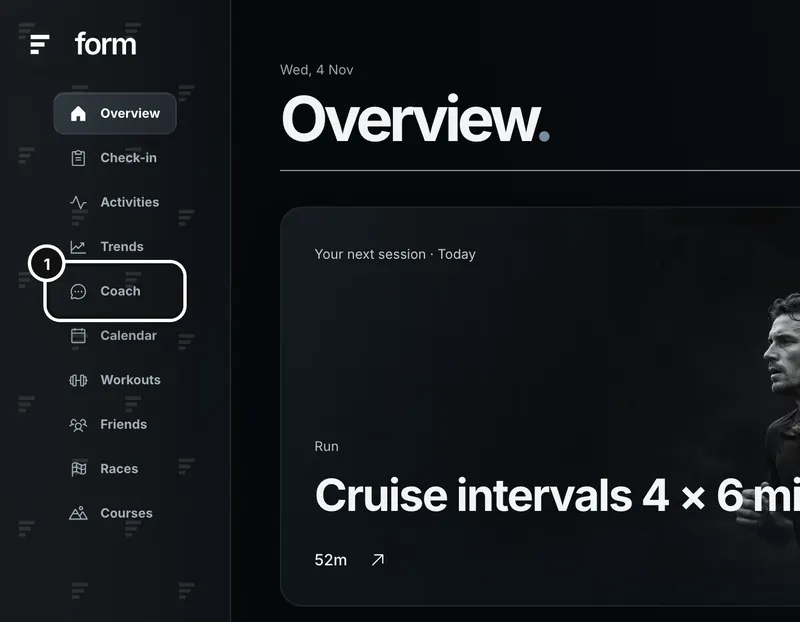
1Click Coach in the left sidebar and say what you want, for example “Can you build me a plan for the Noosa Triathlon?”
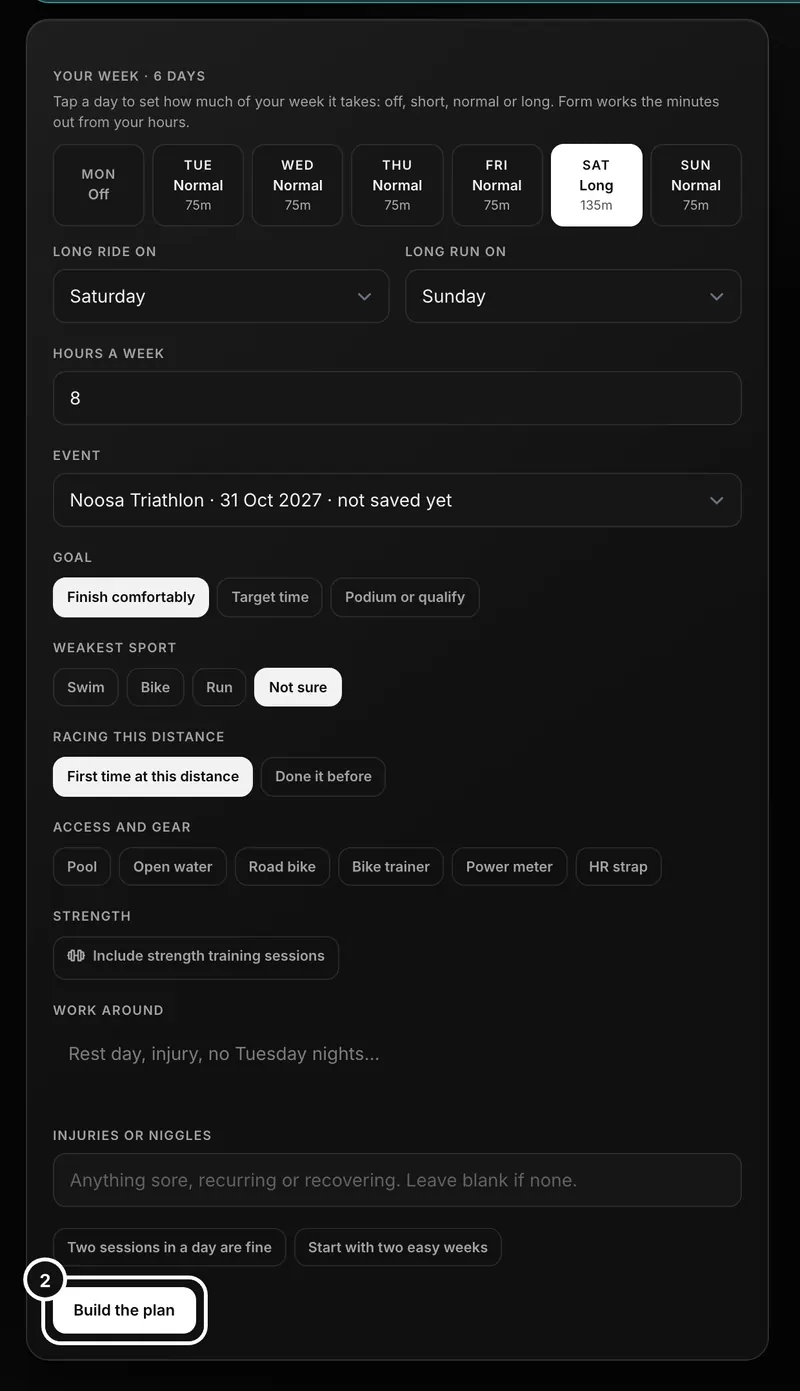
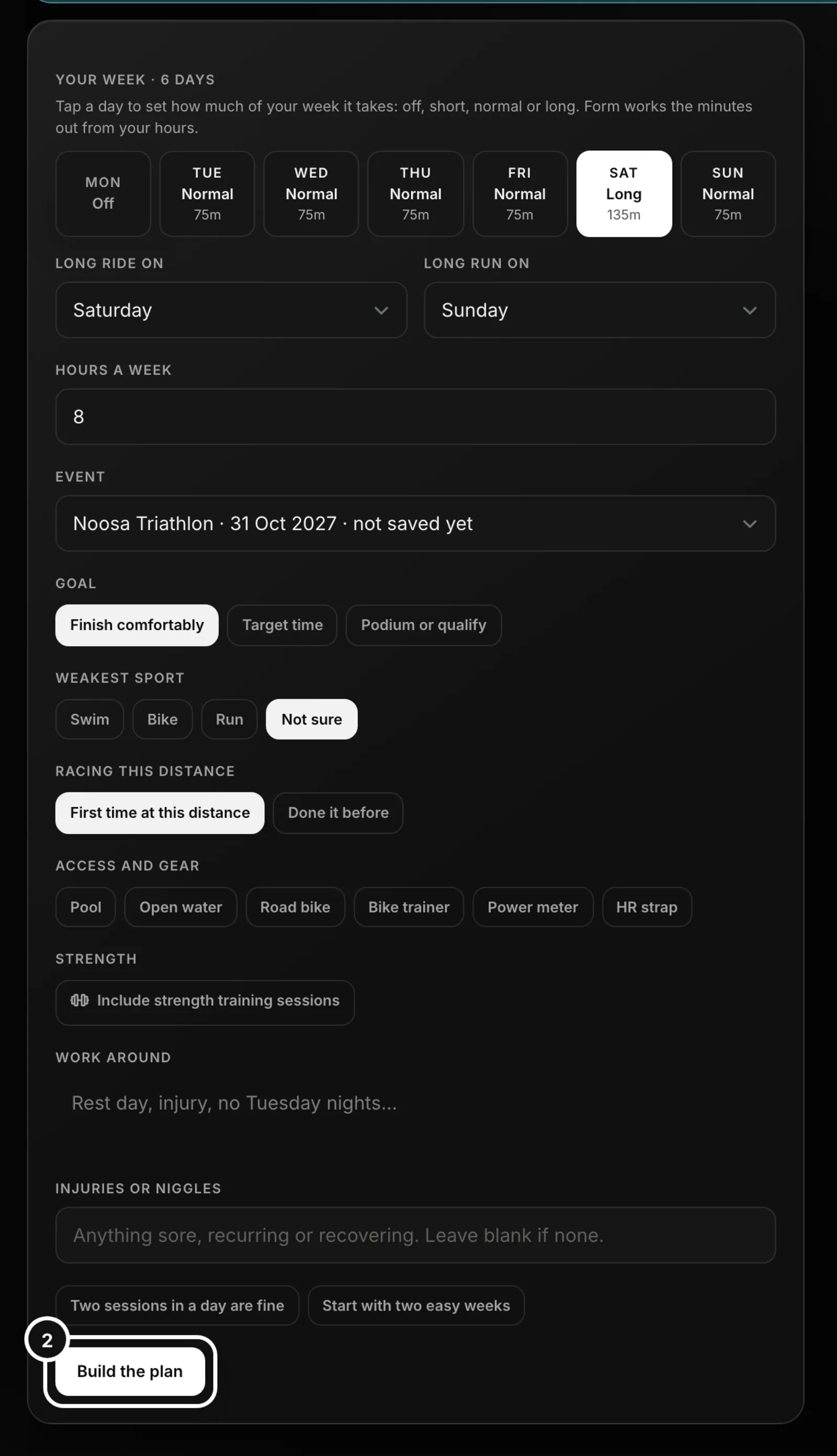
2The coach asks how many days and hours you have, and a plan form appears under its question. Fill it in and press Build the plan.
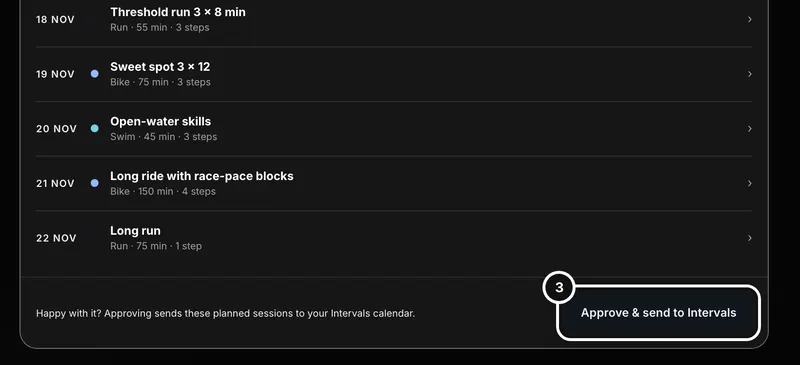
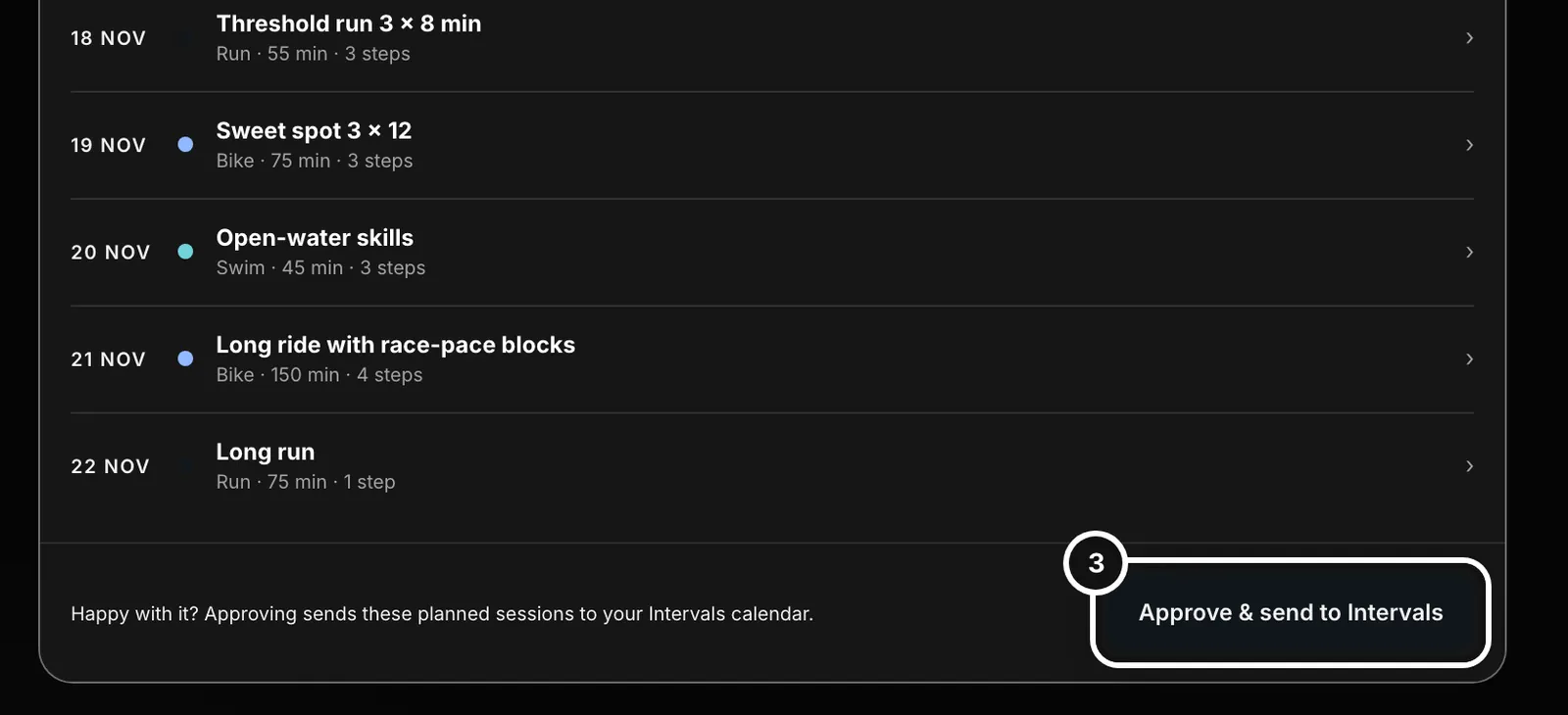
3When the draft arrives, review it, then press Approve & send. Until you do, nothing has been sent.
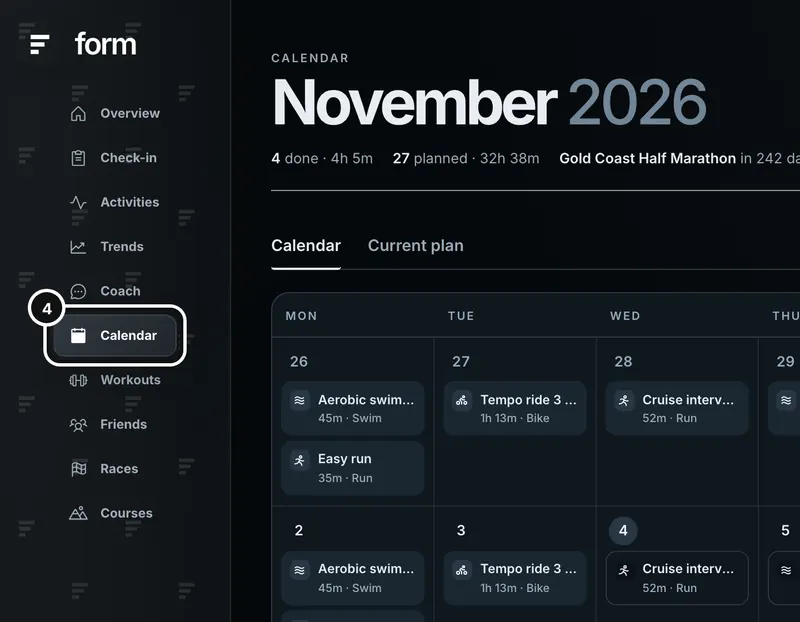
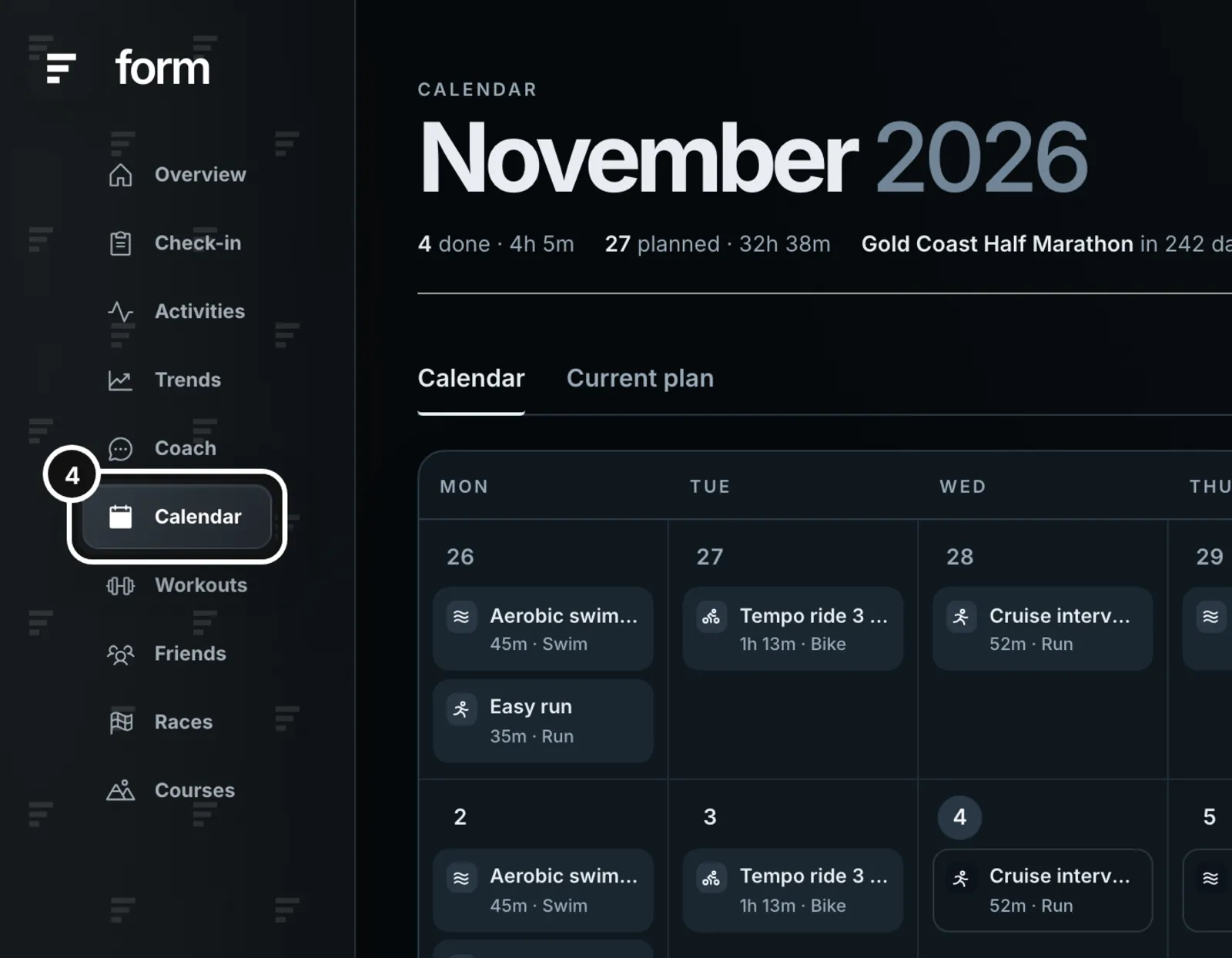
4After approving, the plan lives on your Calendar.
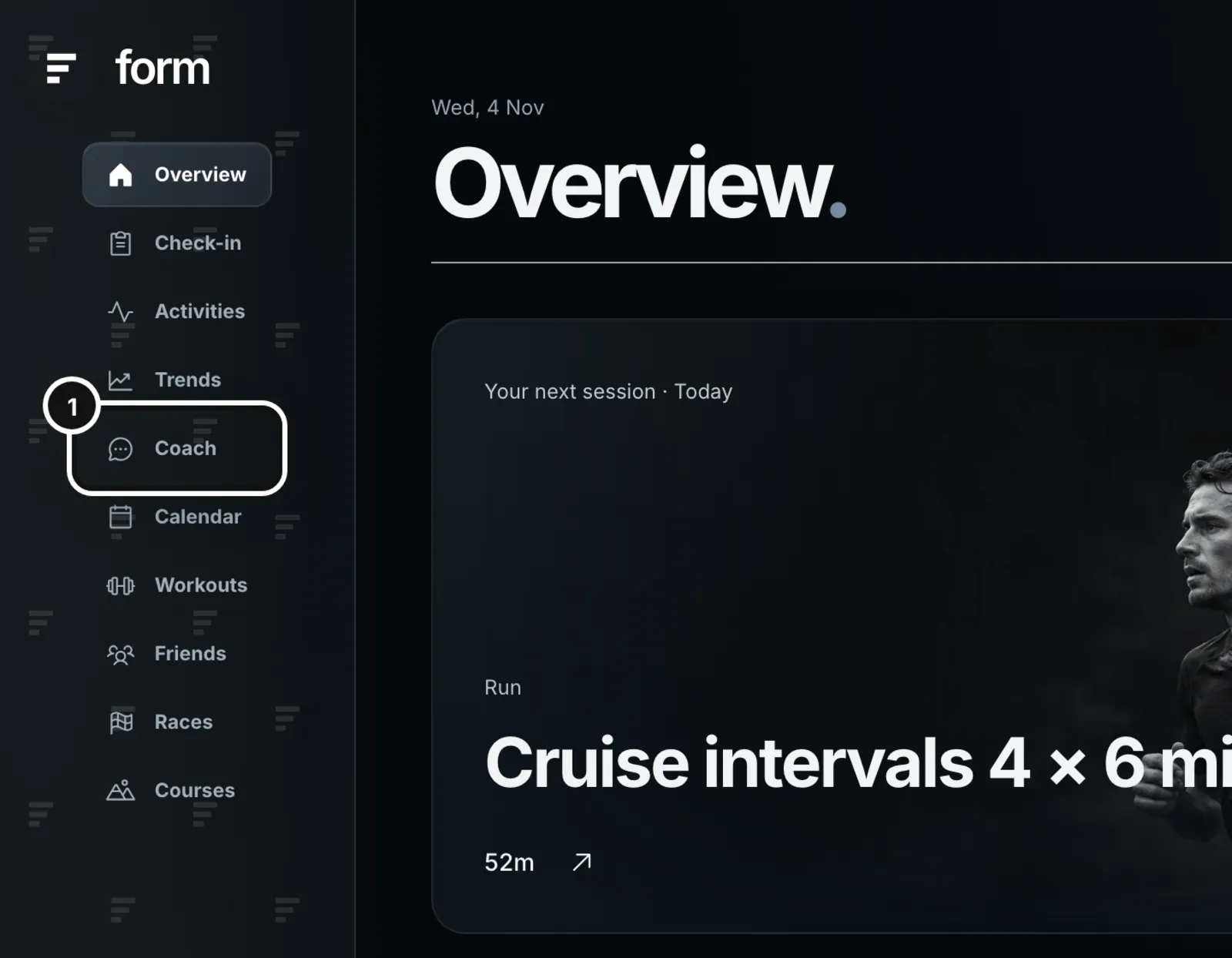
Two shortcuts start a plan with the right context: Build a plan on a race on the Races page (the race is attached), and Plan with Coach on the Calendar, which opens a new chat with “Build me a plan for my upcoming event:” in the message box for you to finish.
What the coach asks first
The coach will not draft a new plan until it knows how many days a week you can train and roughly how many hours a week. It asks in one message, and may mention how many hours Form has seen you train lately, because swims or sessions on another device can be missing. If you attach a race with a date, that date is the end of the plan. If you would rather the coach chose, say so, and it states the assumptions it made.
The plan form
On the web, a form appears under the coach’s question for these answers and a few more. It only appears under the latest message, while the coach is asking. If you would rather type, answer in your own words; “go ahead” means use what you have already said.
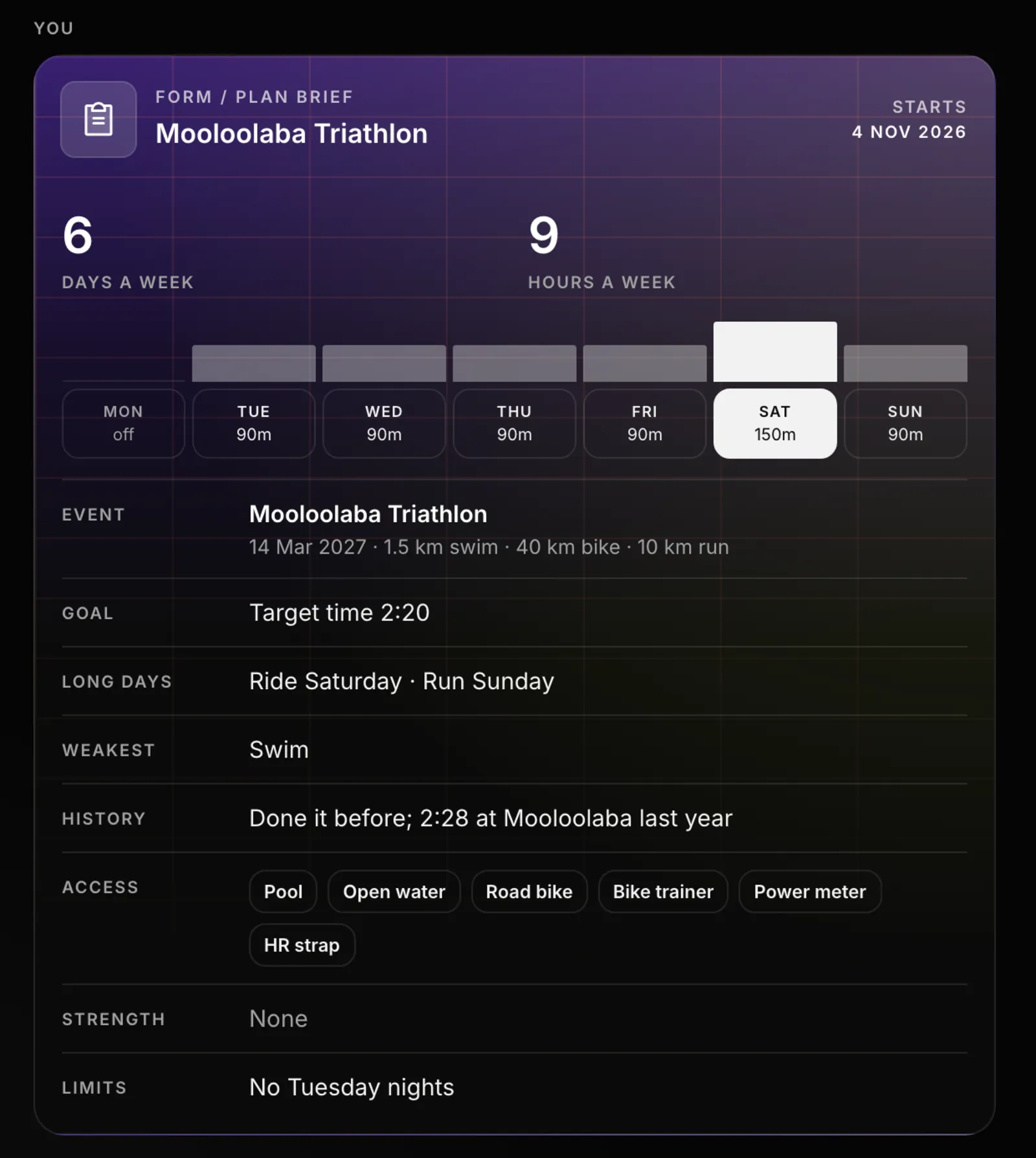
- Your week. Tap a day to cycle it through Off, Short, Normal and Long. Form works the minutes for each day out from your hours a week, so the days always add up, and counts your days a week from the grid. It starts with Monday off and Saturday long.
- Long ride on and Long run on: the days for your long sessions. A day you turn off stops being offered.
- Hours a week: 1 to 40, in half hours. It starts on 8, so check it.
- Event: this chat’s race card, then your upcoming saved races, or No specific event. A race is never chosen just because it is the next one, so change it if the default is wrong. A race card you have not added yet is labelled “not saved yet”.
- Goal: Finish comfortably, Target time (with a box for the time) or Podium or qualify.
- Weakest sport: for an event with more than one sport.
- Racing this distance: First time at this distance, or Done it before, with a box for your last result.
- Access and gear: Pool, Open water, Road bike, Bike trainer, Power meter and HR strap.
- Strength: tick “Include strength training sessions”, then At a gym or At home. It starts ticked only if you logged a gym session in the last four weeks.
- Work around (such as “Rest day Fridays, no Tuesday nights”) and Injuries or niggles: free text.
- Two sessions in a day are fine, and, for an event more than about six months away, Start with two easy weeks.
The form fits the event. For a marathon it only asks about running; for a long swim, the day of your longest swim; for a gran fondo, the ride. An event it cannot place, or no event, gets the triathlon form.
Build the plan sends all of it as one message, and the button reads “Building the plan…”. Your answers then show in the chat as a Plan brief card.
How the coach builds the sessions
- Sessions come from Form’s own workout library (the same rides as the trainer, plus runs, swims and gym routines), sized to your thresholds and recent training. Browse workouts in the Workout library shows them.
- A session runs about an hour: runs at least 40 minutes, rides 60 and swims 40, a long run 60 and a long ride 90. Recovery, taper and race weeks can run shorter. If your week cannot hold its sessions at those lengths, you get fewer sessions, not shorter ones, and a long session that cannot reach its length is written as an ordinary easy one.
- Weekly time starts near what you have actually trained lately and builds from there, never past the hours you gave. If a week comes out well under what you asked for, the coach says so. If you train more than Form shows, tell it and it builds higher.
- Hard sessions are counted across all your sports together, two or three a week in total. The taper is the last two weeks.
- Your training method and periodisation from your profile shape the weeks, including Reverse (which needs a race date) and Blocks. See “Choose a training method”.
- A threshold Form does not have becomes an effort (RPE) target, never an invented number. Easy targets come from an estimate of your first threshold unless you give the coach a value from a lab or field test.
Review the draft
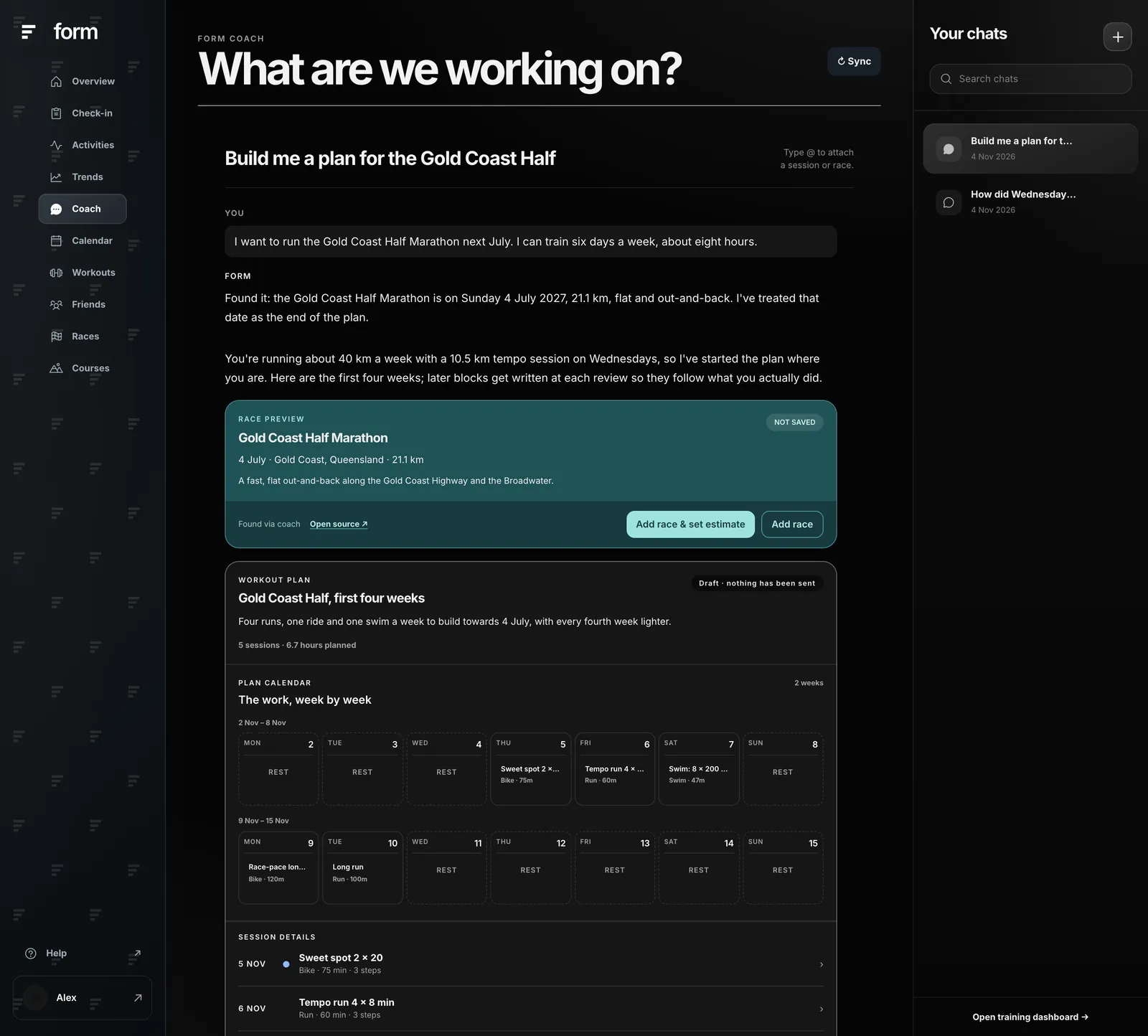
- The plan card shows the number of sessions, hours planned, “The work, week by week” (empty days read Rest), and each session with its steps. Open a session to see warm-up, intervals, recoveries and targets in pace, power, heart rate or RPE.
- The card is marked “Draft · nothing has been sent”.
- Every step has a time or a distance, so your watch can run it. Repeats such as 4 × 20 second strides are written as repeats, not as notes.
- Your days per week are enforced: no Monday-to-Sunday week has sessions on more days than you said, gym sessions included.
- A newer draft in the same chat replaces the earlier unapproved one. The older card then reads “Replaced by a newer draft”.
- Ask for changes in the chat (“make Thursday easier”, “swap the long ride to Sunday”). The coach redrafts.
A race card in the chat has Add race & set estimate as well as Add race: the first also saves an estimated finish time worked out from your current numbers, which you can change later on the race’s plan. The race planner article covers estimates.
You will not see the coach correct itself. If part of a draft does not pass Form’s checks, it fixes just those sessions before the card appears, and the card shows the plan so far while a long plan is still being written.
Short plans and long plans
A race six weeks away or less is one plan, written to race day. A plan that runs longer than six weeks, or to a race further out, is written as a season outline plus one block at a time, so each new block is based on what you actually did. The card then reads “Block 1 of 9” and the button “Approve block 1 & send”. See “Seasons, blocks and weekly check-ins”.
Approve
When you are happy, press Approve & send to Garmin (or to Intervals, whichever is your training source). The sessions go to that calendar, and from there to your watch or bike computer.
- Garmin. Sending runs in the background and the card shows progress (“Sending to Garmin · 12 of 28”), then “On your Garmin calendar”. Pool swims go as pool swims with targets in text. Open-water swims go as timed workouts, because Garmin has no open-water workouts, and the card says so. If Garmin does not accept a session, the card names it.
- Intervals.icu. The card says how many planned sessions were sent.
- Gym sessions go to your Form calendar and the Form app. Intervals.icu has no strength workouts.
After approving
There is no separate Plans page. An approved plan is on the Calendar, with every other session, and you change it there.
- Open a planned session to edit its steps, move it or remove it. Each save resends the whole plan to your Garmin or Intervals calendar.
- A session can be moved to today or later, not into the past. A session you have already done is a record and cannot be edited.
- Removing the last session of a plan offers to delete the plan.
- The Current plan tab lists the plan’s sessions day by day. Press the plan under Saved plans (or Show plan in a session’s panel) for Edit with Coach and Delete plan. Edit with Coach opens a new chat that changes this plan: the coach proposes changes from today onward, and nothing changes until you press Apply.
If something does not work
- The coach asks the same questions again. Answer them in one message, or use the form: a plan needs your days and hours.
- The draft has fewer hours than you asked for. The coach starts near what Form has seen you train. Tell it what you really do and it rebuilds.
- A card says Garmin stopped part way. Edit the plan on the Calendar and save to send it again.
- The plan does not match your method. See “Choose a training method” for how the coach uses your method and hours.
Common questions
- Does Form send workouts to my watch automatically?
- No. A plan stays a draft until you press Approve & send. That sends it to your Garmin or Intervals.icu calendar, and your watch picks it up from there.
- Can I change a session after approving?
- Yes. Open it on the Calendar to edit its steps, move it or remove it. Each save resends the plan to your calendar.
- Why is my plan only a few weeks long?
- Plans to a race more than six weeks away are written one block at a time. The outline runs to race day, and the next block is written at a review, from what you actually did.
- What if I say six days and the coach schedules seven?
- It should not. Form refuses any week with more training days than you said, so the draft comes back with a rest day. If you see seven, tell the coach which day is your rest day.
- Why are my sessions longer than I expected?
- Form keeps sessions to about an hour or more (runs 40 minutes, rides 60, swims 40) so they are worth doing. On a short week you get fewer sessions rather than many short ones.