
Your data: what Form keeps
What is stored, how to review the coach’s memory, disconnect a source and delete your account.
Updated 4 November 2026
This article says what Form keeps, where you review or remove it, and what each disconnect and deletion does. It is a plain-language guide, not the policy. The policy is at formendurance.com/privacy, and where the two differ the policy is the one that counts. Questions and data requests go to privacy@formendurance.com.
What Form holds
- Your account: name, email address and a hashed password, plus your profile picture if you add one.
- Your profile: sports, thresholds (FTP, run pace, threshold heart rate, swim speed), weight, training method and season settings, your activity photo choice, and your sex and birth year if you add them.
- Training data from your source: sessions with their detail (heart rate, power, GPS, splits), your recovery data (sleep, HRV, resting heart rate, weight) and, with Garmin, the richer health data you allow in Garmin Connect, such as stress, Body Battery, pulse ox, breathing, skin temperature and blood pressure.
- Files: the original file of any session you upload or record in Form, and attachments you add to coach messages.
- Coaching content: your conversations, saved races, plans and drafts, seasons, daily check-ins and gym logs.
- Memory notes, if you turned memory on.
- Technical logs that keep the service secure and running.
Your Intervals.icu key and your Garmin and Strava connections are stored encrypted on Form’s server. Garmin health records are encrypted at rest. Your browser and phone never call Intervals.icu, Garmin, Strava or OpenAI with your credentials. Everything goes through Form’s server. Form is hosted on Amazon Web Services.
What the coach and OpenAI see
- The coach is an AI that runs on OpenAI. When you ask a question, Form sends OpenAI your message, the recent conversation (the last 16 messages), your athlete profile (with your sex and birth year, if you added them) and the training data the coach looks up to answer, such as sessions, recovery and, with Garmin, a day’s health summary. Form asks OpenAI not to store the conversation.
- It reads Garmin data only because you ticked the consent box when you connected, and Form does not use your Garmin data to train, test or evaluate AI models.
- The coach does not diagnose injuries or prescribe medication.
- Form does not sell your data and does not share it with advertisers.
Where to find your controls
Profile & settings
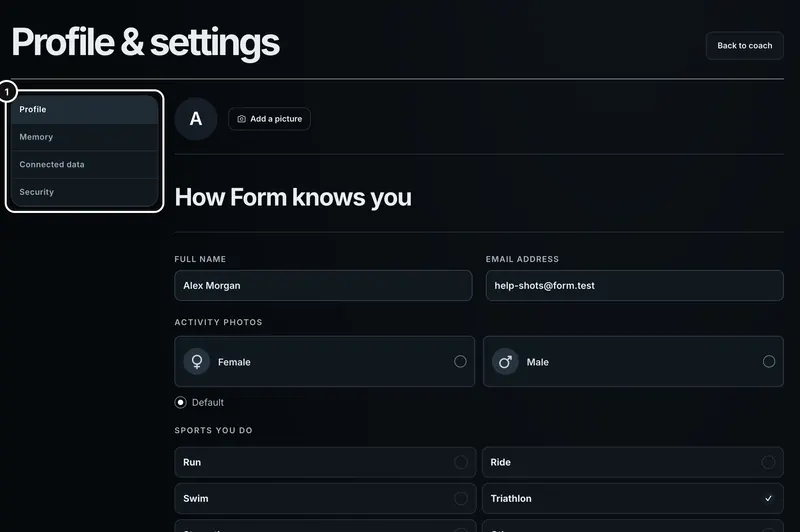
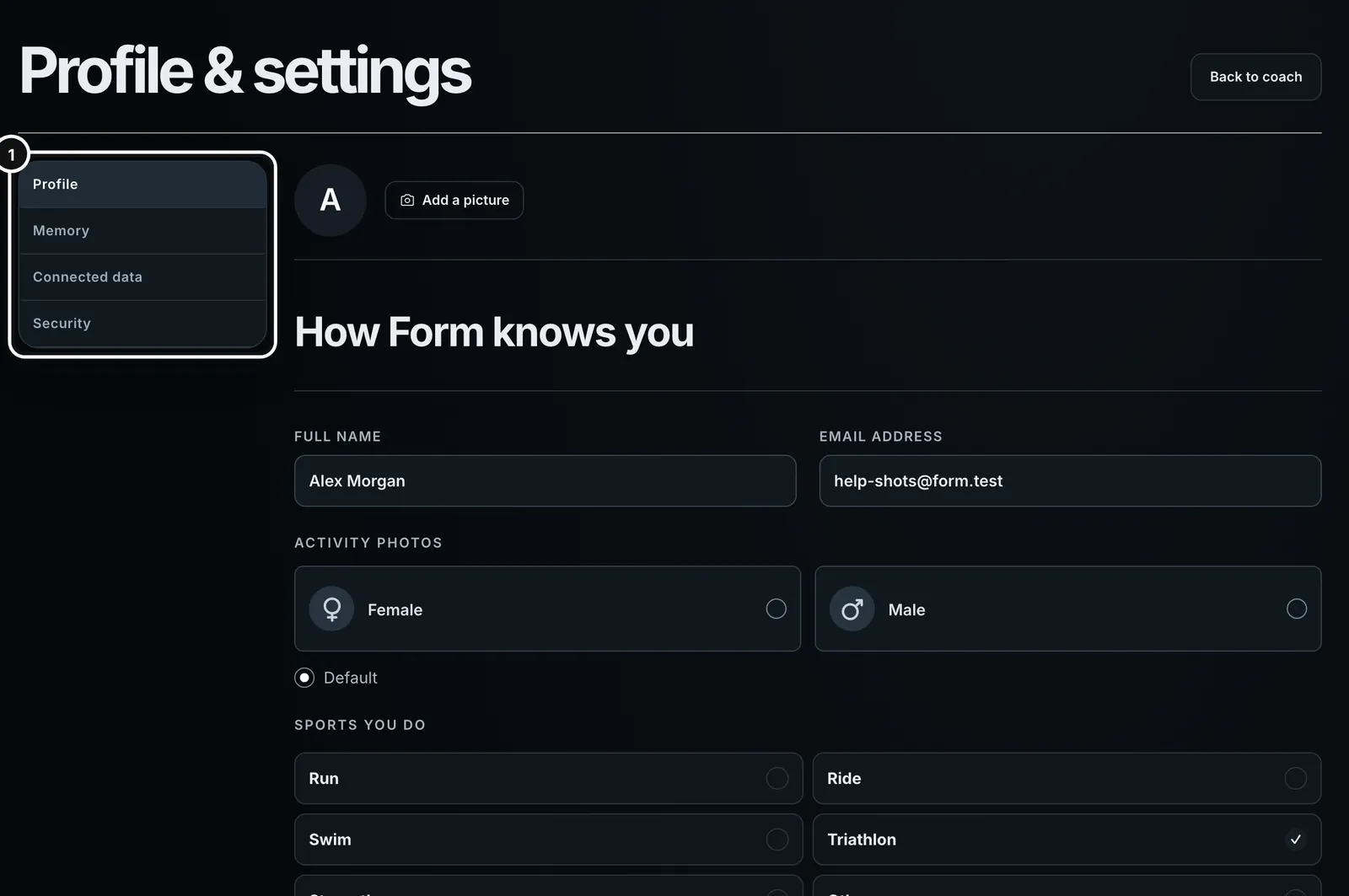
1Open Profile & settings from your name at the bottom of the sidebar. The sections are listed on the left, and Profile opens first.
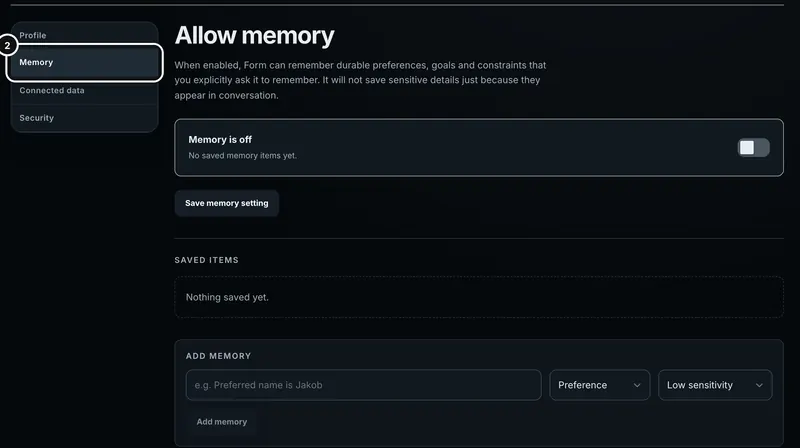
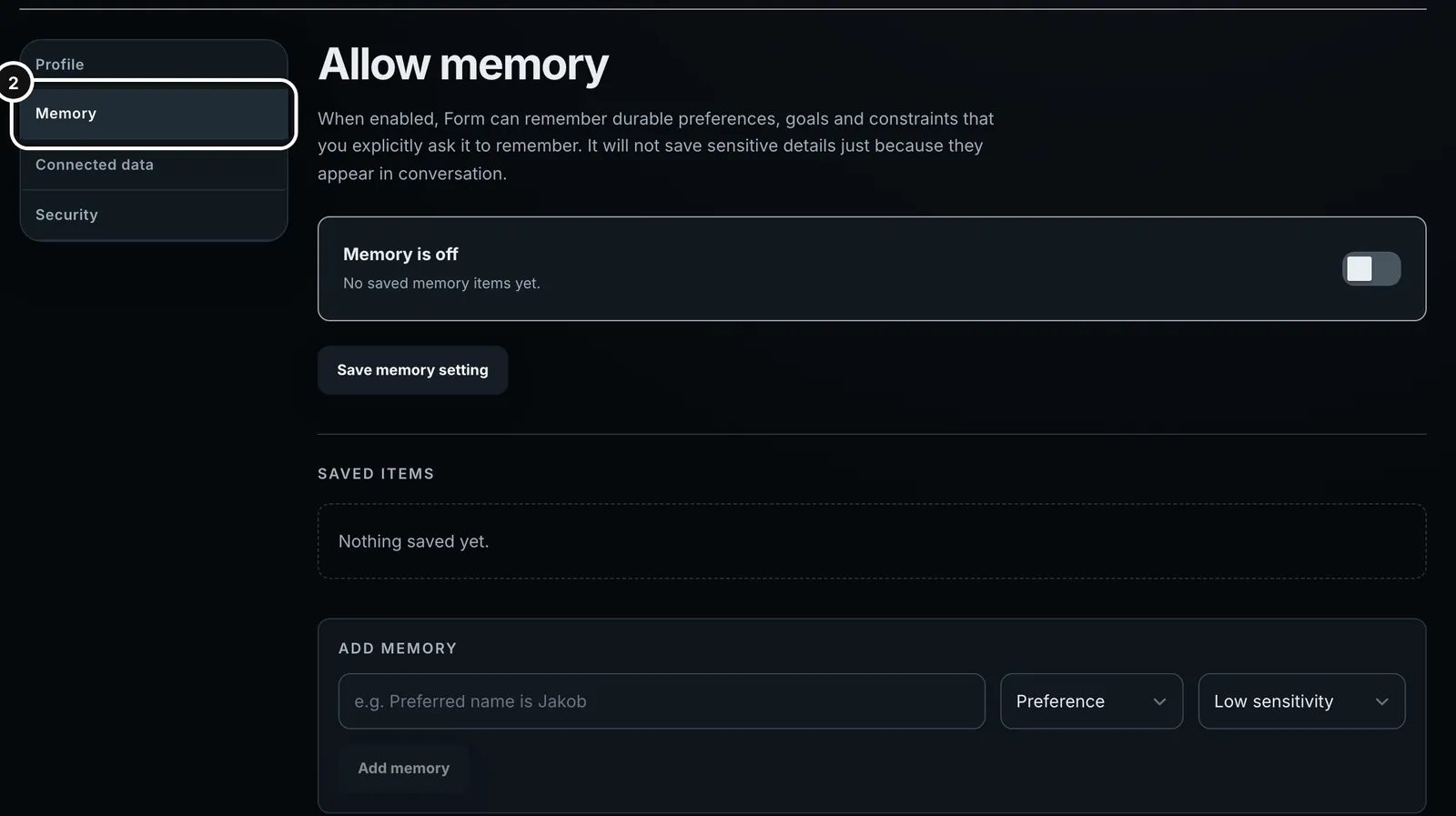
2Memory shows whether memory is on, everything the coach remembers under Saved items, and Add memory.
Your profile
Profile is where Form keeps what it knows about you. The fields are saved with Save changes at the bottom of the section; a picture is saved as soon as you add it.
- Full name, email address and profile picture (Add a picture). Friends see your name and picture.
- Activity photos: Female, Male or Default. This only picks the athlete shown in the sport photos on Overview, session pages and Trends. It is never passed to the coach and is not treated as your sex.
- Sports you do, training method, season structure, virtual riding (your bike and rider weight) and your training thresholds. The coach uses all of these.
- For your coach: sex (Female, Male or Prefer not to say) and birth year. Both are optional and blank unless you add them.
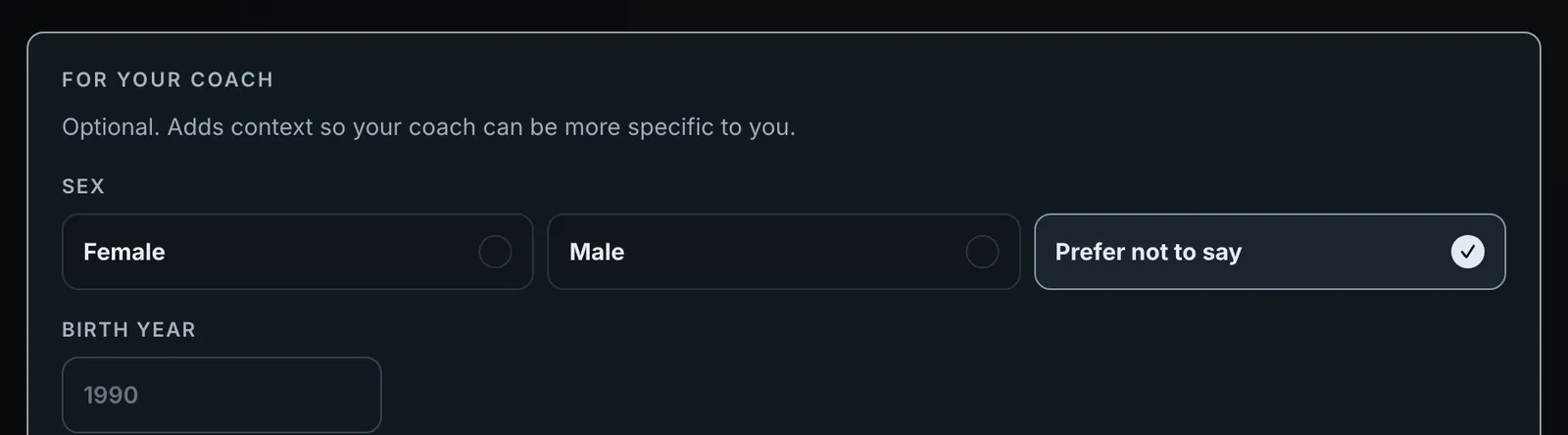
If you add them, the coach is told your sex and the age you turn this year, uses them quietly and mentions them only when they change the advice. Your measured data always outranks any sex or age norm, so they never lower your thresholds, targets or goals. Left blank, the coach is told not to guess them. They live on your profile, not in Memory, and friends never see them. Choosing Prefer not to say, or clearing the year, and saving removes them. The Form app has the same choice under For your coach in your profile.
Review the coach’s memory
- Memory is off until you turn it on. When it is on, Form can remember durable preferences, goals and constraints that you explicitly ask it to remember. It does not save sensitive details just because they come up in conversation.
- If you tell the coach to remember something while memory is off, it asks “Turn on memory?” and nothing is saved until you agree.
- Saved items lists every note. Each shows its category and whether you confirmed it. Edit changes the text, category or sensitivity. Delete removes it after a confirmation (“Delete this memory? Form will no longer use it.”), and the coach no longer uses it.
- Add memory lets you write a note yourself, with a category (Preference, Goal, Constraint, Background or Other) and a sensitivity (Low, Medium or High).
- The goal you tick “Remember this for my coach” for in setup is stored here too.
- The switch is at the right of the Memory is off (or Memory is on) box. Press Save memory setting after you flip it.
- In the Form app, the Memory card in your profile does the same.
Disconnect a source
Everything below is under Profile → Connected data.
- Garmin: Disconnect withdraws your consent. It deletes every session, recovery row, health record and file Garmin sent, takes Form’s workouts off your Garmin calendar, and tells Garmin. Your own uploads and recordings stay, and so does history you imported from your Garmin export.
- Intervals.icu: sessions and recovery data it already brought in stay in Form, and are removed only when you delete the session or the account. Revoke the key in Intervals.icu if you want to end its access.
- Strava: Form only sends to Strava, one session at a time when you press Send, and never reads from it. The Strava card there has a Disconnect button. Disconnecting stops future sends and doesn’t remove sessions already on Strava.
Delete things
- A session: open it and choose Delete session. Sessions synced from Intervals.icu can’t be deleted here because they would return on the next sync. Delete them in Intervals.icu. Deleting one leg of an uploaded race deletes the whole race.
- A conversation: delete it from the chat history in Coach. This removes the conversation and all its messages and can’t be undone.
- A saved race: delete it from the Races page.
- History imported from your Garmin export: Remove imported history on the Garmin history page (Profile → Connected data → Bring in your Garmin history) removes every session and day of health data the export brought in. Sessions Form already had stay. See Bring in your Garmin history.
Delete your account
Profile → Security → Delete my account
1Open Security. Delete account is under Change password.
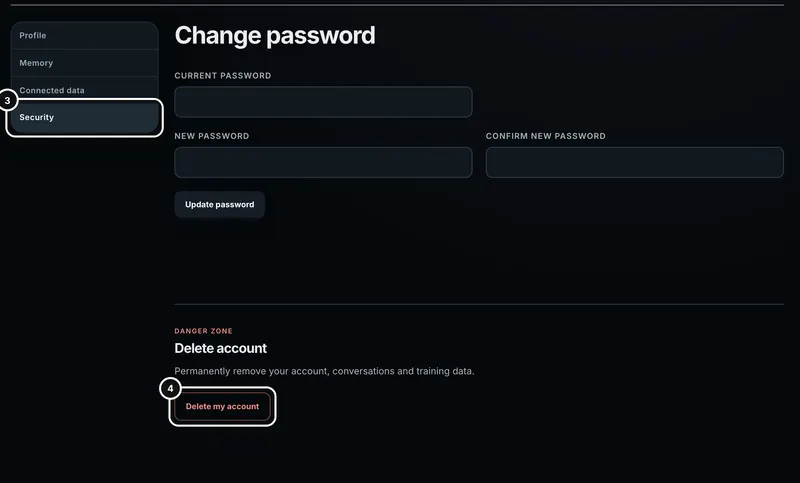
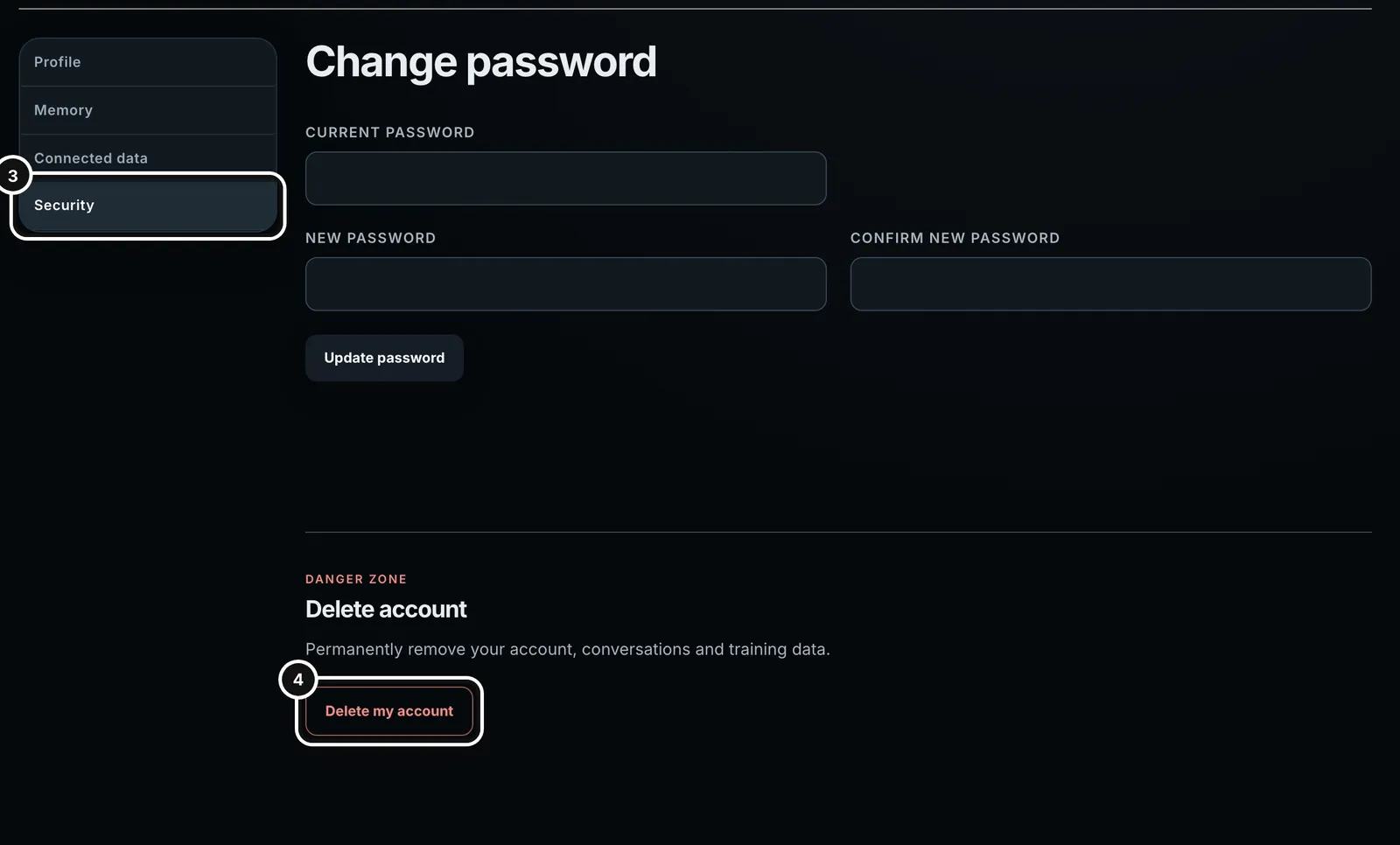
- Open Profile → Security.
- Under Delete account, press Delete my account. Nothing is deleted yet: a password box opens.
- Enter your password under “Confirm with password” and press Confirm deletion.
Form signs you out, removes your account and the data attached to it, and deletes your uploaded and recorded files. It ends Form’s access to Strava, and tells Garmin to deregister, retrying in the background if Garmin can’t be reached. Workouts already published to your Intervals.icu calendar stay there, so remove them in Intervals.icu if you don’t want them. Deletion can’t be undone. In the Form app, Delete my account is at the bottom of your profile, with the same password confirmation, and it signs out your phone.
Getting a copy of your data
There is no export button yet. Email privacy@formendurance.com to ask for access, correction, export or deletion. You can already download any single session as FIT, TCX, GPX or a splits CSV from its page.
Common questions
- Does Form sell my data?
- No. Form does not sell personal information and does not share your training history with advertisers or make it public by default.
- Can friends see my data?
- Only what you share. Friends see finished sessions in the feed with distance, time, pace or speed and set counts, never heart rate, power or load and there is a setting to turn the feed off. Live location is a separate permission you give per friend. See Friends, the feed and live tracking.
- I disconnected Garmin. Is it all gone?
- Everything Garmin sent is deleted from Form. Withdrawing consent stops future AI processing but, as the policy says, it doesn’t undo processing that already happened.
- Does the coach need my sex and birth year?
- No. Both are optional. With them, the coach can be more specific about things like recovery between hard sessions, strength work, your triathlon age group and which health warning signs to watch for. Without them, it doesn’t guess.
- Is my Intervals.icu key safe?
- It is encrypted on Form’s server and never shown again. Revoke it in Intervals.icu any time.