
Use the calendar
See done and planned sessions, edit them, and manage your plan on the Current plan tab.
Updated 4 November 2026
The calendar is where your training lives: sessions you have done, sessions your saved plans call for, workouts you put on a day from your library, and your races. There is no separate Plans page. You edit a plan where its sessions sit, and each change is sent on to your Garmin or Intervals.icu calendar for you. The page has two tabs: Calendar, the month, and Current plan, your plan’s sessions as a list.
Where to find it
Where to find it
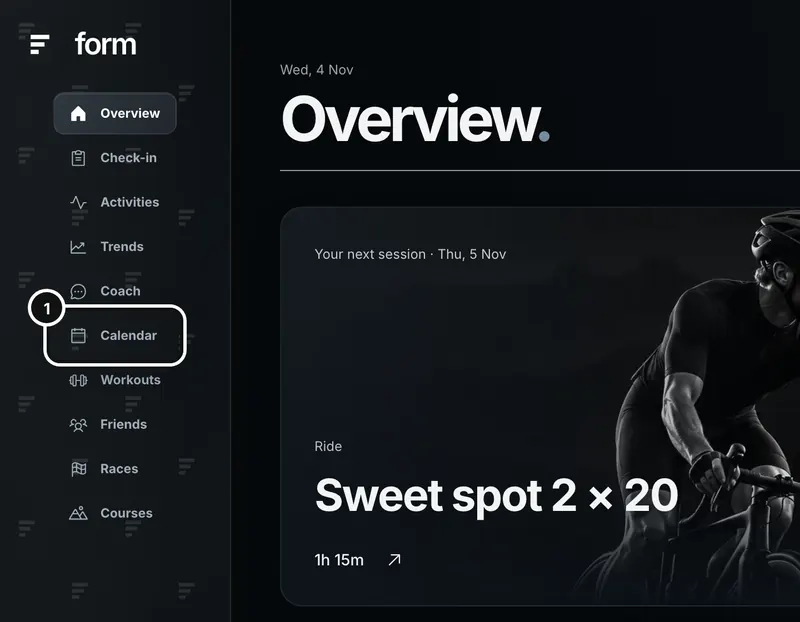
1Click Calendar in the left sidebar.
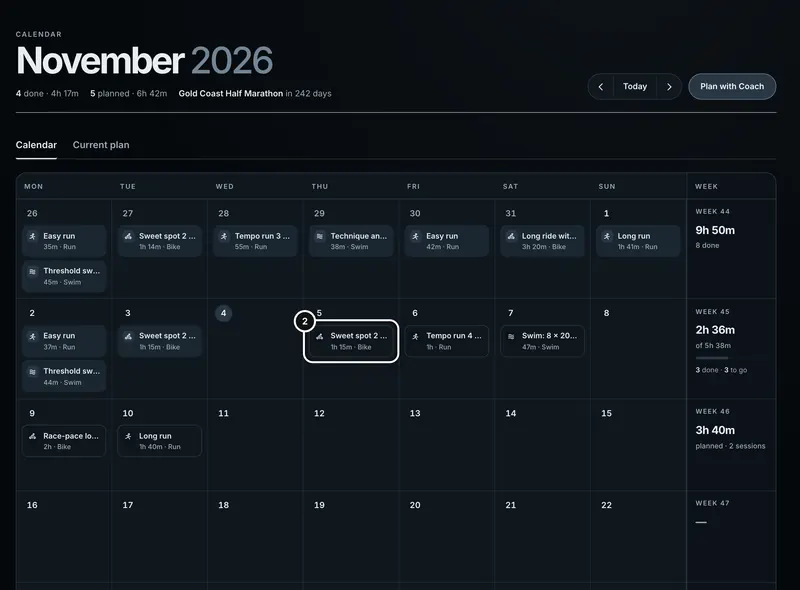
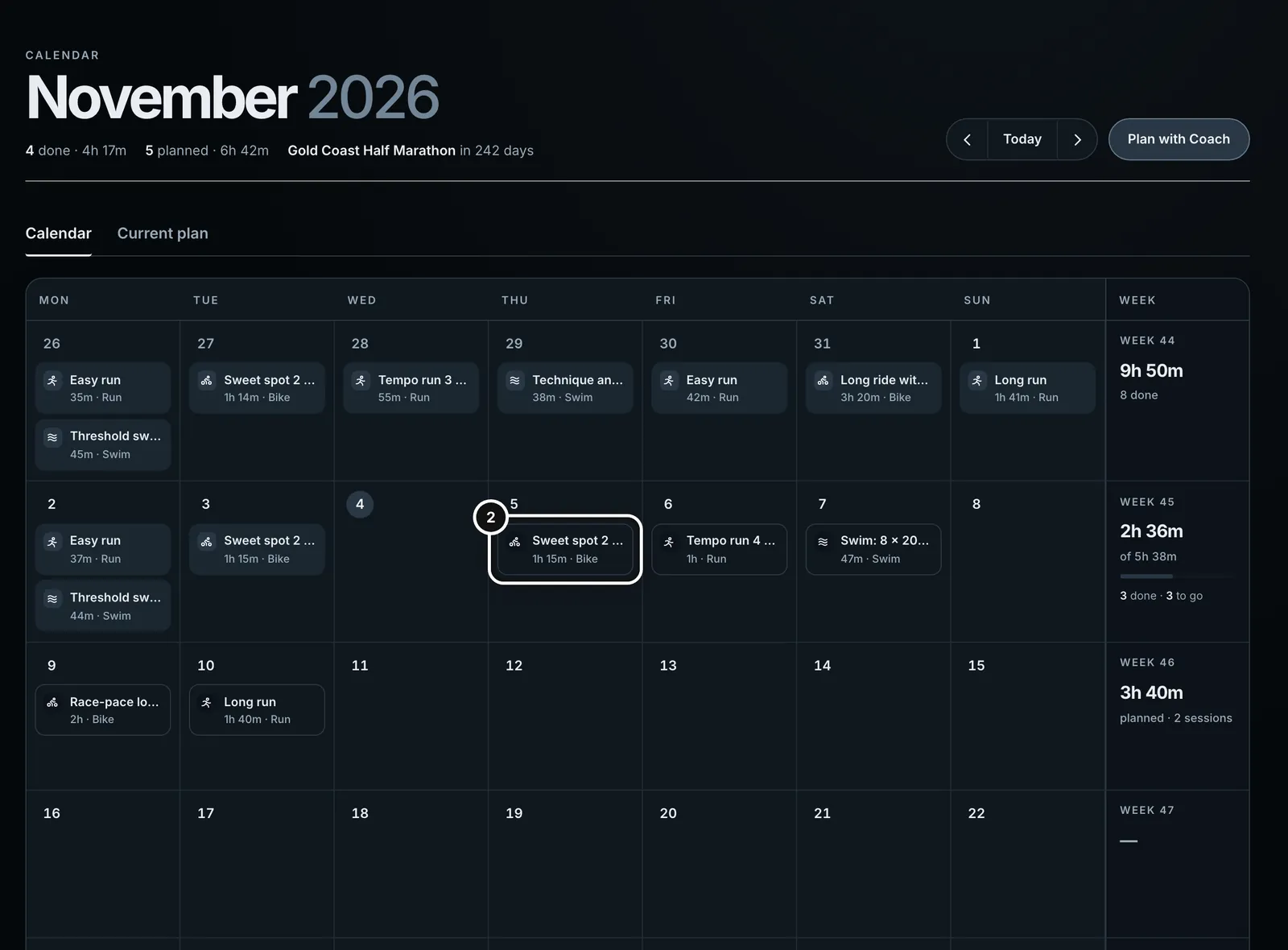
2Find a planned session, drawn as an outlined box. Click it.
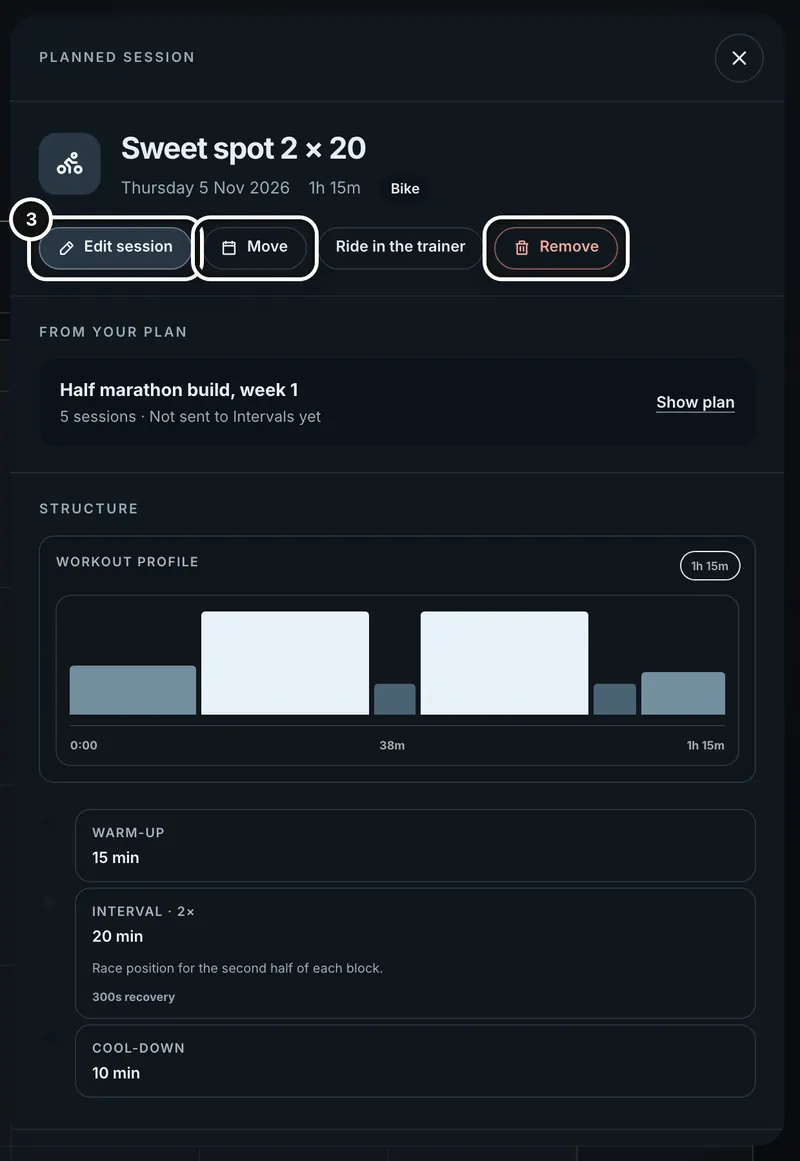
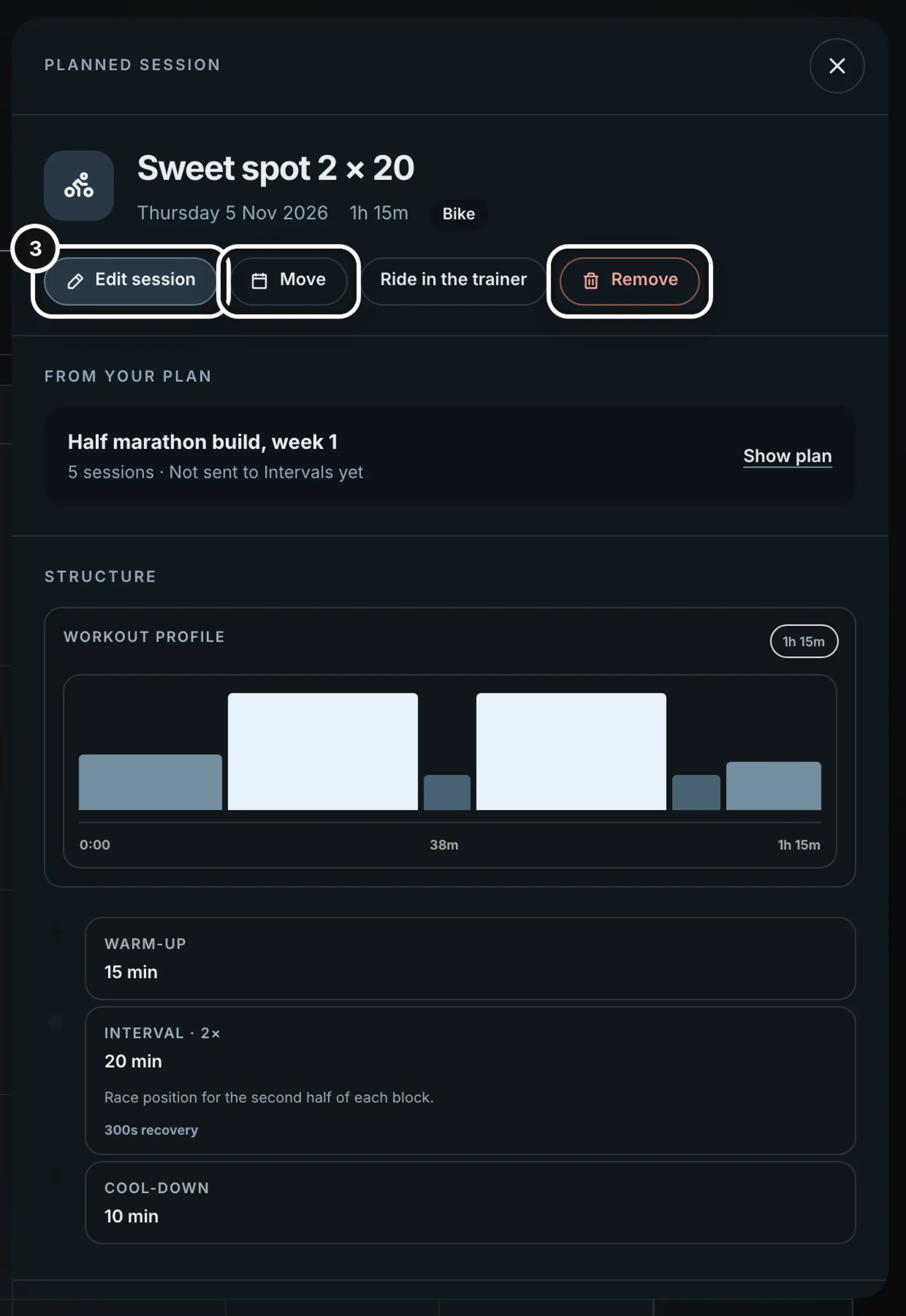
3A panel opens on the right with the session’s profile and steps, and the buttons Edit session, Move, Ride in the trainer and Remove.
Reading the month
The header shows the month, how many sessions you have done and have still planned in it (with their hours), and a countdown to your next race. Use the arrows to change month and Today to come back. “Plan with Coach” opens a new chat with “Build me a plan for my upcoming event:” ready in the message box.
- Planned: an outlined box. The icon tells the sport: run, bike or swim.
- Done: a filled box. A planned session you completed shows on the day you actually did it.
- Missed: a dashed box. A planned session whose day has passed with nothing matched to it.
- Race: a flag on the race’s day. Click it to open Races.
- Week: the right-hand column shows the week number and its total time. With sessions both done and still to go it shows done time against the whole week, a bar, and “3 done · 3 to go”. A week with nothing in it shows a dash.
A day with more than four sessions shows “+ more”. A legend under the month names the four kinds. On a phone-width screen the month is a grid of dots, one per session; tap a day to see its list underneath, with an Add button for days from today on.
Open, edit, move or remove a session
- Click the session. The panel shows its name, date, length and sport, which plan it came from, where that plan has been sent, and its structure.
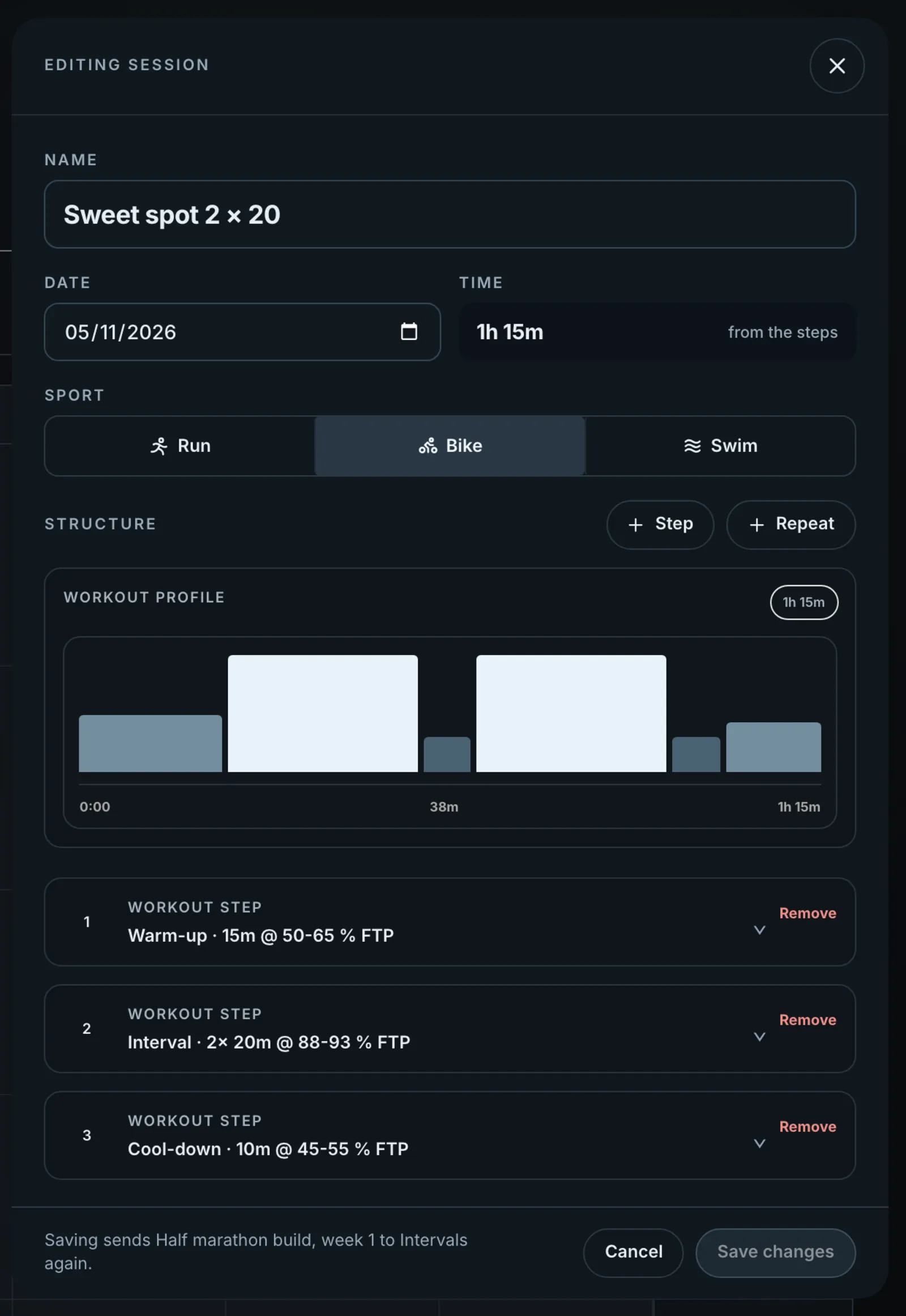
- Edit session opens the editor: change the name, the date, the sport (Run, Bike or Swim), and the steps. “+ Step” and “+ Repeat” add steps, and each step can be opened or removed. The time at the top is worked out from the steps. A line at the bottom says, for example, “Saving sends Half marathon build, week 1 to Intervals again.”
- Save changes. The button stays off until something has changed. Cancel, or closing the panel with unsaved changes, asks whether to discard.
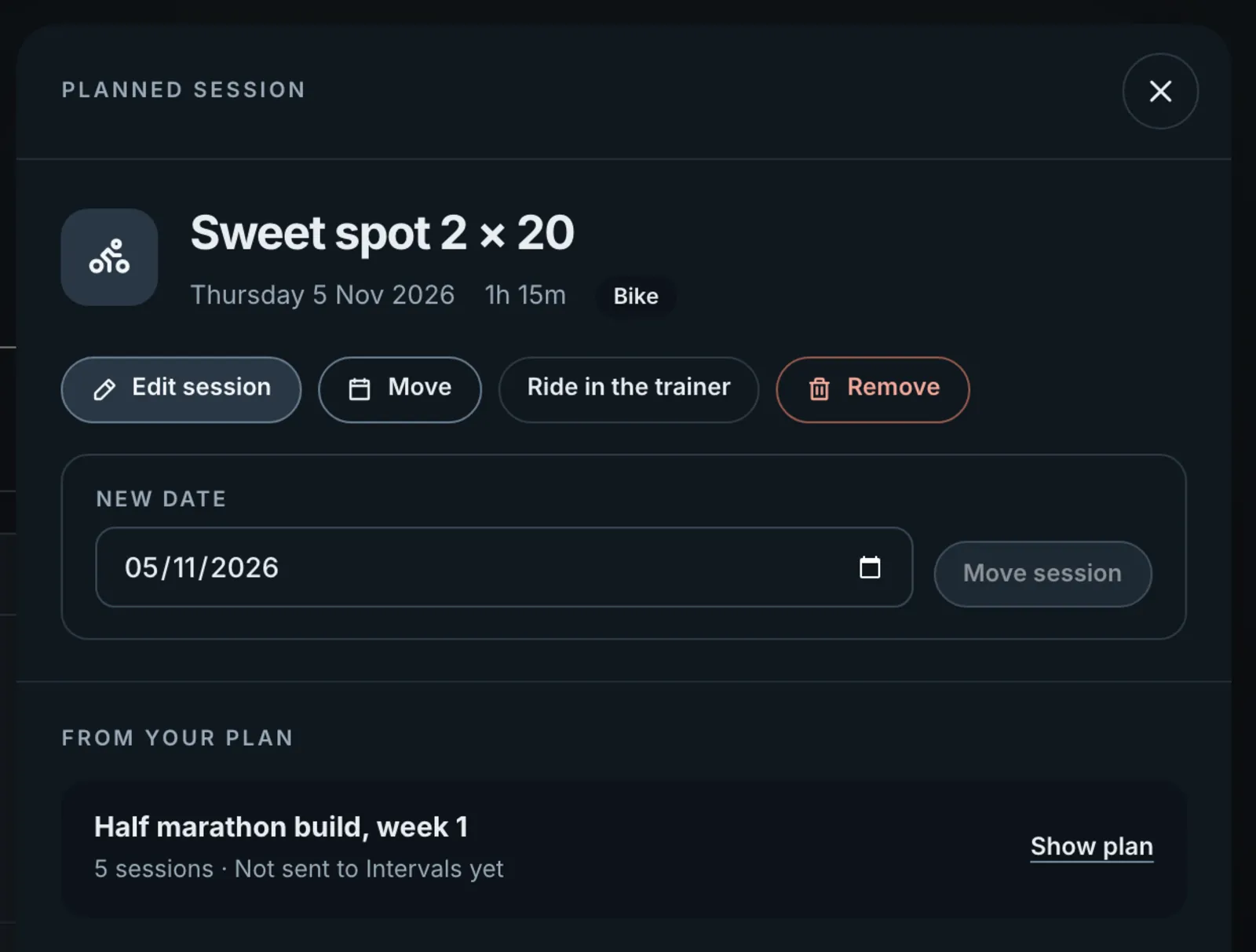
- Move opens a New date field and a Move session button. A session can only move to today or later.
- Remove takes it off the calendar and off Garmin or Intervals.icu after you confirm. The rest of the plan stays. If it is the plan’s last session, Remove offers to delete the whole plan.
- For a ride, Ride in the trainer opens it on the trainer. Show plan opens the plan it belongs to.
On a laptop you can also drag a planned session to another day from today on. Done sessions are a record of what happened: you can open one to see what you recorded, but not edit or move it. To see the full activity, use the arrow at the top of its panel.
Add a workout to a day
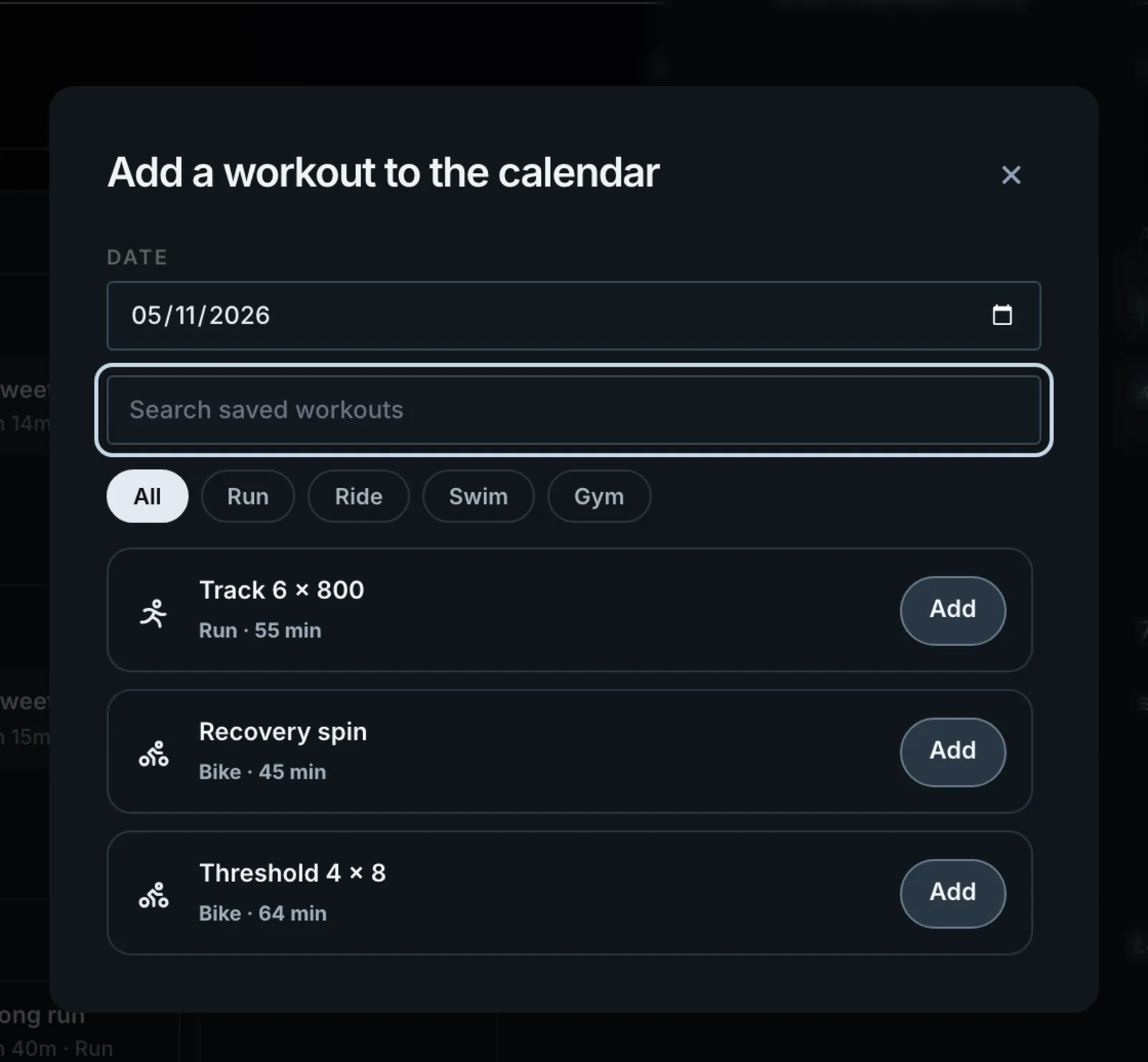
The window lists your saved workouts and gym routines. The workout is copied onto that day and the original stays in your library. It follows the same rules as a plan session: it goes to your Garmin calendar, or to Intervals.icu if that is your source, and moving or removing it on the calendar does the same there. Removing it takes it off the calendar only. The plus and right-click work on days from today on, and the date can be set from tomorrow. A workout with % FTP targets needs your FTP set in Profile first. See “Build and save workouts”.
The Current plan tab
Current plan lists the sessions of your plan day by day, each with its length and sport, and “done” beside the ones you have done. Click one to open its panel. It shows your plan with sessions from today on (or the plan you picked), and under Saved plans every plan you have approved, with its number of sessions and dates. Press one to pick it; Show plan in a session’s panel does the same.
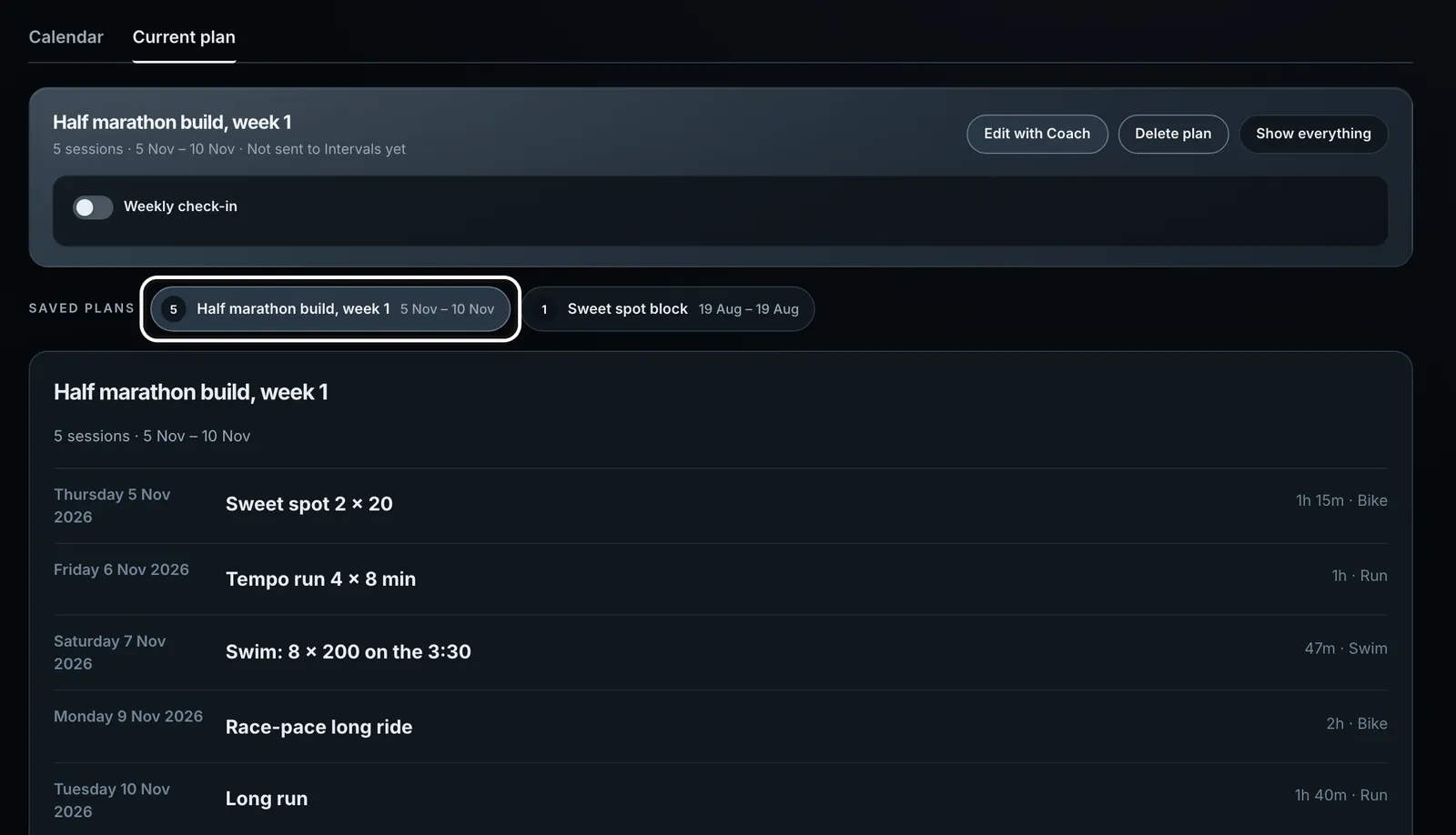
- Edit with Coach opens the plan in a new coach chat, so you can ask for bigger changes in words. The coach proposes changes from today onward, and nothing changes until you press Apply.
- Delete plan removes all its sessions from the calendar and from Garmin or Intervals.icu after you confirm. Sessions you have already done stay in your training, and it can’t be undone.
- Show everything lets go of the plan. While a plan is picked, the Calendar tab fades every session that isn’t in it.
- Weekly check-in turns on a short weekly review with the coach for this plan. See “Do a weekly check-in”.
- Below the sessions, Check-ins lists the weekly check-ins and block reviews done for the plan, newest first: the date, the start of the coach’s reply, and “Applied to plan” or “Proposed · not applied”. Click one to open that chat.
Only plans you have approved appear here. A draft stays in the coach chat that wrote it until you approve it there. If you are following a season toward a race, a Season band at the top of the tab shows your week, block and phase, when the next block review opens, and switches for your weekly check-in and its reminders. See “Seasons, blocks and weekly check-ins”.
What a save sends
Garmin and Intervals.icu both take a plan as a whole, so saving one session sends the whole plan again. The panel and the plan bar tell you where it is: “Not sent to Intervals yet”, “On Intervals”, “Sending to Garmin · 3 of 5” or “On your Garmin calendar · 5 workouts”. The page checks again every few seconds while Garmin is still being sent, and a second edit replaces the first rather than mixing with it. Form never says it is on Garmin before Garmin has it.
Garmin gets runs, rides and swims from today on. The plan line names anything it left out (“1 gym not sent to Garmin”), anything Garmin refused, and open-water swims, which go as timed workouts because Garmin has no open-water swim workout. If Garmin stops part way the line says so; saving the plan again sends it again.
When something goes wrong
- A message at the bottom of the screen says what failed, for example “Reconnect Intervals.icu before moving this workout.” The session stays where it was.
- A session you moved can change position in the plan, because plans are kept in date order. The panel reopens on the right one.
- A planned session that never gets a recording stays as Missed.
- An empty calendar says “Nothing on the calendar yet”: ask the coach for a plan and approve it, or add a workout from your library. With no plan, the Current plan tab says “No plan yet”.
What happens next
Done sessions feed your Activities and Trends, and planned sessions are what the coach checks your week against. Your watch or calendar has the new version once the plan line reads “On your Garmin calendar” or “On Intervals”.
Common questions
- Why isn’t my draft plan on the calendar?
- The calendar only shows plans you have approved. A draft lives in the coach chat that wrote it. Approve it there and it appears here.
- Can I move a session to yesterday?
- No. Planned sessions can only move to today or later, because past days are a record of what happened.
- I changed one session. Why does the line say the whole plan is sending?
- Garmin and Intervals.icu both take a plan as a unit, so Form sends the whole plan again. It is quick, and the line changes once your calendar has the newest version.
- Can I drag a session on my phone?
- No. On a phone, open the session and use Move to pick a new date.
- Where did the saved plan chips above the month go?
- They are on the Current plan tab, under Saved plans. Pick a plan there to see Edit with Coach, Delete plan and its weekly check-in switch.