
Build and save workouts
Build your own workouts or start from Form’s, then ride or schedule them.
Updated 4 November 2026
The Workout library is your own collection of reusable sessions. Build a run, ride or swim step by step, start from one of Form’s ready-made workouts, or save one the coach drafted. Then ride it on the trainer, send it to your watch, or put it on any day of your calendar as many times as you like. Gym sessions live here too.
Where to find it
Where to find it
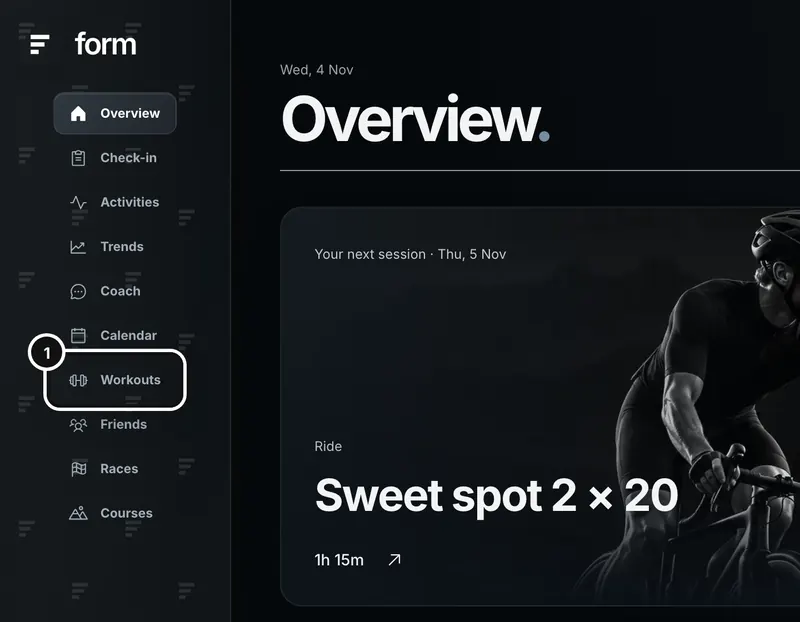
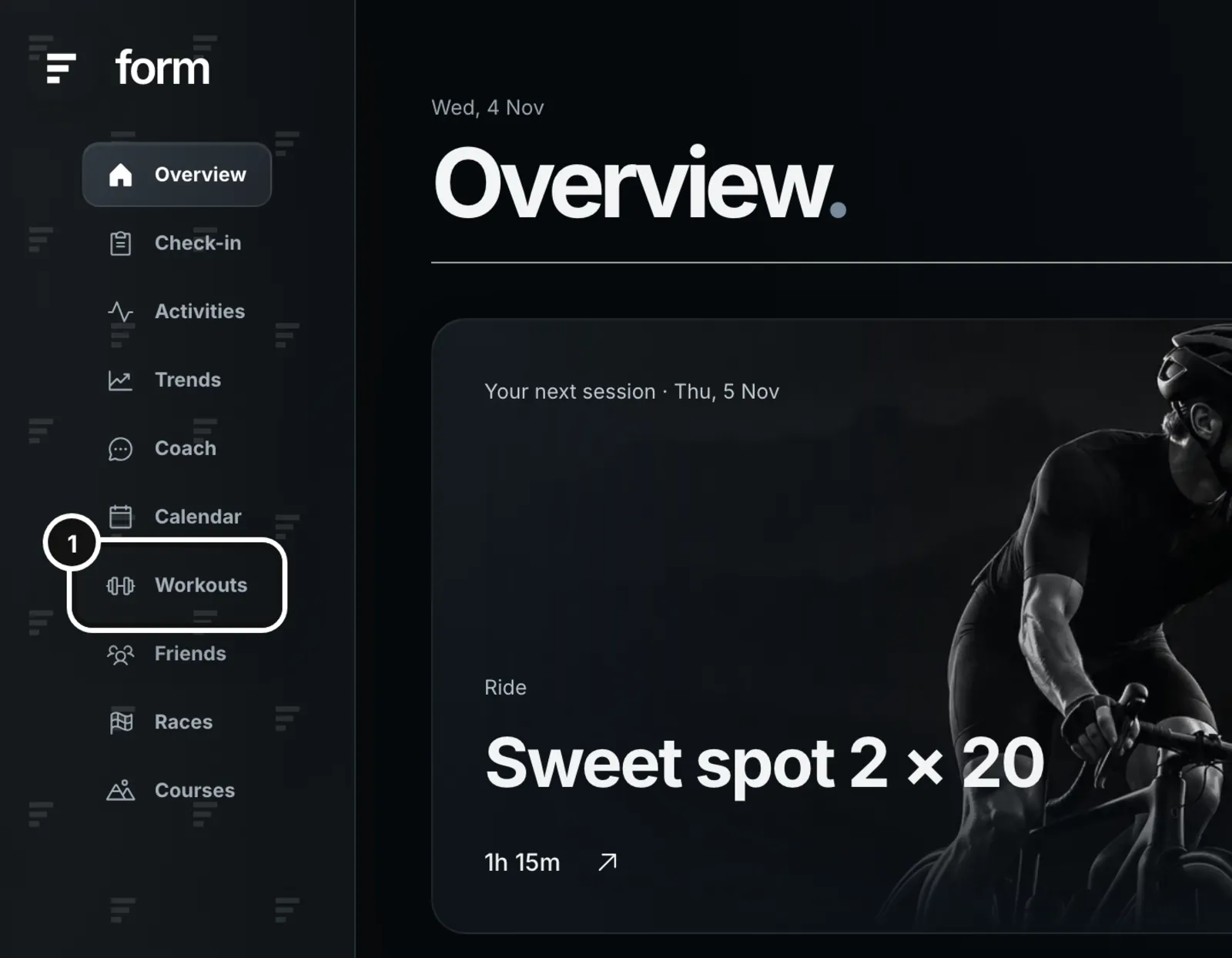
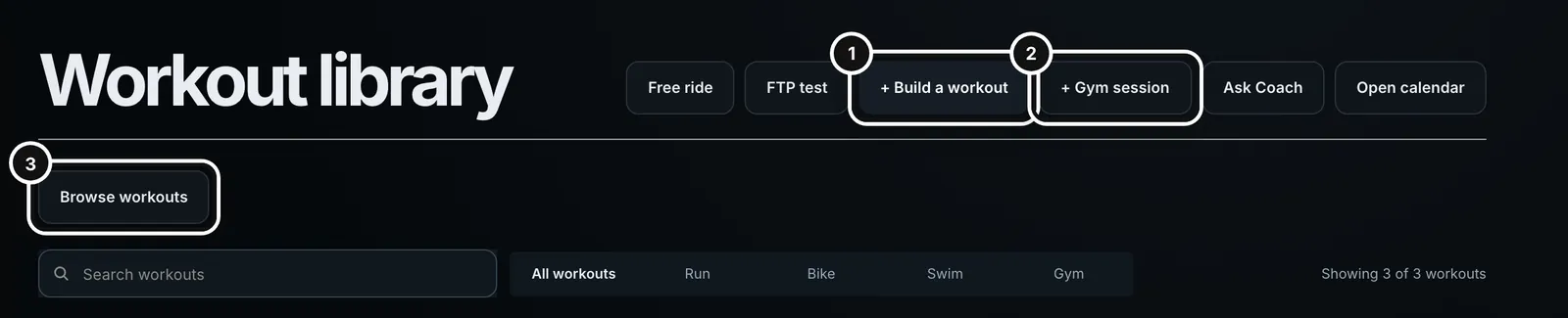
1Click Workouts in the left sidebar.
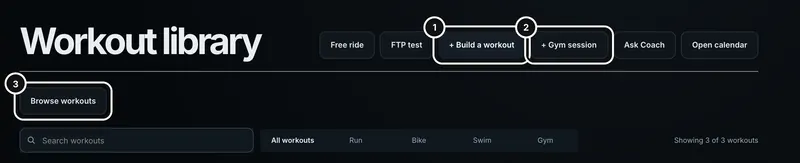
2Press + Build a workout for a run, ride or swim, + Gym session for a strength session, or Browse workouts to start from one of Form’s.
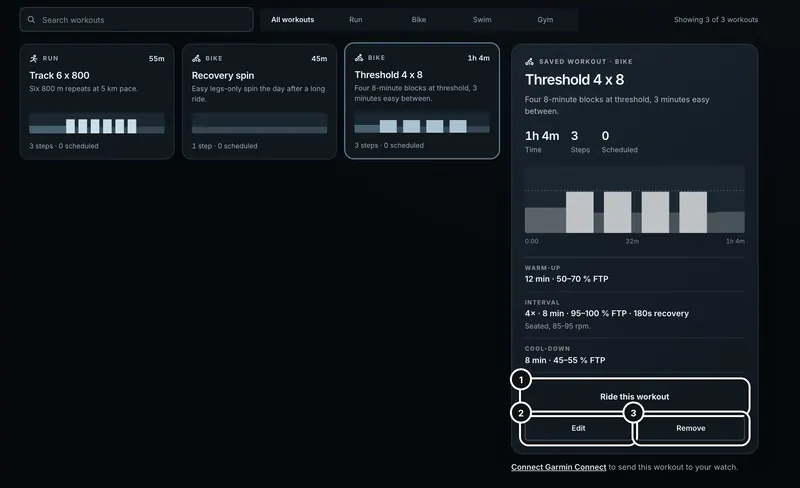
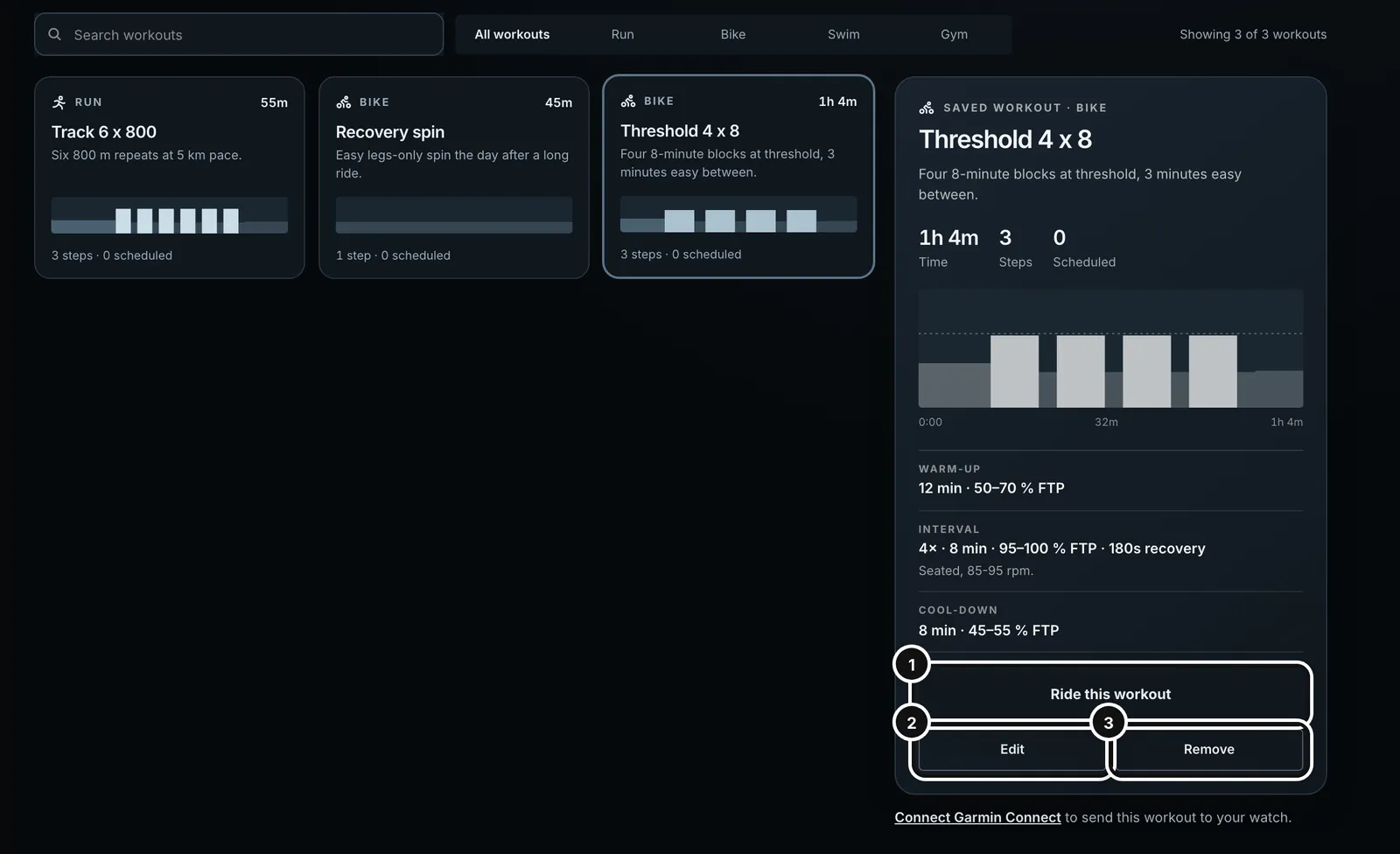
3Click a card to see its structure. The panel has Ride this workout (for rides), Edit and Remove.
Find and read a workout
Each card shows the sport, length, name, a short description, a profile of the effort, and “3 steps · 0 scheduled”. Search by name, or filter by All workouts, Run, Bike, Swim or Gym. The count says how many of your workouts the filter shows. Click a card and the panel on the right shows its length, steps, how many times it is scheduled, a larger profile, and every step with its target, with repeats grouped (“4× repeat”).
Start from one of Form’s workouts
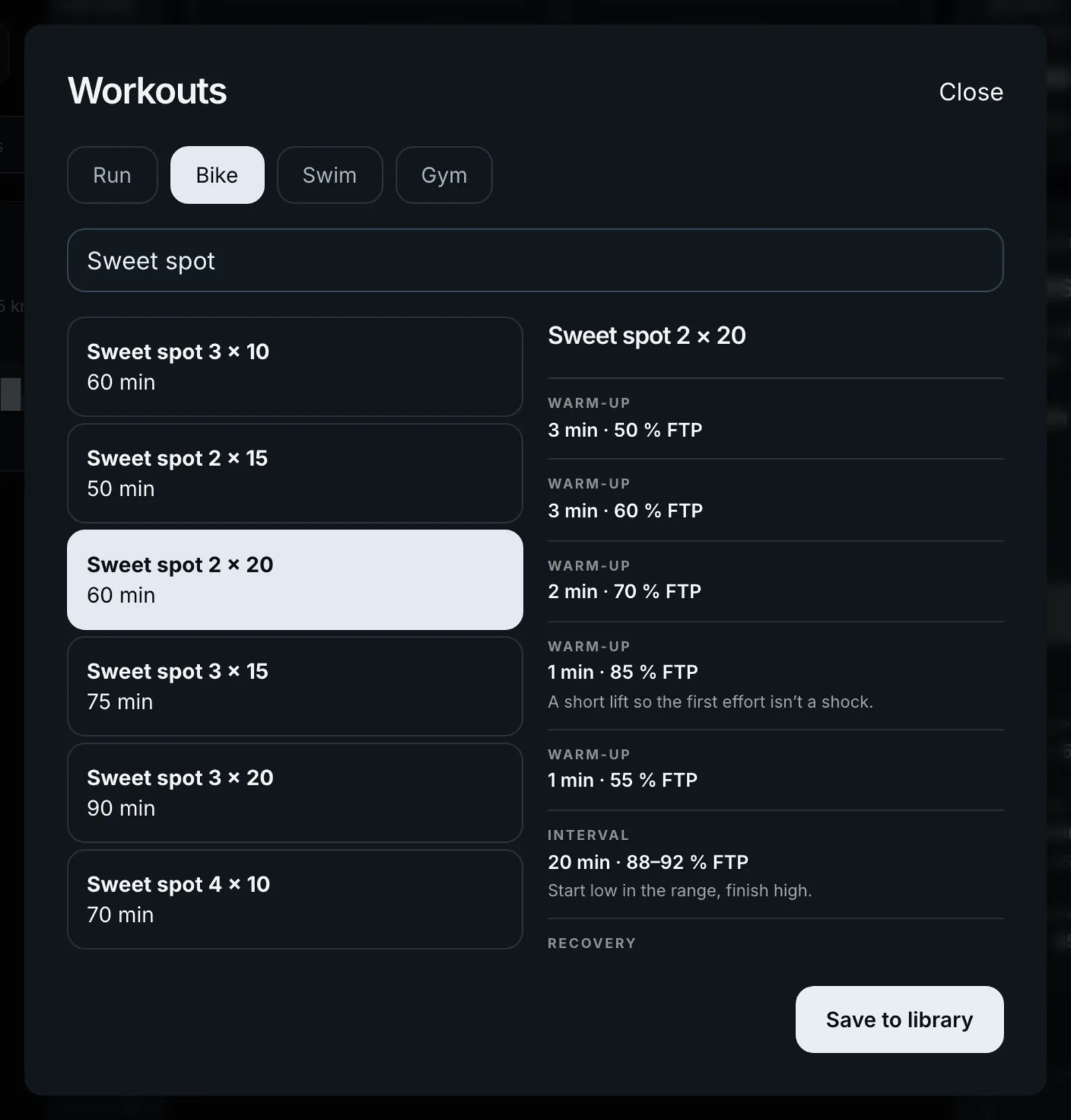
Browse workouts opens Form’s own workouts: 59 runs, 104 rides, 78 swims and 40 gym sessions. They are the same workouts the coach builds plans from, and the rides are the trainer’s ready-made library.
- Press Browse workouts. A window headed Workouts opens.
- Pick Run, Bike, Swim or Gym, and search by name if you like. Each workout shows its length.
- Click one to see its steps on the right. Targets come from your own numbers: a ride shows % FTP, or effort (RPE) if Form has no FTP for you. For a pool swim, choose a Pool length of 25 m or 50 m.
- Press Save to library to copy it into your library, where you can edit it like any other workout. A gym one becomes a gym session. Close leaves without saving.
Build a workout
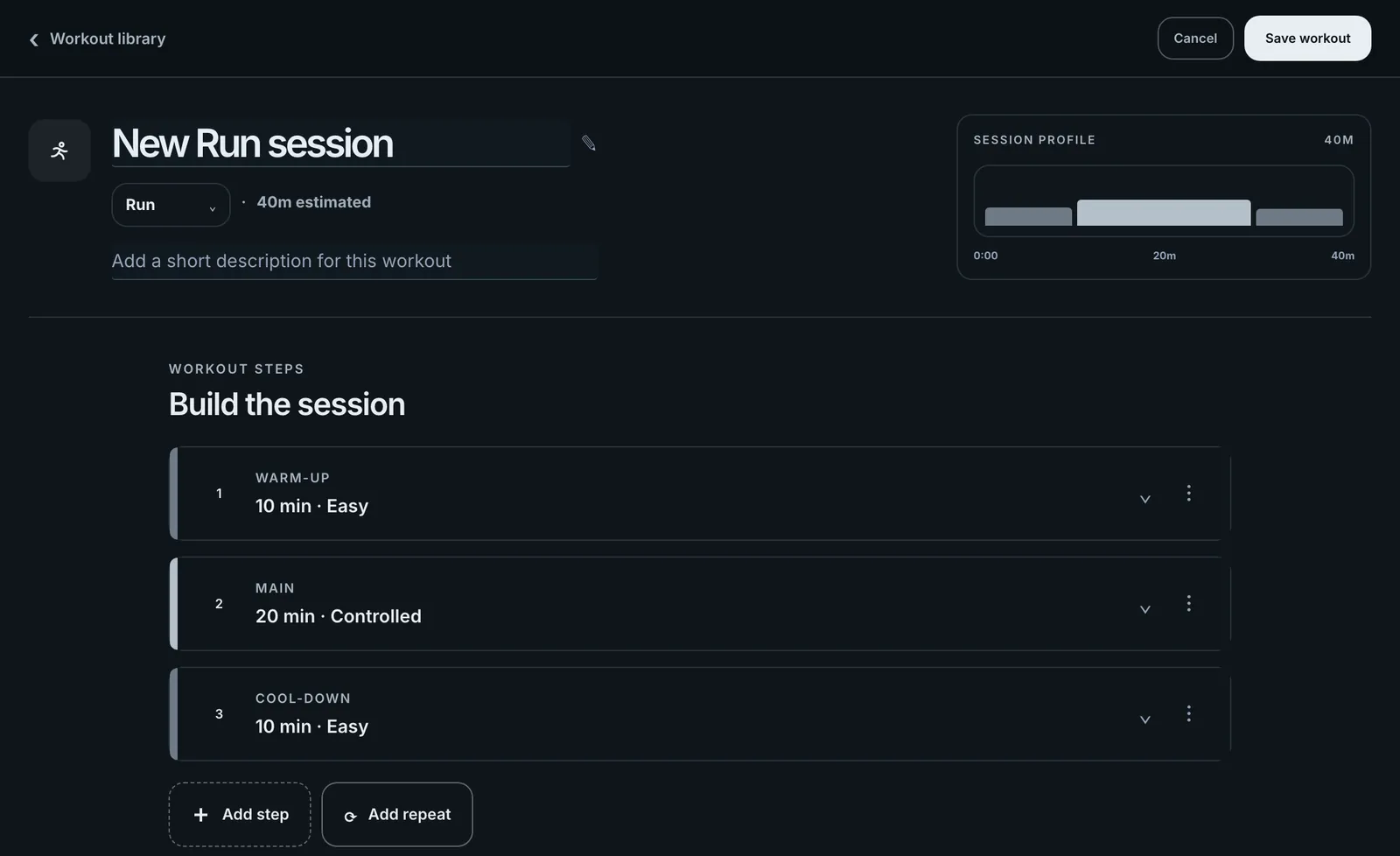
- Press + Build a workout. A full-screen builder opens, headed “Workout library”.
- Name it and choose Run, Ride or Swim from the list under the name. Add a short description if you want one. The length is estimated as you build, and a profile at the top right updates with every change.
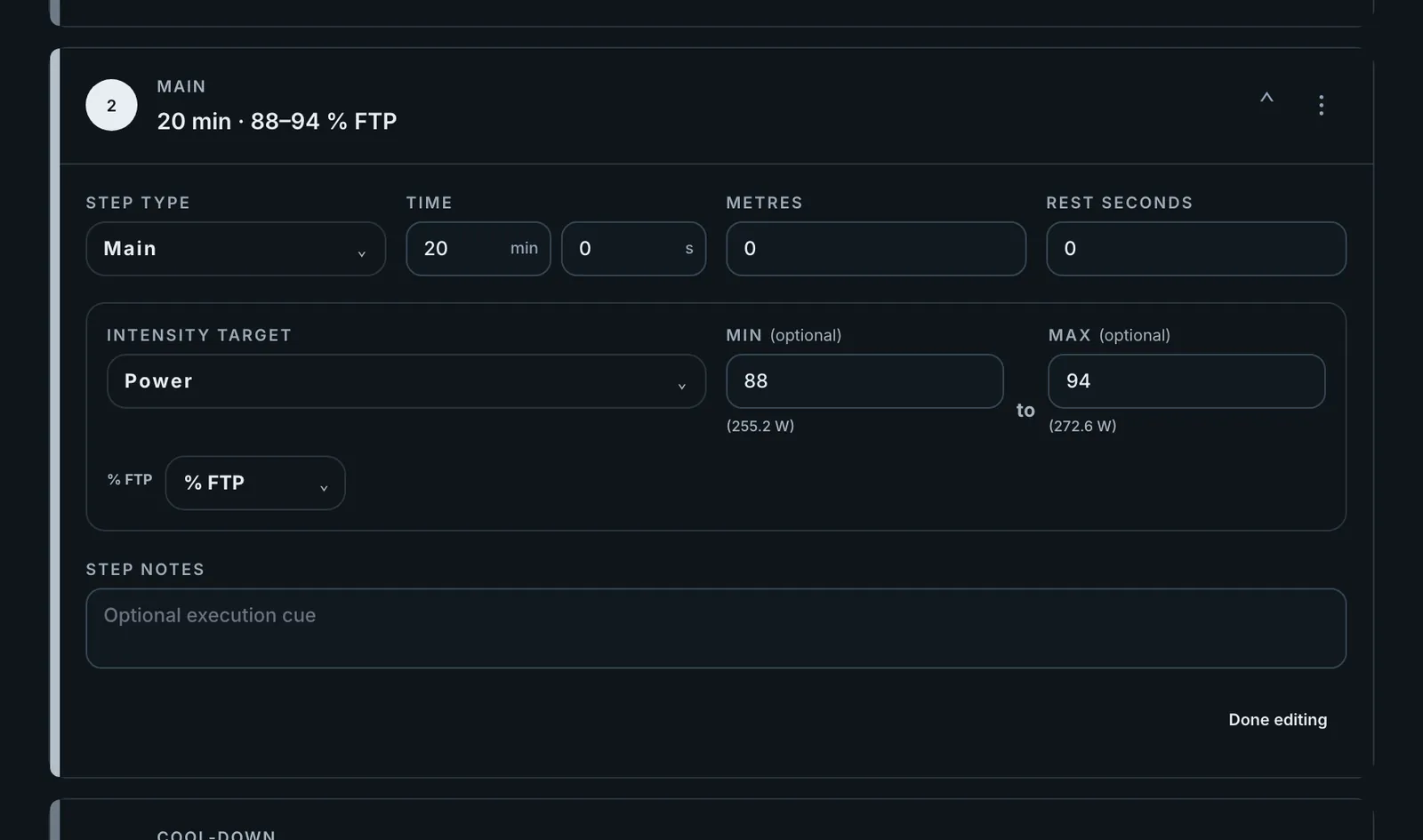
- Press a step to open it. Set its type, time or distance, rest, target, and a cue in Step notes. Press Done editing.
- Add more with Add step. Use the three dots on a step to insert one after it, duplicate it, move it up or down, or remove it.
- Add repeat makes a repeat block, such as four hard efforts each followed by easy recovery. Set how many times it repeats; the steps inside repeat together.
- Press Save workout. Cancel throws away what you did.
What each step holds
- Step type: Warm-up, Main, Interval, Recovery, Cool-down or Drill.
- Time in minutes and seconds, from a few seconds up to 6 hours. A step can instead be a distance in metres, up to 100,000. If a step has only a distance, Form estimates its time from its pace target, or from a steady default pace.
- Rest seconds after the step, up to 600.
- Intensity target and target details.
- Step notes, up to 300 characters, for a cue like “seated, 85 to 95 rpm”.
Targets and units
What you can aim for depends on the sport:
- Run: No target, Pace, Heart rate, RPE or Cadence.
- Ride: No target, Power, Cadence, Heart rate or RPE.
- Swim: No target, Pace, Drill, Heart rate or RPE.
A target is a range with a minimum and a maximum, or just one of them for a limit such as “max 140 bpm”. Pace is written minutes:seconds, per kilometre for a run and per 100 metres for a swim. Power is in watts or percent of FTP. Heart rate is in bpm, cadence in rpm and RPE out of 10. “No target” takes a short text such as “Easy” or “Controlled”, up to 80 characters. A drill takes the drill’s name in the target details.
Rules Form checks when you save
- A target needs a minimum or a maximum, and the minimum can’t be above the maximum. Until it does, the builder says “Add a limit or check the range” and won’t save.
- A workout must add up to between 10 minutes and 6 hours.
- The builder only offers the targets that fit the sport, and Form refuses any others.
- The name can be up to 120 characters and the description up to 800.
If Form can’t save, it shows the reason at the top of the library and keeps your work open.
Use a saved workout
- Ride this workout (rides only) opens it on the trainer. The Free ride and FTP test buttons at the top open the trainer too. The link /workouts?ride=ftp-test opens the ramp FTP test directly.
- Put it on your calendar: on the Calendar press the plus in a day’s corner, or right-click the day, pick a sport tab or search, choose a date and press Add. It is copied onto that day, goes to your Garmin calendar (or Intervals.icu), and “scheduled” on its card counts the copies. See “Use the calendar”.
- Send to your watch: if Garmin is connected, a Garmin Connect panel under the workout has Send to Garmin (and Send again later). % FTP targets go as watts at your Form FTP. If Garmin isn’t connected, the line under the panel says “Connect Garmin Connect to send this workout to your watch.”
- Edit changes the workout in the same builder. Copies already on your calendar keep the version they were scheduled with.
- Remove deletes it from the library after you confirm. Copies on the calendar stay there.
Gym sessions
+ Gym session opens the gym session builder. Name it, search Form’s 165 exercises with Add an exercise, then set sets, reps (or a range with To), weight, effort (RPE), rest in seconds and a note for each, and give exercises the same Superset number to do them back to back. Save routine adds it to your library as a card with a muscle map. Give it a Day and the button reads Save to my plan, and it appears on your calendar on that day. You start a gym session from the Form app on your phone, where your sets are logged. See “Record on your phone”. Browse workouts has 40 ready-made gym sessions too.
Other ways in
- Ask Coach opens a chat that begins “Build me a single workout for my library”. When a draft card appears, press Save to add it here.
- A coach plan’s sessions are not saved here automatically. They live on the calendar under that plan.
- The trainer’s ready-made rides are the same as the rides in Browse workouts. You can ride them on the trainer without saving them; see “Ride a workout on the trainer”.
Common questions
- Will editing a workout change the copies already on my calendar?
- No. A scheduled copy keeps the version it had when you scheduled it. Edit the workout for next time, and remove and re-add a copy if you want the new version on a given day.
- Why can’t I save my workout?
- The reason shows at the top of the library. The usual ones are a target with no minimum or maximum, a minimum above its maximum, a total length outside 10 minutes to 6 hours, or % FTP targets with no FTP set in Profile.
- Can I put a workout on today?
- Scheduling starts from tomorrow. For today, ride it from the library or start it in the Form app.
- Does scheduling a workout send it to my watch?
- If Garmin is your source, yes: it goes to your Garmin calendar, and moving or removing it does the same there. If Intervals.icu is your source it goes to Intervals.icu. If you have neither connected it stays in Form.