
Use your phone as the bike computer
Scan the QR code on the trainer screen to get a bike computer and remote.
Updated 4 November 2026
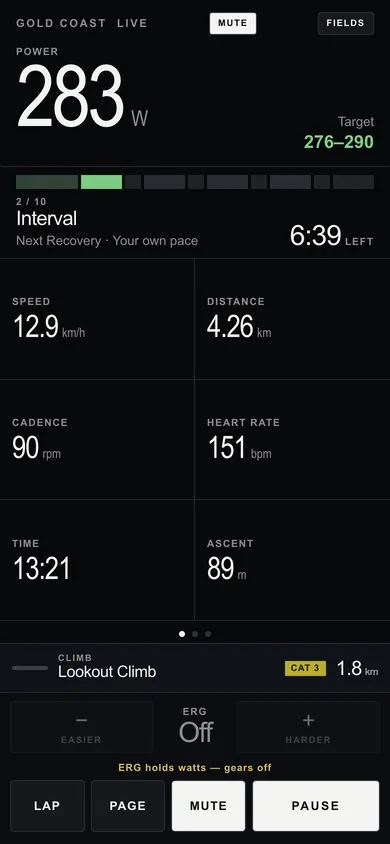
Your phone can be the bike computer and the remote for your trainer ride. It is a web page that opens from a QR code on the trainer screen, so there is nothing to install and no sign-in on the phone. It shows the data pages you design, and lets you change the course and workout, start, lap, pause, shift and set watts without touching the laptop.
Where to find it
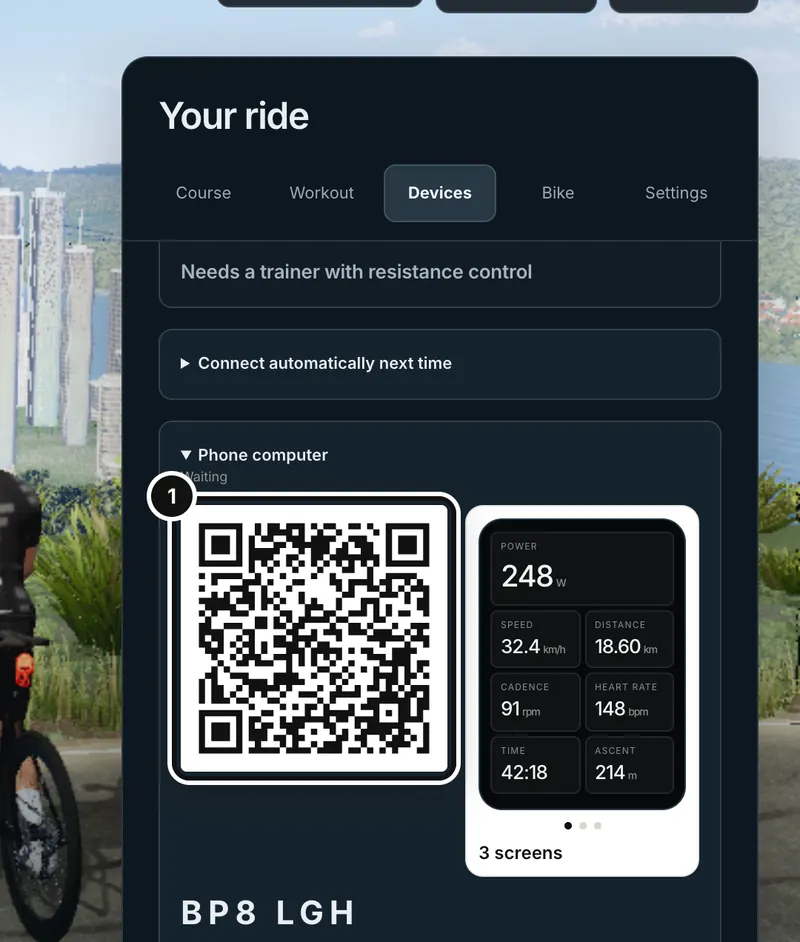
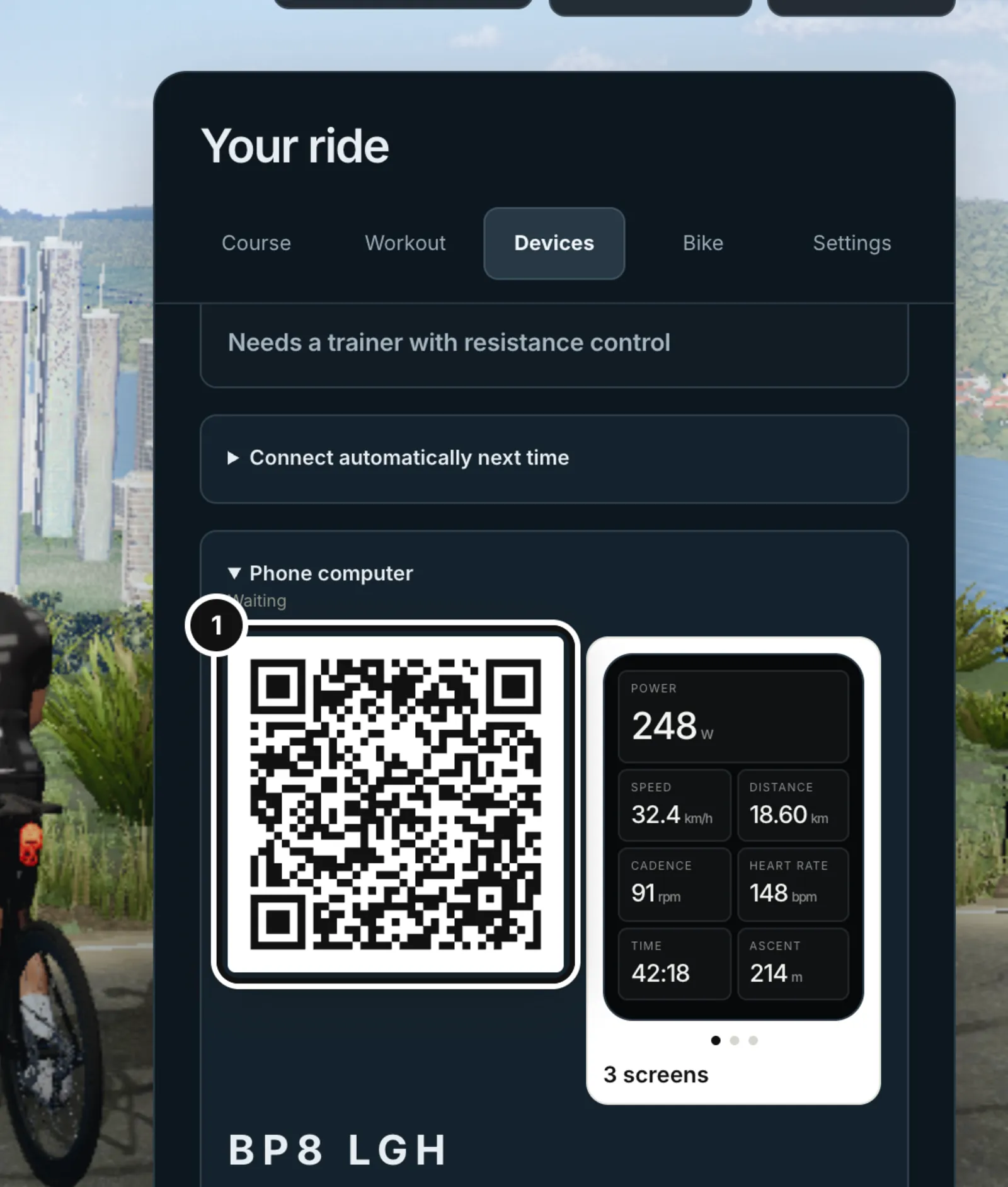
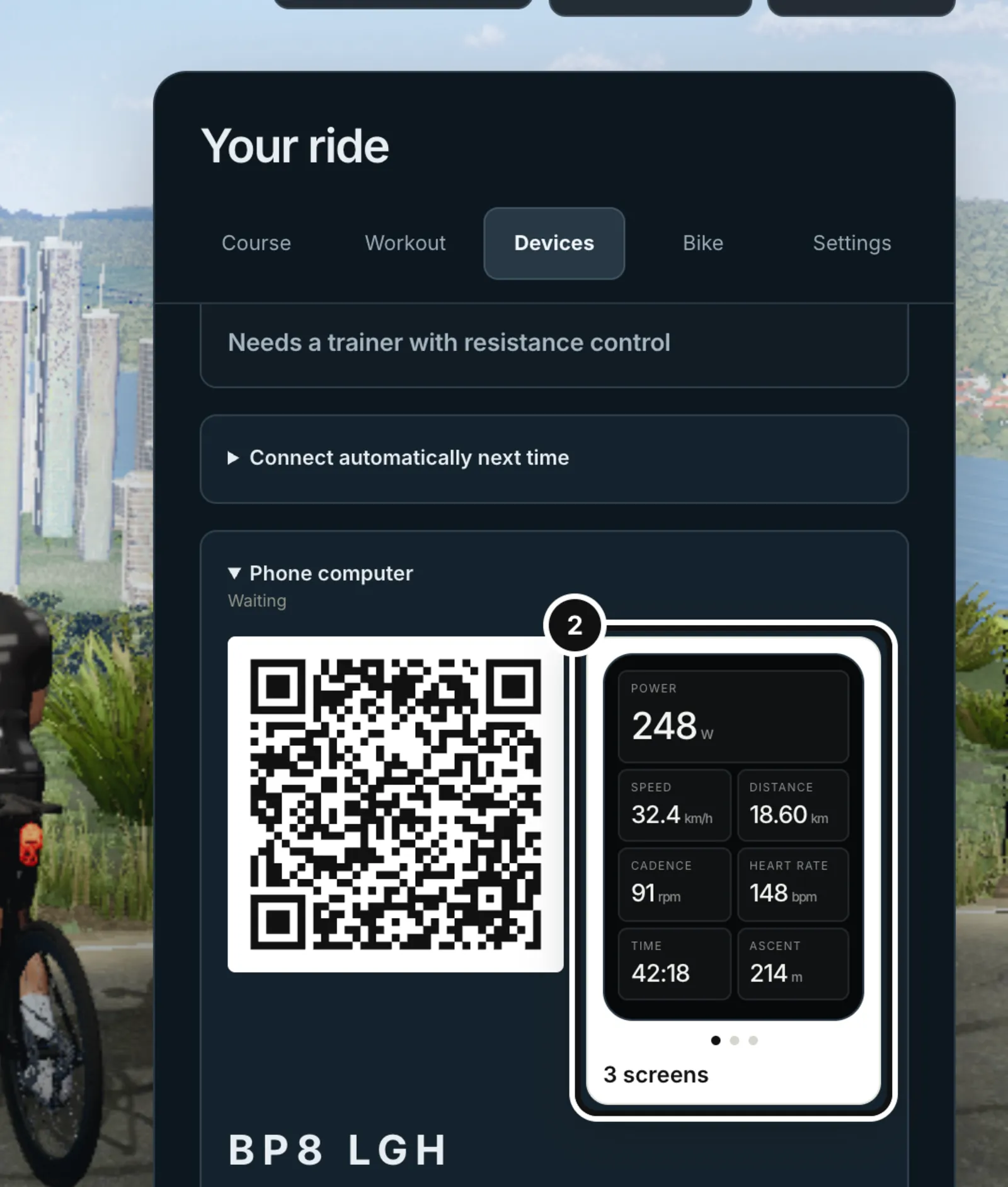
The QR code is in the trainer, in the Phone computer panel on the lobby’s Devices tab. It is there as soon as the trainer page opens: you do not press anything to create it. During a ride the same panel is in the Ride menu, which opens it for you while no phone is connected.
Show the QR code
1Open the trainer, then the Devices tab. The QR code is in the Phone computer panel. Scan it with your phone’s camera.
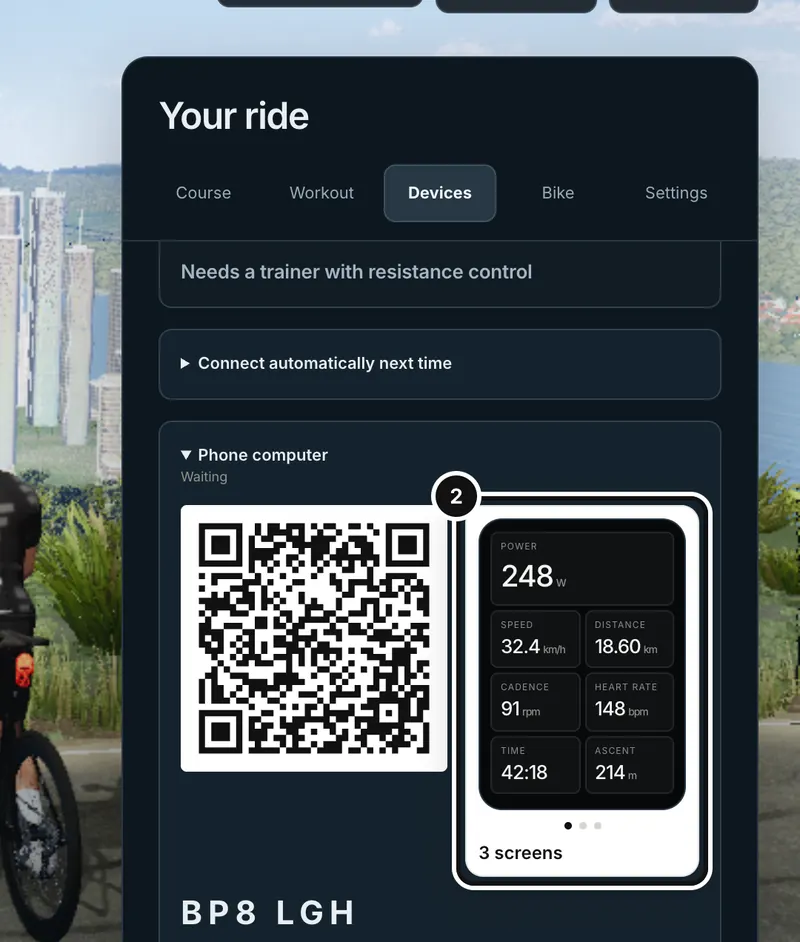
2Press the preview (“Edit computer screens”) to change what the pages show.
Set it up
- Open the trainer on your laptop or desktop. The Phone computer panel shows “Preparing”, then “Waiting” once the QR code is ready. The six-character code under it is the code in the link.
- Scan the QR code with your phone’s camera and open the link. The link looks like app.formendurance.com/ride/computer/ followed by a code, and carries a private key after it, so only the QR code (or the link itself) opens your computer.
- The phone shows the computer. Its status reads “Waiting” until it hears from the laptop, then “Live”. On the laptop, the panel changes to “Connected”.
- Prefer to test on the same machine? Press “Open on this device” under the QR code to open the computer in another browser window.
The Form app has the same bike computer screen built in. At the moment, scanning the QR code opens the web page in your phone’s browser; the link does not open the app yet.
What you can do on the phone
Before the ride starts, the phone shows the lobby. During the ride it shows your data pages. After the ride it shows a summary.
- Lobby: swipe or use the arrows to change course, pick a workout from the pills (the workouts in your trainer’s Workout tab), and press Start ride. Start is held until the trainer is ready, and the button says why.
- Pages: swipe sideways, or press PAGE, to move between your pages. The last page is a Laps page listing each lap with time, distance, average power and heart rate.
- LAP: marks a lap. Form also auto-laps every 5 km.
- PAUSE and RESUME: pause or resume the ride, with the same effect as on the laptop.
- Gears: Easier and Harder change virtual gears, with a shift sound.
- Watts: on a trainer that takes resistance control, the minus and plus buttons change the target watts, and tapping the number opens a keypad where you type a value and press Set.
- Road and Watts: on a free ride, switch between road-like resistance that follows the course and holding a set wattage.
- Sound and Mute: the phone plays the ride sounds, and the laptop stays quiet while a phone is connected. Browsers only allow sound after a tap, so press Sound once.
- Fields and Done: tap Fields, then tap any slot to pick a different data field, then Done.
- Summary: when the ride ends the phone shows the ride’s average power, weighted power, average heart rate and work, lets you rate how hard it was and how it felt, and has a Save to Form button. After saving, View activity opens the session.
Design your computer screens
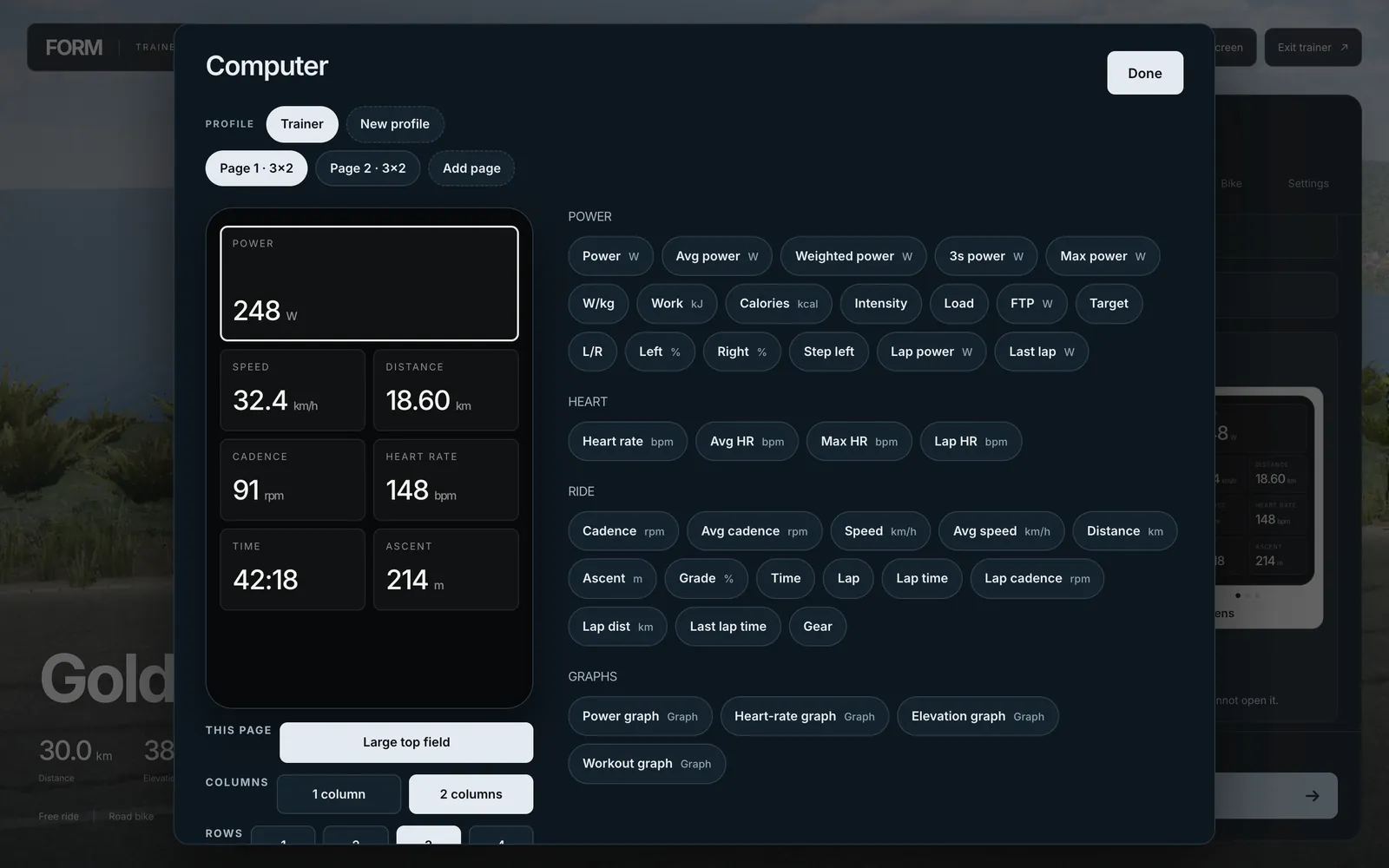
Press the screen preview in the Phone computer panel (it is labelled with the number of screens) to open Computer. There you can add up to four pages, choose one or two columns and one to four rows for each page, make the top field large, and tap any slot to choose its field from a list covering power, heart, ride and graph fields. Press Done when finished. The layout is saved to your account, so the phone, the trainer and the Form app’s bike computer all use the same pages. A New profile button lets you keep more than one layout.
How the connection works
Nothing is pushed between the devices. Your laptop and phone both check in with Form’s server, so both need an internet connection, and they do not need to be on the same Wi-Fi.
- Your laptop sends the ride’s latest numbers and collects the phone’s button presses. It checks in about every 2 seconds until a phone connects, then about every 0.4 seconds. It keeps the faster rate for 5 minutes after the phone was last seen.
- The phone checks in about every 0.4 seconds.
- Each side counts as connected if the server heard from it in the last 6 seconds. That is what the Live badge on the phone and Connected on the laptop mean.
- The pairing lasts up to six hours and is renewed every time the laptop updates it. Each athlete has one pairing at a time, so opening a new one replaces the previous code.
If it will not connect
- The phone says “Waiting for the ride” or “Waiting”: the laptop has not been heard from in the last 6 seconds. Check that the trainer page is still open, the laptop is awake and it is online.
- “This computer link expired. Scan a new QR code.”: the pairing ran out (six hours without the laptop updating it) or was replaced by a newer one. Open the trainer and scan the code it shows now.
- The QR code does not appear: the panel shows an error such as “Could not create a phone computer link.” Check your connection and reload the trainer. The panel is not shown in an offline-package trainer, or when you are signed out.
- The panel says “This QR is localhost, so a phone on cellular cannot open it.”: you opened the trainer from a local address. Open it from app.formendurance.com instead.
- You pressed a button on the phone and nothing happened: delivery is at most once. If the connection drops at the wrong moment the press is lost. The phone holds the button’s state for about 2.5 seconds, then shows the true state; press again.
- The phone’s screen sleeps or you switch apps: the phone drops out of the connection for a few seconds. The page asks your phone to keep its screen on, but if the phone sleeps anyway, wake it and the badge returns to Live.
- The pairing stops with a message instead of retrying: if the server says the link is gone (404), you were signed out (401 or 419) or the account cannot use it (403), reload the trainer page, which creates a fresh pairing.
What happens next
Start the ride from the phone or the laptop. When you finish, the summary shows on both, and Save to Form on either one saves the ride to your Activities page. See “Ride a workout on the trainer”.
Common questions
- Do I need the Form app?
- No. The phone computer is a web page that opens from the QR code.
- Do the laptop and phone need to be on the same network?
- No. Both talk to Form’s server, so each needs its own internet connection.
- How often does it update?
- Your laptop and phone check in roughly twice a second while paired. The screens are close to live, not instant.
- Who can open my computer?
- Anyone with the full link, including its private key. The QR code is a link. Treat it like a short-lived password, and close the trainer when you are done.
- Can I change what the phone shows?
- Yes. Press the screen preview in the trainer’s Phone computer panel to edit pages, rows, columns and fields.