
Your Overview page
Your next session, this week, what you did today, and shortcuts to Trends, the coach and your races.
Updated 4 November 2026
Overview is the page Form opens on. It answers three questions at a glance: what is next, how this week is going, and how your training is trending. Every card on it is a shortcut: to the session, the calendar, Trends, the coach or your races. Nothing on Overview changes your plan or your data.
Where to find it
Where to find it
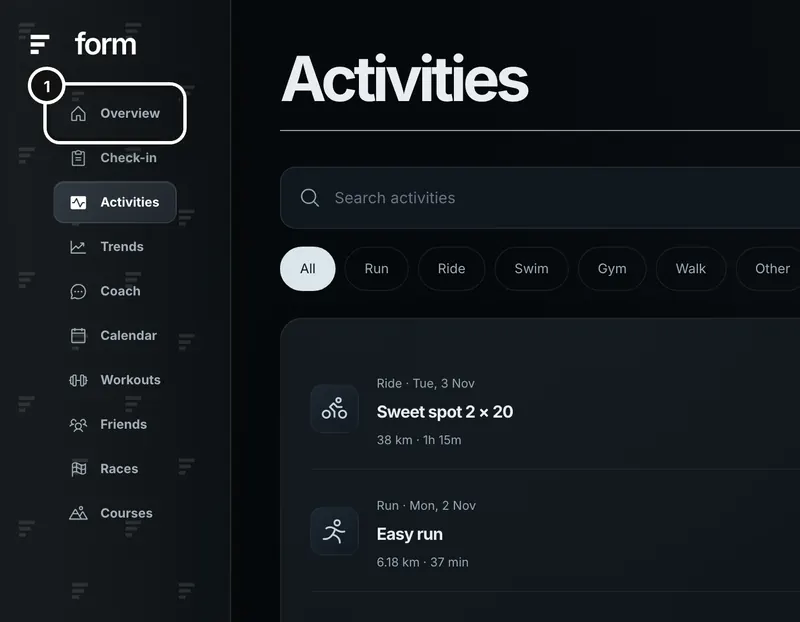
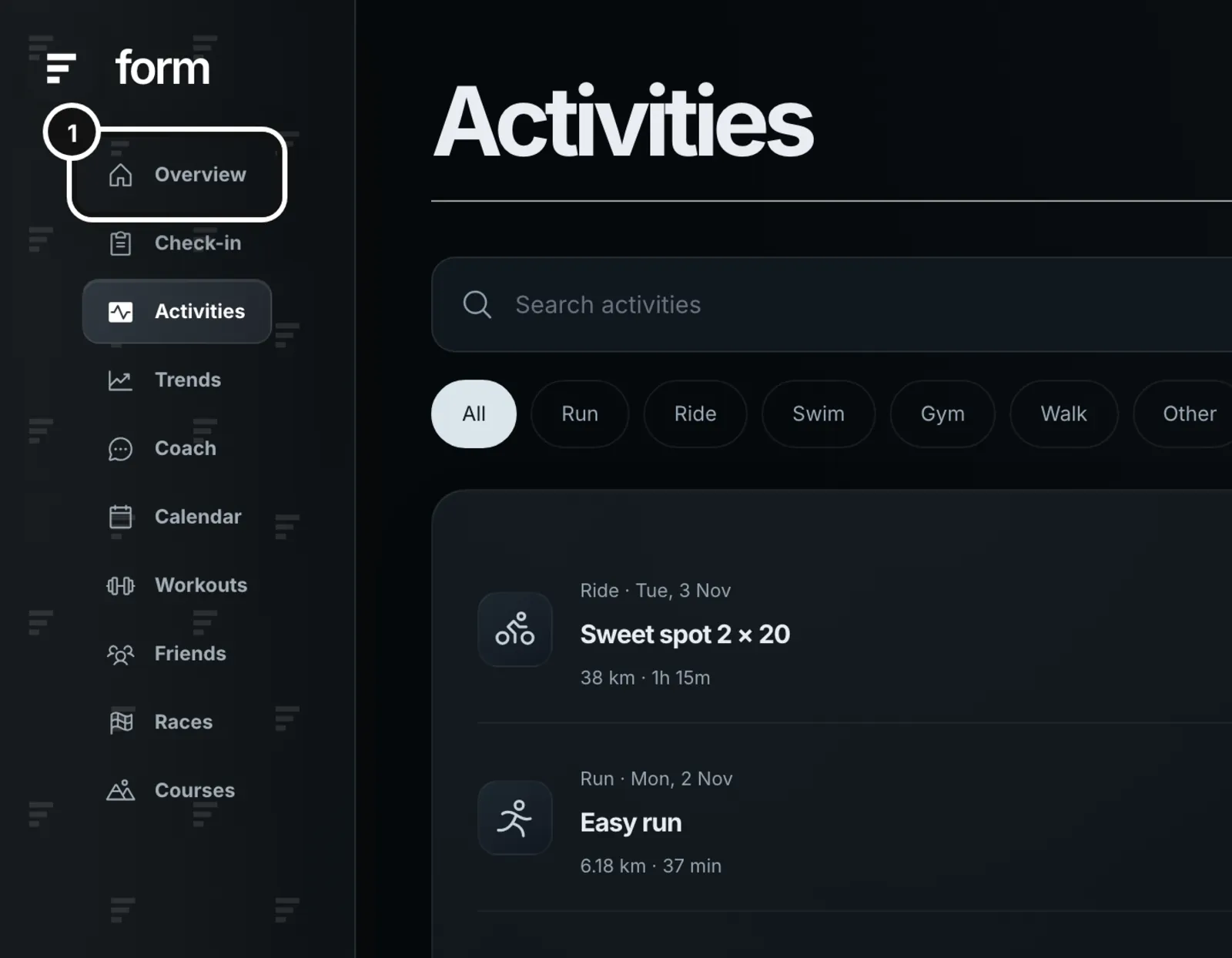
1Form opens on Overview when you sign in. From anywhere else, click Overview at the top of the left sidebar. On a phone-width browser it is the first item in the menu along the bottom.
Your next session
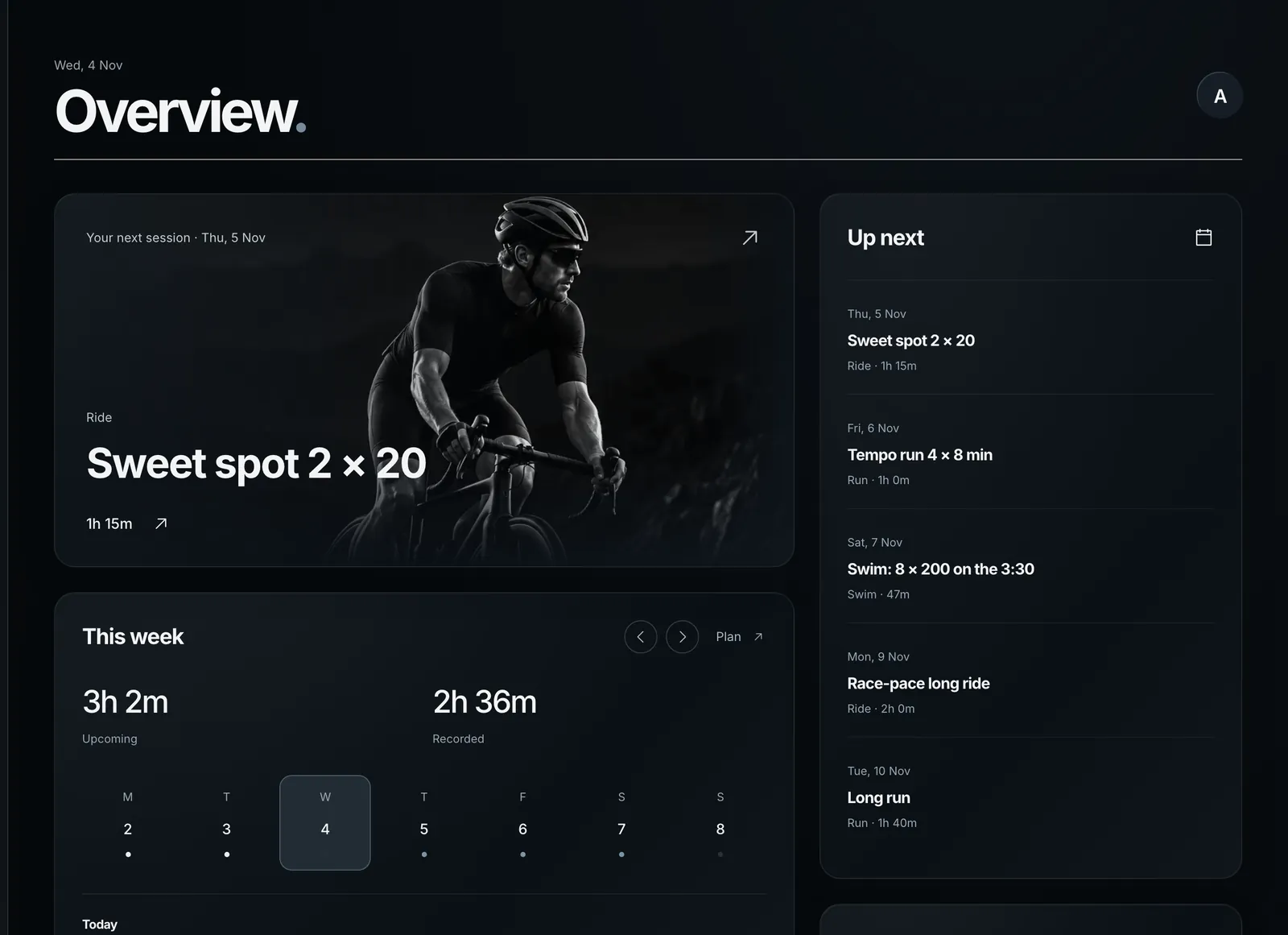
The large card shows your next planned session: the day, the sport, its name and how long it is planned to take. Press it to open that session on the calendar with its details showing, where you can ride it, move it or edit it. With nothing planned it reads “Make room for your next session.” and opens the calendar.
Done today
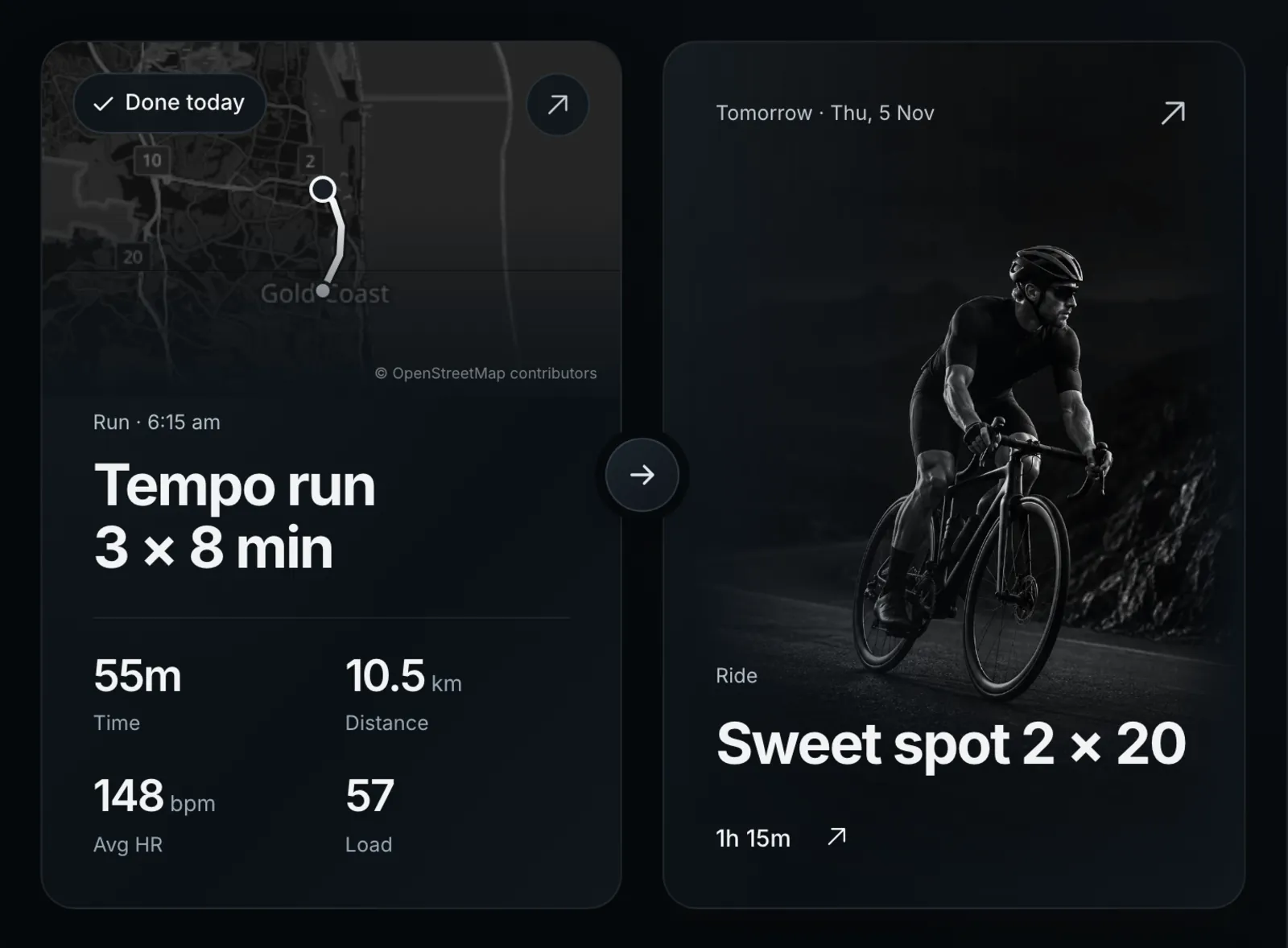
Once a session is recorded today, the top card splits in two. The left card shows what you did: a map of the route (or a picture of the sport for an indoor, pool or gym session), the start time, and Time, Distance, Avg HR and Load. Press it to open the session. If you trained more than once, it shows the longest session and says “+1 more”. The right card is the next planned session, headed Tomorrow or Next, or “Nothing planned yet.”
This week
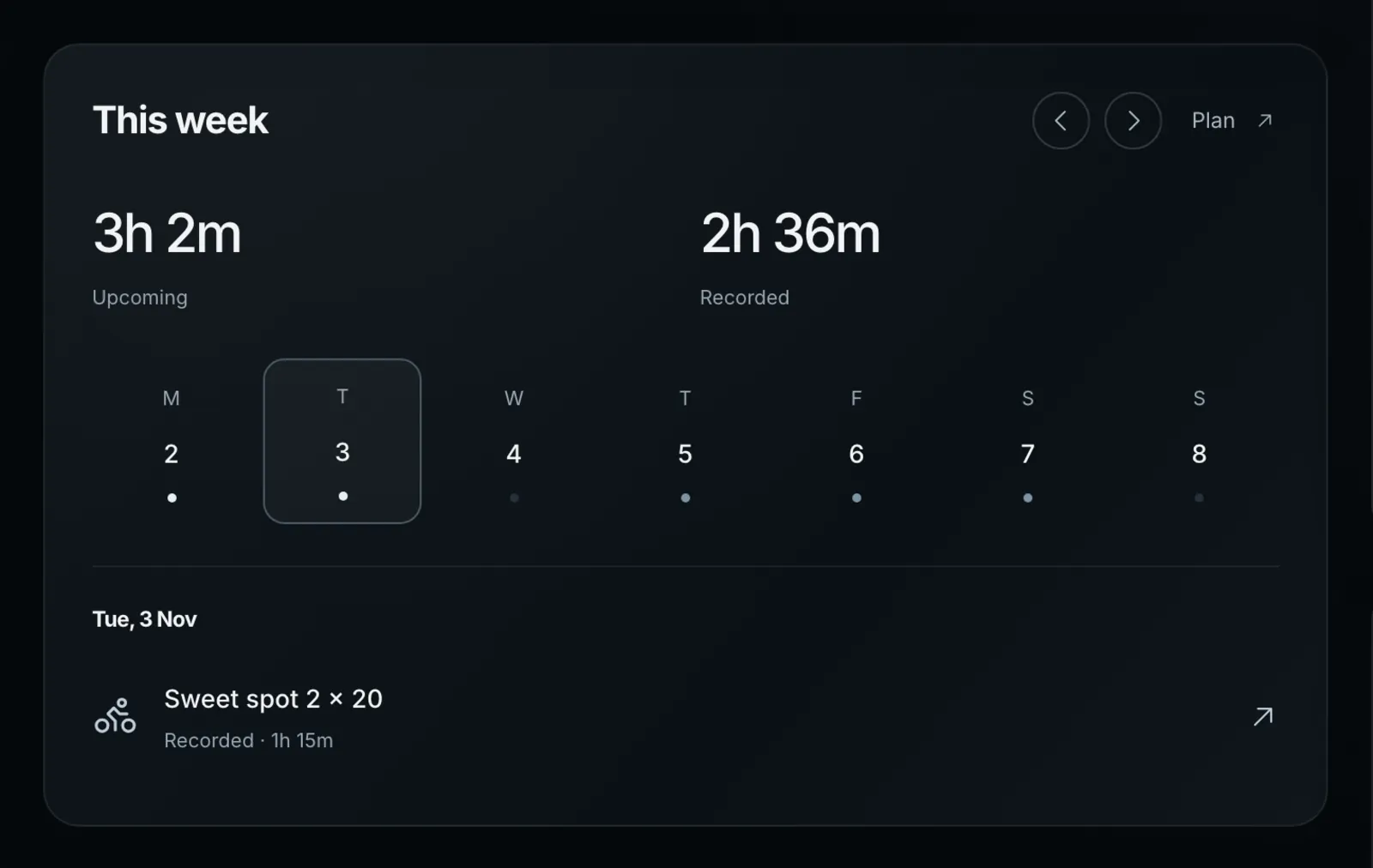
- The two figures are Upcoming, the planned time still to come this week, and Recorded, the time you have done. For a past week the first figure is Planned.
- In the row of days, a white dot marks a day with a done session and a blue-grey dot a day with a planned one. Click a day to list its sessions underneath, each with Recorded or Planned and its time. A recorded session opens its page; a planned one opens on the calendar.
- The arrows step back up to 26 weeks and forward up to 52. The title changes to Last week, Next week or the dates, and a This week button brings you back. Plan opens the calendar.
Recent activity and Up next
- Recent activity, under This week, lists your last five sessions. All opens Activities.
- Up next, on the right, lists your next five planned sessions with their day, sport and planned time. Each one opens on the calendar. With nothing planned it offers “Plan a session”.
Trends and the coach
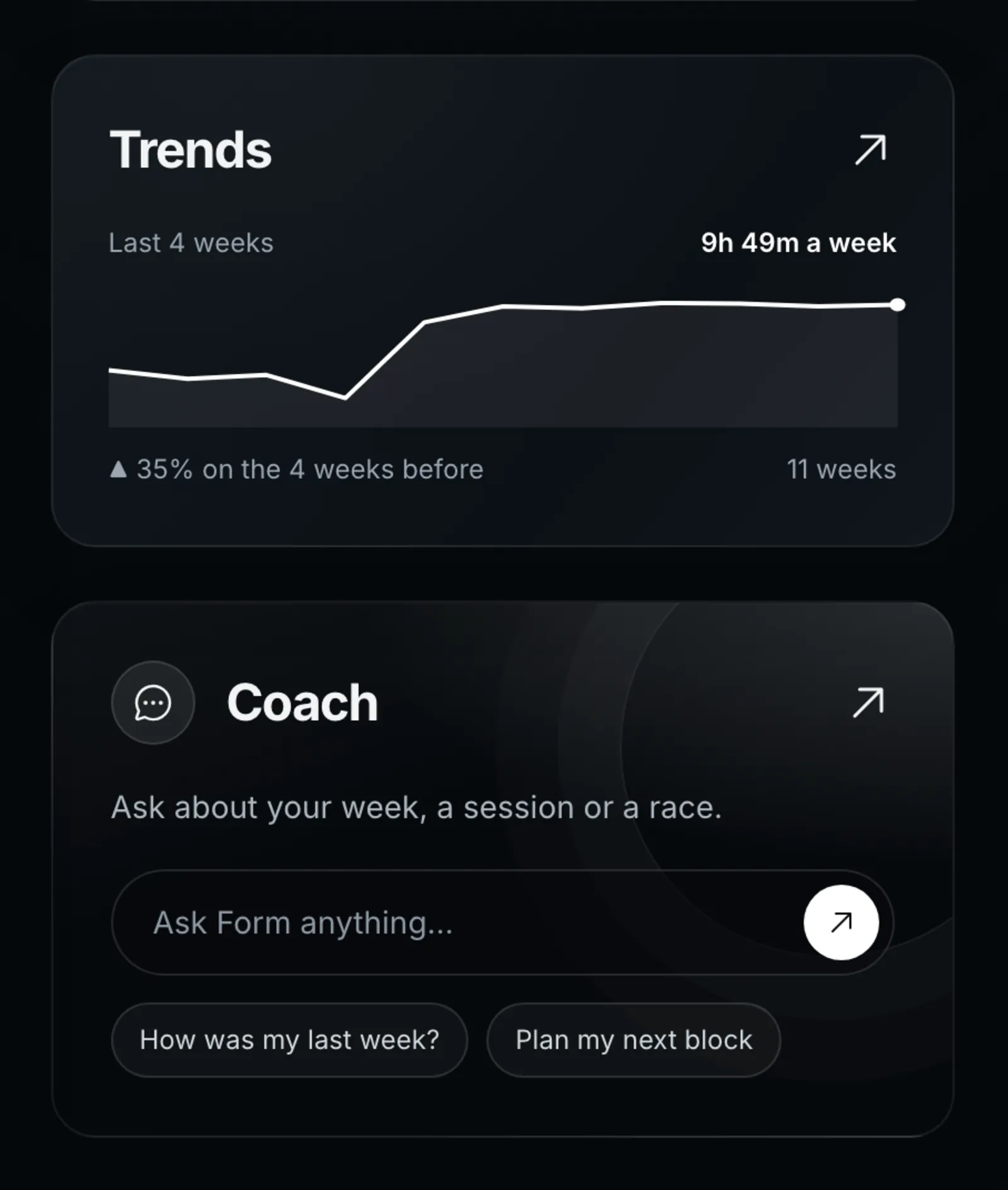
- The Trends card charts your training hours per week for the last 11 full weeks. The week in progress is left out, so a Monday never looks like a collapse. Underneath are your average for the last 4 weeks and how it compares with the 4 weeks before. Press the card to open Trends. The chart appears once you have at least two weeks with training.
- The Coach card starts a new coach conversation. “Ask Form anything…” opens an empty one. How was my last week? and Plan my next block open one with that question already typed in, so you can add to it before you send.
Races and check-in
Below the coach, each of your next saved races (up to three) has a card with its date and name, in the race’s colours. Press one to open Races. The last card, “How are you feeling?”, opens Check-in.
What happens next
A new session shows on Overview the next time you open it: a Garmin session once Garmin has sent it, an Intervals.icu session after a sync. Plans change on the calendar or with the coach, and Overview follows.
Common questions
- Why don’t I see a Done today card?
- It only appears once a session recorded today has reached Form. If you recorded one on a watch, check that it has synced to Garmin, or press Sync training data on Activities if Intervals.icu is your source.
- Why is the Trends card empty?
- It needs at least two full weeks with training before it draws a line.
- What does Recorded count?
- The moving time of every session you recorded in that week, whether or not it was planned.
- Can I change what Overview shows?
- No. It always shows your next session, the week, recent and upcoming sessions, Trends, the coach, your next races and Check-in.