
Do a weekly check-in
Review your training week and approve changes to the next one.
Updated 4 November 2026
The weekly check-in is a two-minute review with the coach: what you did against the plan, how much time you have for the rest of the week, and how you feel. The coach reads it with your training and can propose changes to the coming days, which only happen when you press Apply. This article covers where to find it, what it asks, what happens after, and how to turn it on for a plan.
Where to find it
Do a weekly check-in
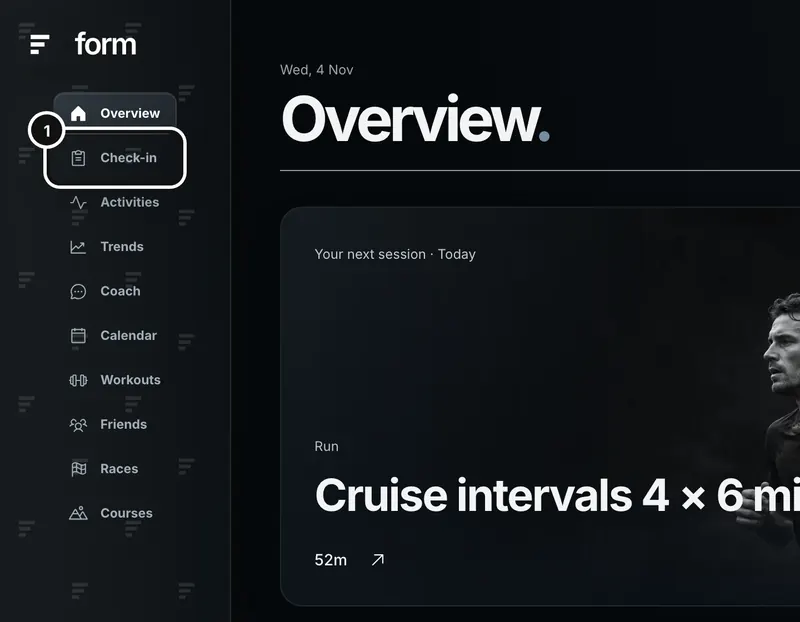
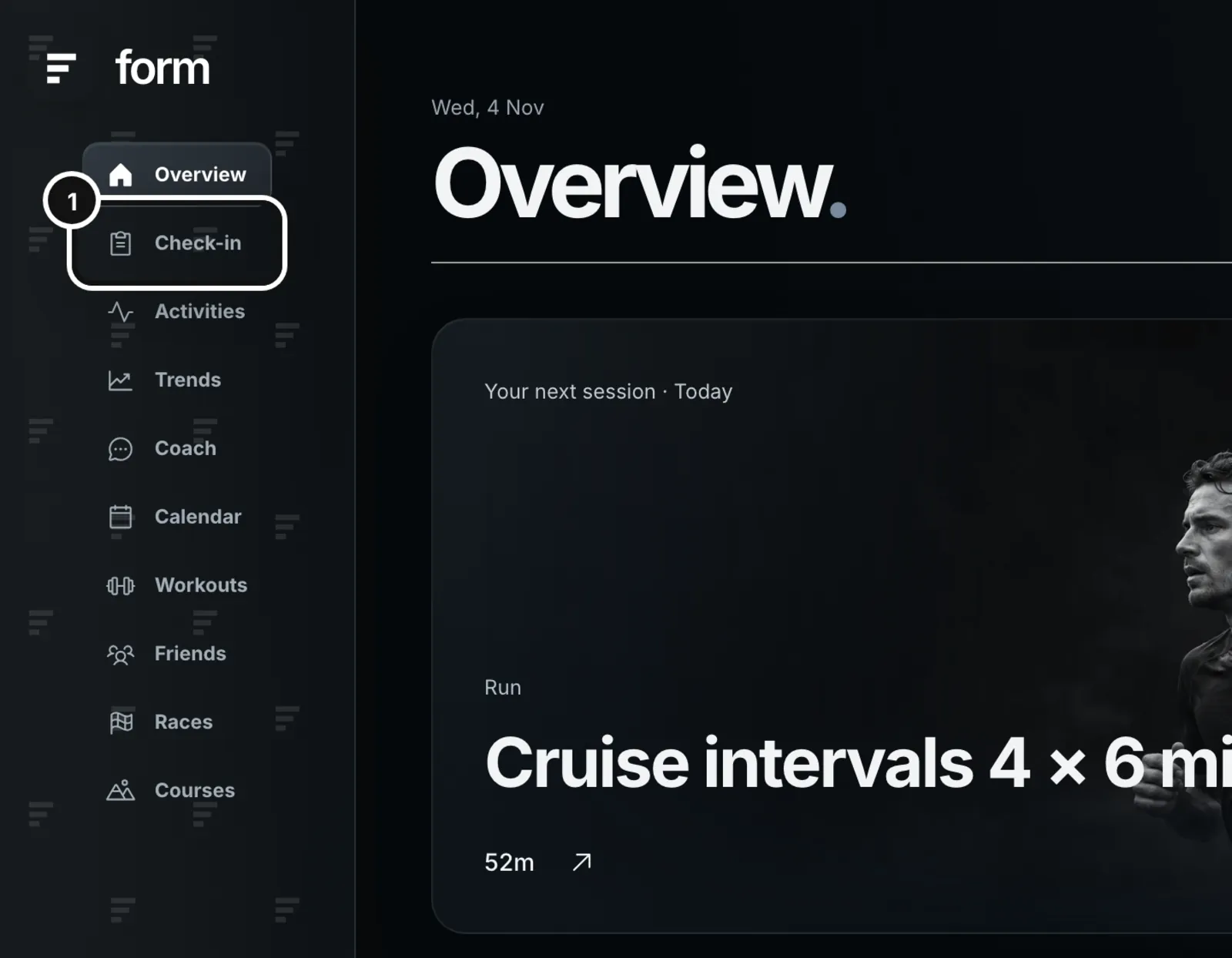
1Click Check-in in the left sidebar.
2When a check-in is due, it opens straight away in the Coach. Otherwise the page says where you are, with Check in now.

3The form opens in a new Coach chat, with what Form already knows at the top.

On your check-in day, a window also opens over whatever page you are on, “Your weekly check-in”, with Check in and Skip this week, and a new Coach chat shows a “Your weekly check-in” card. When the block’s review is due instead, Check-in opens the review (see “Seasons, blocks and weekly check-ins”).
When a check-in is offered
- You need a saved plan with weekly check-ins on. A plan written as a season has them on by default, with Sunday as the check-in day.
- For any other saved plan, open the Calendar’s Current plan tab, pick the plan under Saved plans and turn on its Weekly check-in switch. That gives the plan a check-in day without changing any of its sessions.
- Without a saved plan, the Check-in page offers Create a plan in Coach. With a saved plan that has no check-ins yet, it says “Open your plan to enable weekly check-ins”, with View plan. If you turned a season’s check-ins off, Check in now asks “Enable weekly check-ins?”: Enable and check in, or Just this time.
- You can check in on any day with Check in now, not only on your check-in day.
What it asks
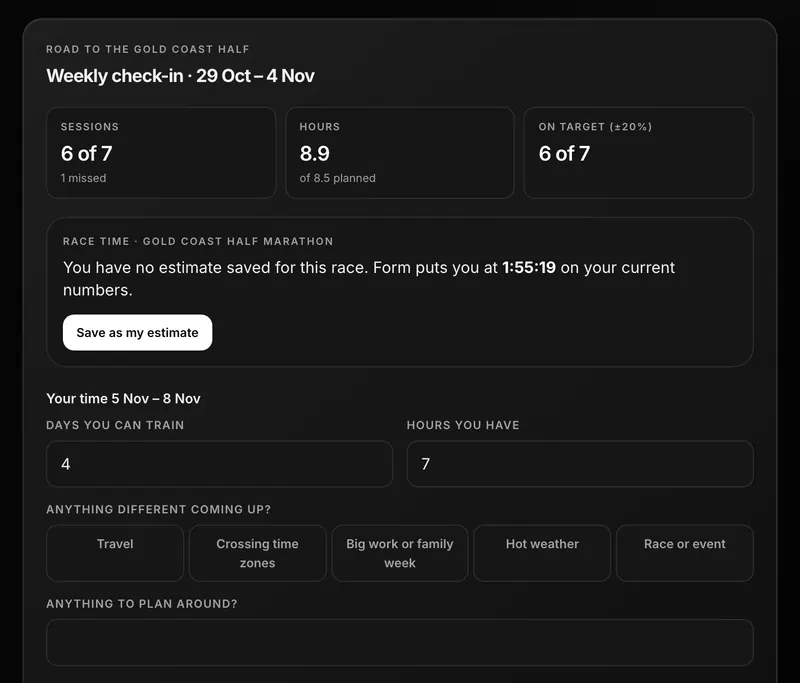
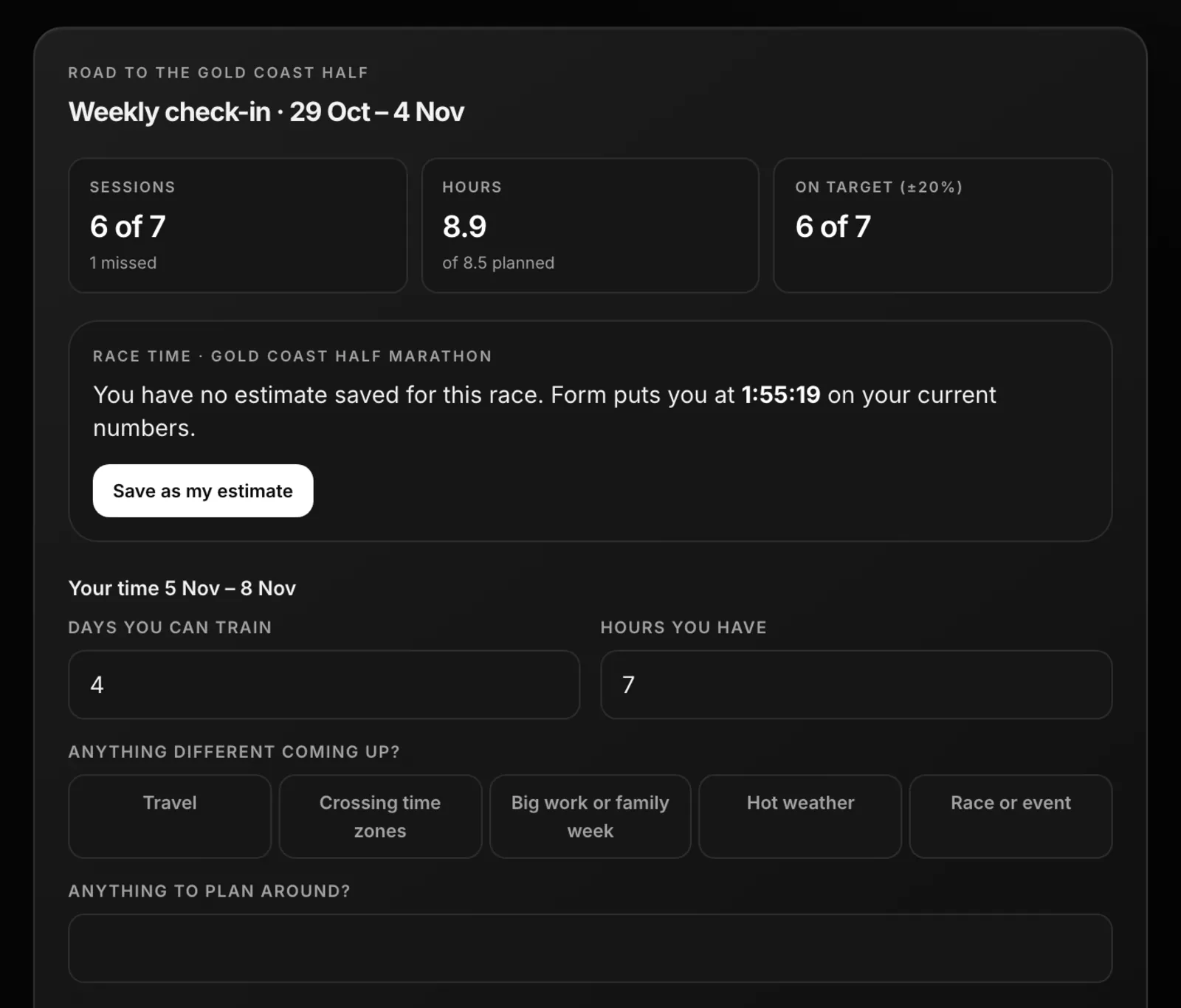
The top of the form shows what Form already has for the last seven days: sessions done against planned (and how many were missed), hours against planned, and how many sessions were on target, within 20%. Then:
- Your time for the rest of the week: the days you can train and the hours you have, filled in from your plan. Change them if your week is different.
- Anything different coming up: Travel, Crossing time zones, Big work or family week, Hot weather, Race or event. And anything to plan around, in your own words.
- Five ratings for the last seven days, each from 1 to 5 with a word for every point: how fresh you have felt, how well you have slept, how sore your muscles are, how stressed you have been outside training, and your mood.
- Whether you have been ill: No, Just a head cold, or More than that. “More than that” asks which symptoms you have now, and any illness asks how many days it affected and whether you are symptom-free today.
- Any pain or niggle while training. If yes: where, how bad at its worst (0 to 10), whether it was still there the next morning, how it compares with last week, and whether there is pain at rest or at night, one tender spot on a bone, or limping.
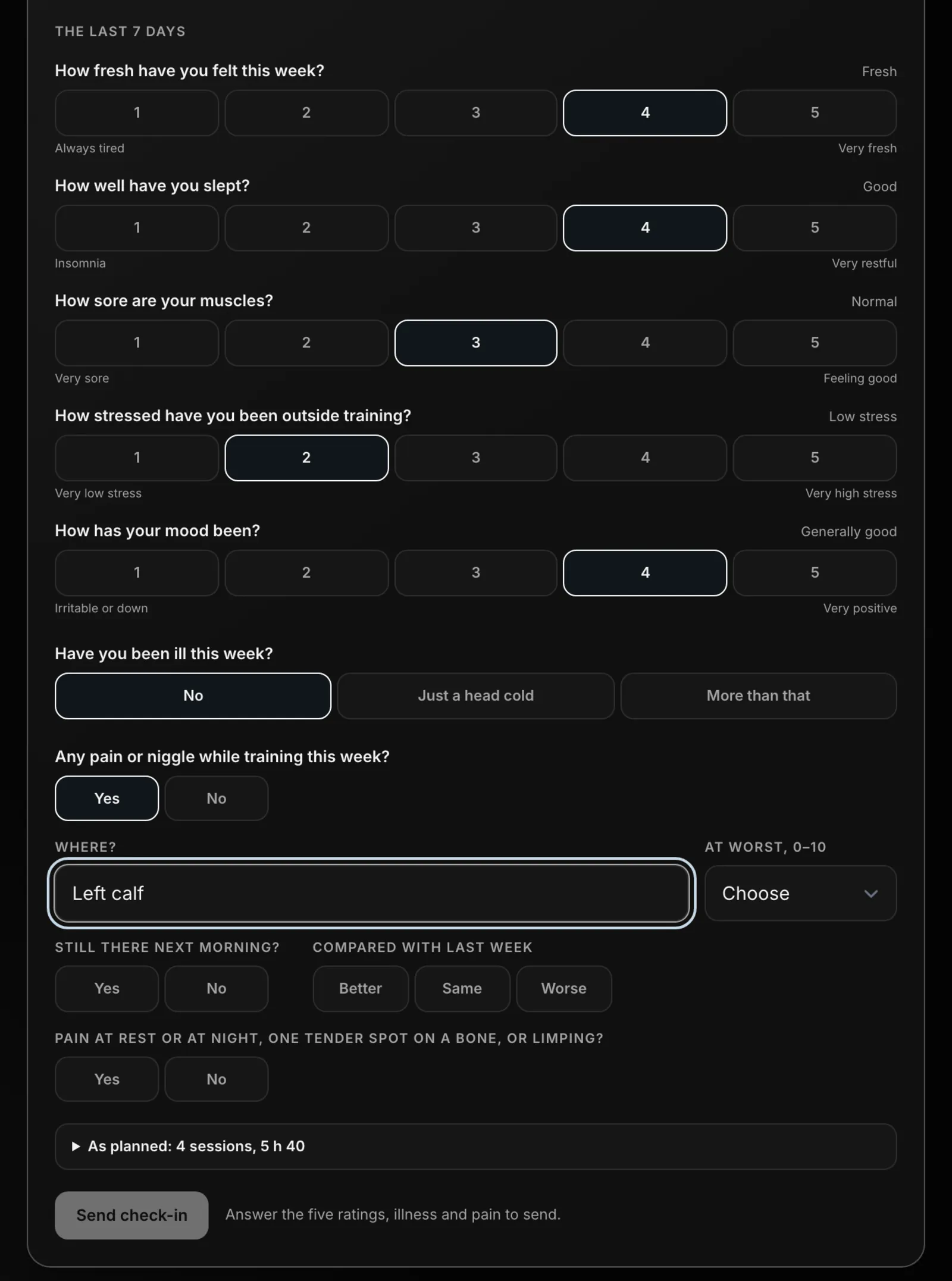
Send check-in stays off until the five ratings, illness and pain (with its score) are answered. “As planned” lists the sessions still to come this week.
Your race time
If your plan leads to a saved race, a Race time card can appear at the top of the form. It compares your saved estimate with what your recent training says, using your best efforts of the last four weeks against the four before, never a single session:
- No estimate saved: Form says where it puts you, with Save as my estimate.
- Getting faster: “You’re getting faster”, with your estimate, the new time and the difference, and Update my estimate or Not now.
- Falling behind: “You’re falling behind”, the same way, with Update my estimate or Keep my estimate.
- Nothing changes until you press a button. Saying no to a time keeps it quiet until your training moves further. A slower time is never suggested in the last ten days before the race, where a taper reads slow on purpose.
What happens next
Send check-in posts your answers to the chat as a “Your week” card, and the coach replies under “Coach’s review”. It reads the week you trained with your answers, your heart-rate variability and resting heart rate against your own normal range.
- If the week should stay as planned, it says so.
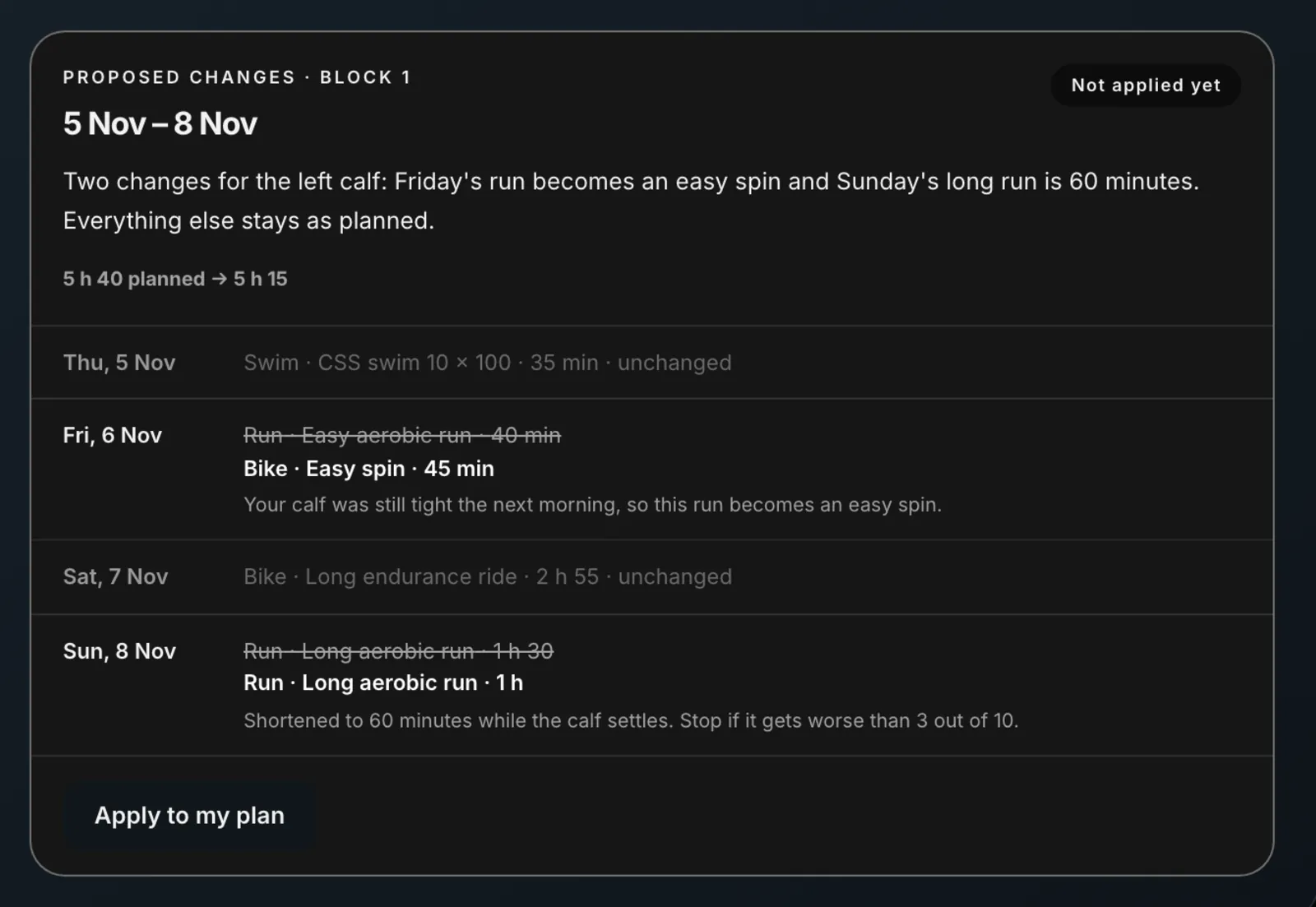
- If the coming days should change, it proposes a new version as a Proposed changes card: each day before and after, a reason for every change, and Apply to my plan.
- Apply to my plan writes the change into your plan and sends it to your Garmin or Intervals calendar. The change only covers the days from tomorrow to the end of the week.
- Pain at rest or at night, a tender spot on a bone, or symptoms such as chest pain, breathing difficulty, or a racing heart at rest are reasons for the coach to tell you to stop and get checked, not to train around.
Previous check-ins
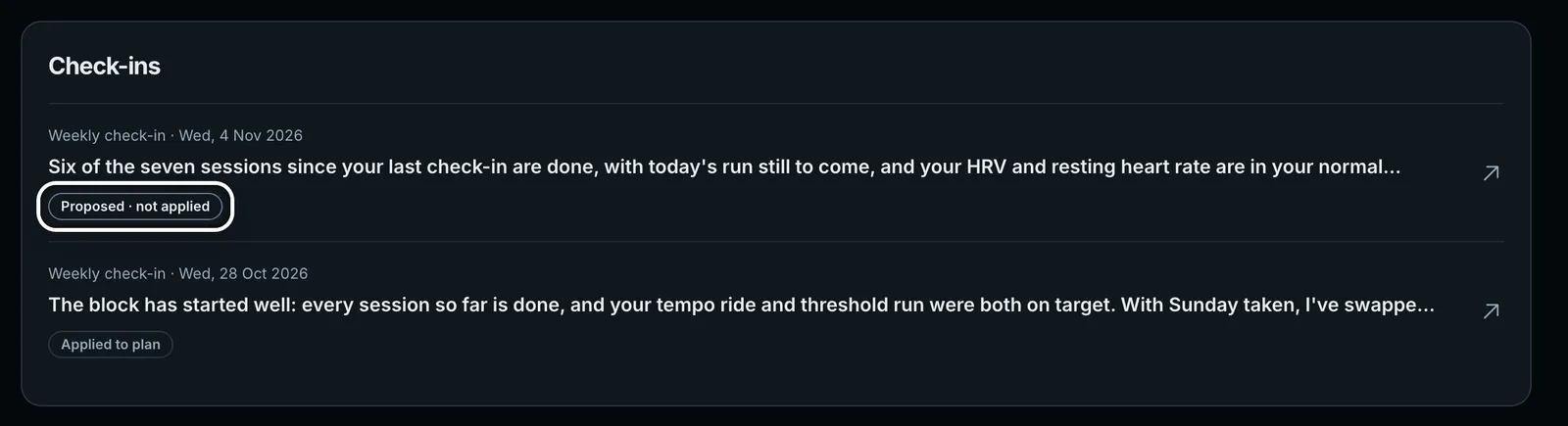
The Calendar’s Current plan tab lists the plan’s check-ins and block reviews under Check-ins, newest first, with whether the coach’s changes were applied. Click one to open its chat and your original answers.
Change the day, or turn it off
- On the Current plan tab, the Weekly check-in switch turns check-ins on or off, and its day menu sets your check-in day.
- Reminders is a separate switch for the reminder emails, which go at 7 pm on your check-in day if you have not checked in.
- Skip this week, in the window on your check-in day, skips that week. Closing the window, with its ×, Escape or a click outside it, only closes it: the week is still due, the reminder email still goes, and the window stays shut in that browser tab. You can still check in from the Check-in page.
Common questions
- Do I need to check in every day?
- No. The check-in is weekly. You can tell the coach about a change in any chat during the week.
- Does sending a check-in change my plan?
- No. The coach proposes changes. Your plan and your Garmin or Intervals calendar change when you press Apply to my plan.
- Can I check in when it isn’t my check-in day?
- Yes. Press Check in now on the Check-in page. The coach can change the days from tomorrow to the end of the week.
- Why is a high number bad on the stress question?
- Life stress runs from 1, “Very low stress”, to 5, “Very high stress”. Every other rating has 5 as the good end.