
Use your Activities page
Every session in one list: search it, filter it by sport, upload a .fit file or sync.
Updated 4 November 2026
Activities is the list of every session Form holds for you, newest first, whichever way it arrived: Garmin, Intervals.icu, the Form app, the trainer or a file you uploaded. Search it, filter it by sport, and open any session from it. It is also where you upload a .fit file and, if Intervals.icu is your source, sync. How your training adds up over weeks and months, including fitness and fatigue, is on Trends.
Where to find it
Where to find it
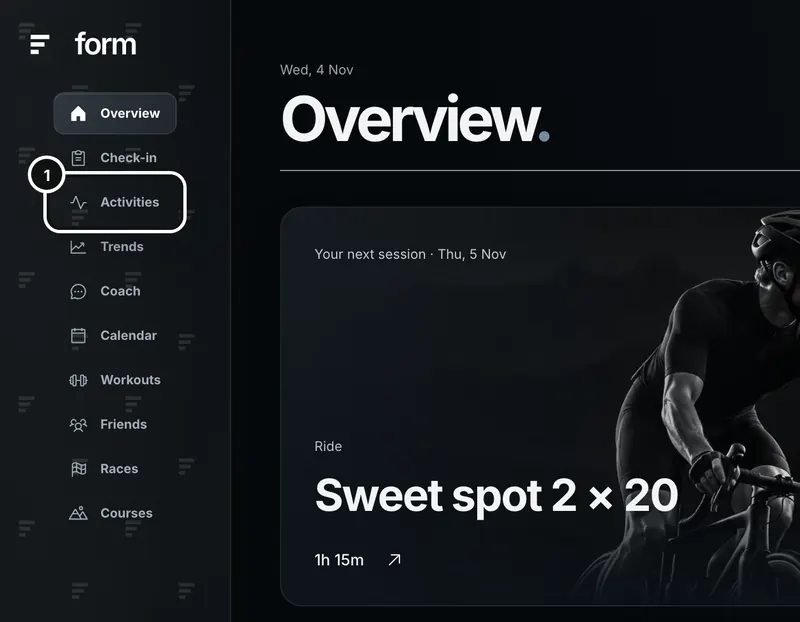
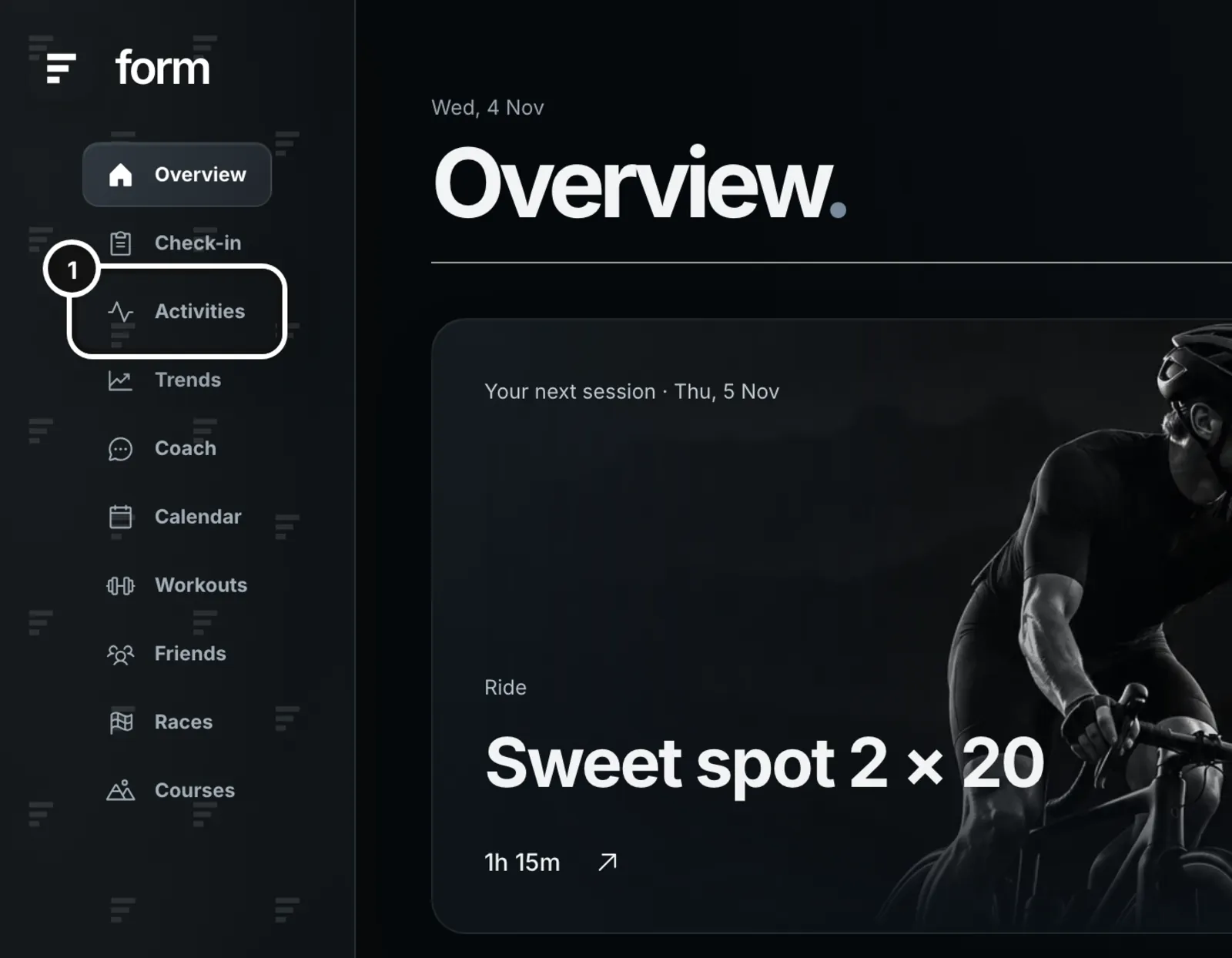
1Click Activities in the left sidebar. On a phone-width browser the menu runs along the bottom of the screen, and Activities is the second item.
The list
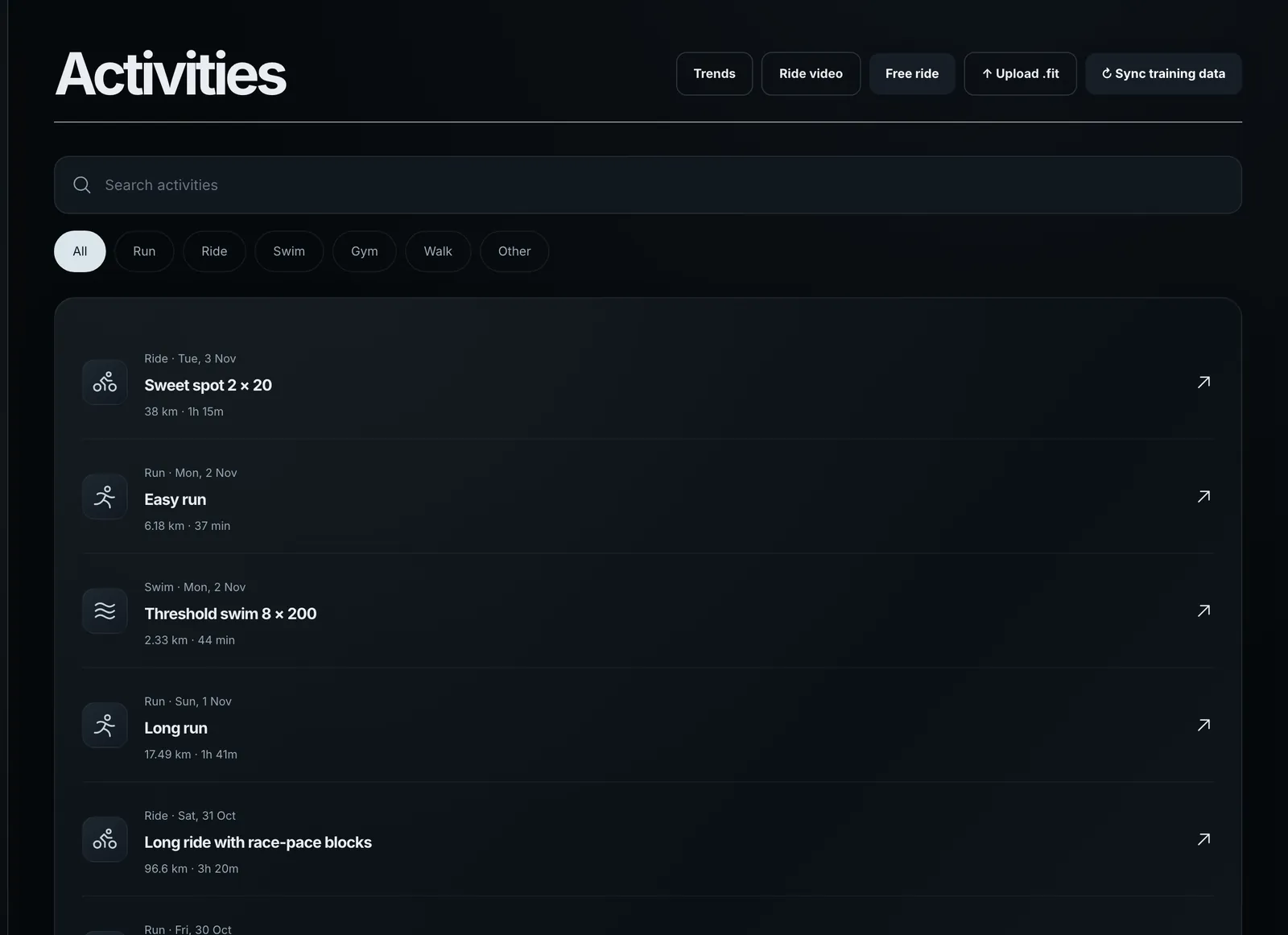
Each row shows the sport and date, the session’s name, and its distance and time. A session with photos shows the first one in place of the sport icon. A triathlon or other multisport race is one row, even though its swim, bike and run are stored as separate legs. Click a row to open the session. See “Open a session”.
The list shows six sessions to start with. Load more at the bottom adds the next ones.
Search and filters
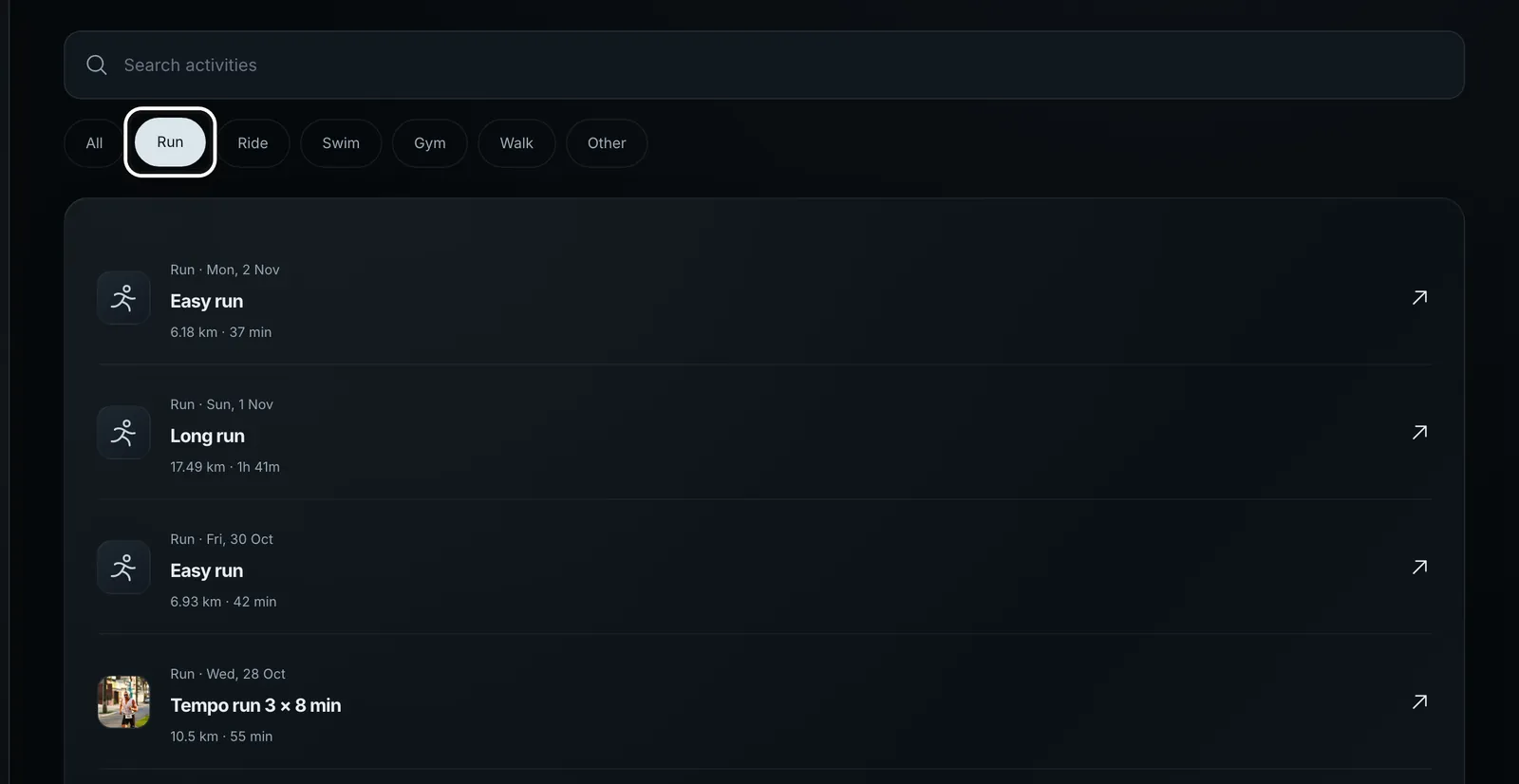
- Search activities looks through every session you have, by name (including a name you gave it), sport or Garmin device. Type “tempo” to find your tempo sessions, “swim” for swims, or “Edge” for rides from a Garmin Edge. The × clears the search.
- The filters show one kind of session: Run, Ride, Swim, Gym, Walk (walks and hikes) or Other. All shows everything. A race shows under each of its legs’ sports.
- You can use a search and a filter together.
The buttons at the top
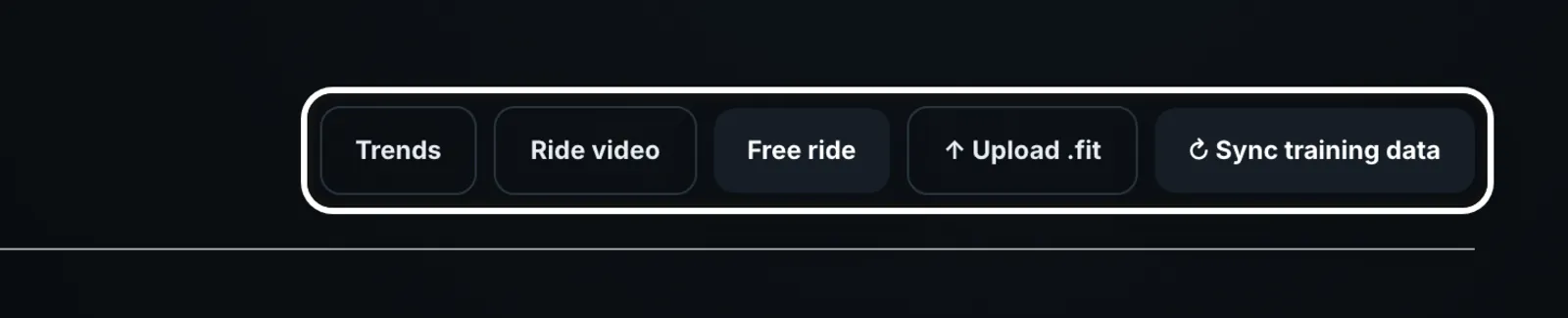
- Trends opens your training over weeks and months: totals, training load (fitness and fatigue), weekly rhythm, consistency, recovery and, for rides with power, the cycling analysis. See “Read your Trends”.
- Ride video opens the ride video page.
- Free ride opens the trainer with no workout.
- Upload .fit adds a session from a .fit file (a .gz is fine). The button says “Reading…” while Form reads it, then the new session opens. If you already have that session from Garmin or Intervals.icu, Form says so and offers “Upload anyway” for when it really is a different session. See “Upload .fit files”.
- Sync training data fetches new sessions from Intervals.icu. It only shows if Intervals.icu is your source. Garmin athletes never see it, because Garmin sends each session to Form as it is recorded.
Where the 42-day numbers went
This page used to show the last 42 days, fitness, fatigue and form, and your sport mix. They now live on Trends, which covers the period you choose. On Trends’ Overview tab, Training load shows Chronic · 42 days (fitness), Acute · 7 days (fatigue) and Balance (form), and the sport cards show your time in each sport. Gym records and sets are on Trends’ Strength tab.
If the page is empty
A new account with nothing in it says “Record a session in Form to see your dashboard.” Ride the trainer, record a run on your phone, upload a .fit file, or connect Garmin or Intervals.icu in Profile. If you connected Intervals.icu and still see nothing, press Sync training data. See “Connect Garmin” and “Connect Intervals.icu instead”.
What happens next
Nothing on this page changes your data, except Upload .fit and Sync training data, which add sessions. To rename, download, send to Strava or delete a session, open it and use its … menu.
Common questions
- Where are my fitness, fatigue and form?
- On Trends, in the Training load card on the Overview tab: Chronic · 42 days is fitness, Acute · 7 days is fatigue and Balance is form. See “Read your Trends”.
- Why can’t I find a session by searching?
- Search looks at the session’s name, its sport and the Garmin device that recorded it, across your whole history. Try one word from the name, or use a sport filter and Load more to go back further.
- Why is a session listed once when two devices recorded it?
- When the same session reaches Form from two places in the same sport, starting within 10 minutes of each other, Form keeps one copy. Garmin’s recording replaces the Form app’s, a ride on Form’s trainer replaces a Garmin copy, and anything Form recorded replaces an Intervals.icu copy.
- Can I upload a Garmin .zip here?
- The file picker on this page takes .fit and .gz files. To upload Garmin Connect’s Export Original .zip, unzip it and choose the .fit inside, or drop the .zip on setup step 2. See “Upload .fit files”.