
Getting started with Form
From beta invite to your first coach answer: the four setup steps and what each one is for.
Updated 4 November 2026
Form is a private training coach that reads your own sessions before it answers. Setup takes a few minutes and ends with your first question to the coach. This article covers how you get in, what each of the four setup steps asks, and what happens if you skip one.
Get an invite
Form is in beta and invite-only. There is no public sign-up, and a visit to the register page without a valid invite link shows “Form is invite only.”
- Apply at formendurance.com/contact (the form is at the bottom of the page). Tell us what you train for. Your sports and goal are carried into setup so you don’t have to type them again.
- When your place opens, you get an invite by email. The link is tied to that email address and has an expiry date, which the register page shows.
- Open the link and register with the same email address. A different address is refused with “Use the email address this beta invite was sent to.”
- An invite works once. If the link says it is invalid, expired or already used, reply to the invite email or write to info@formendurance.com and ask for a new one.
Where to find setup
Registering signs you in and opens setup straight away. If you leave before finishing, signing in again at app.formendurance.com sends you back to it until you finish or press Skip setup. Once you have finished, Form opens the coach instead, and you change the same answers later in Profile.
Where setup opens
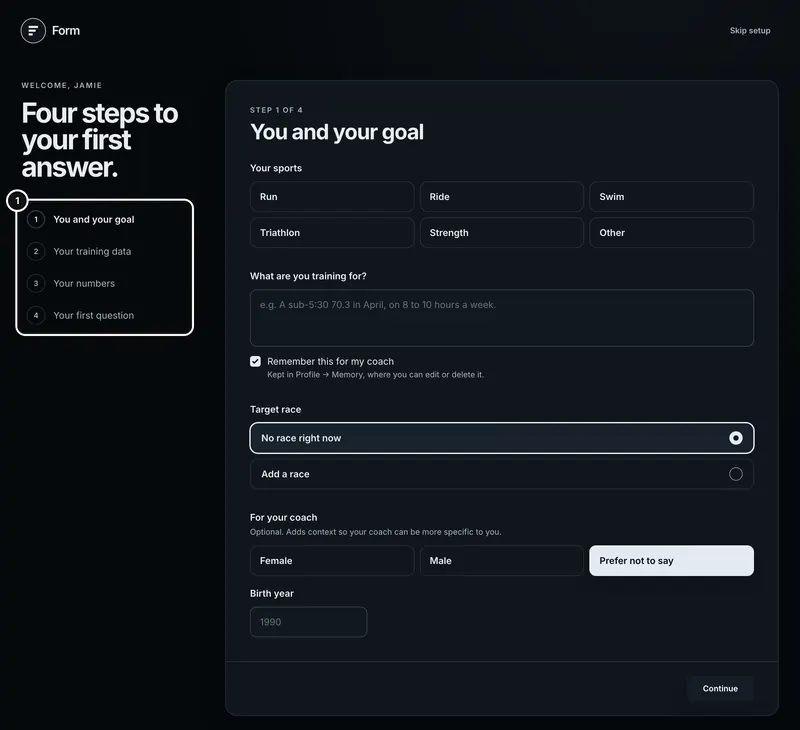
1Setup opens on step 1. The ringed list on the left shows all four steps.
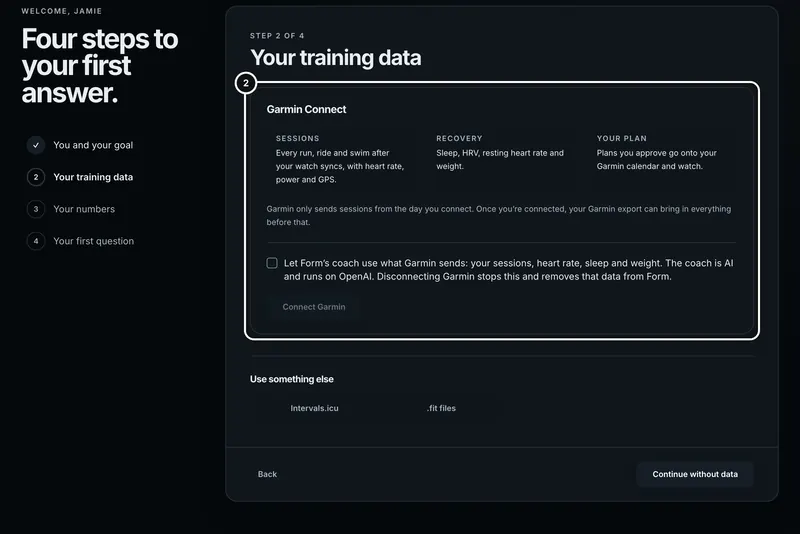
2Step 2 is where your training data comes in. Garmin comes first.
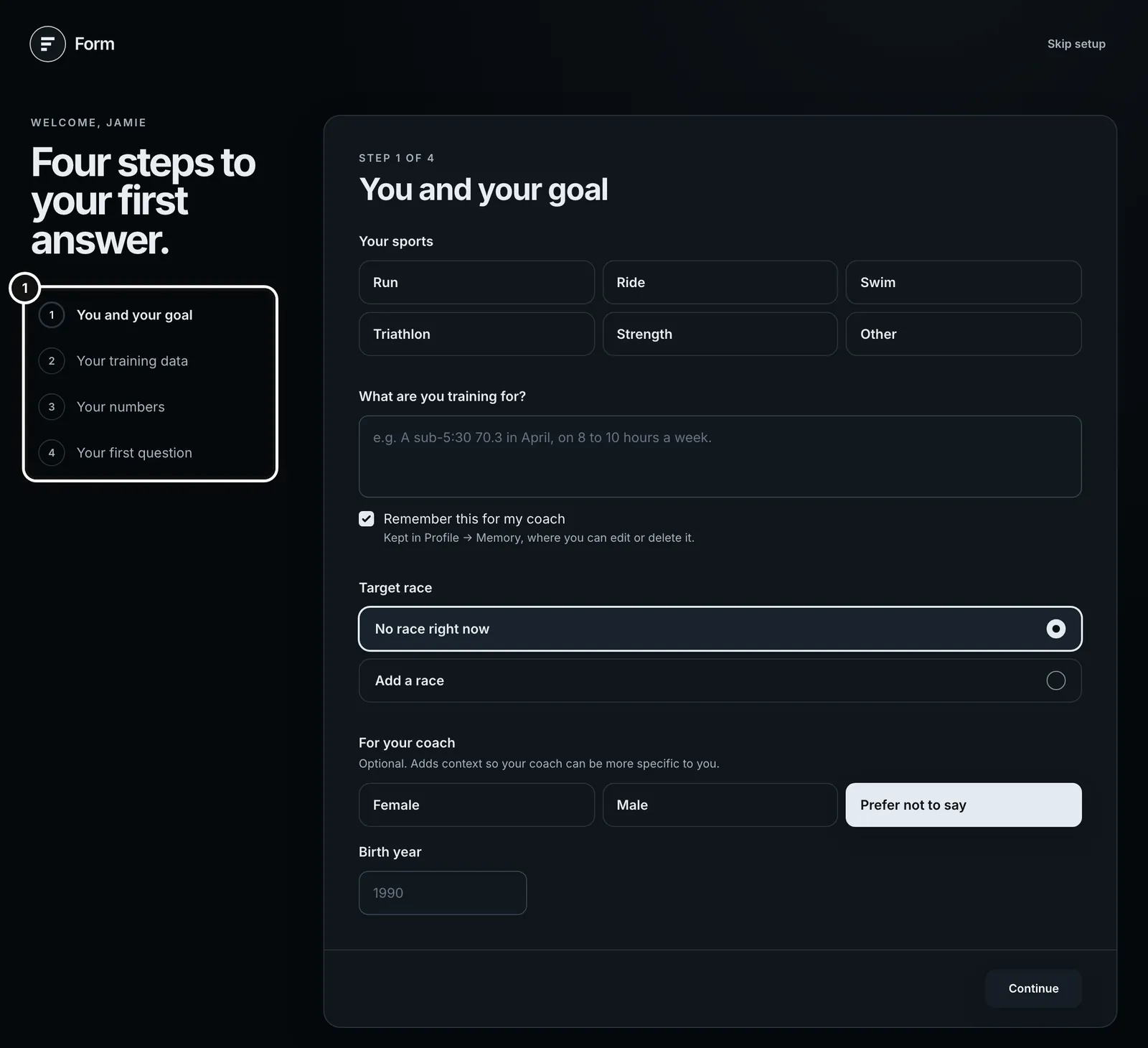
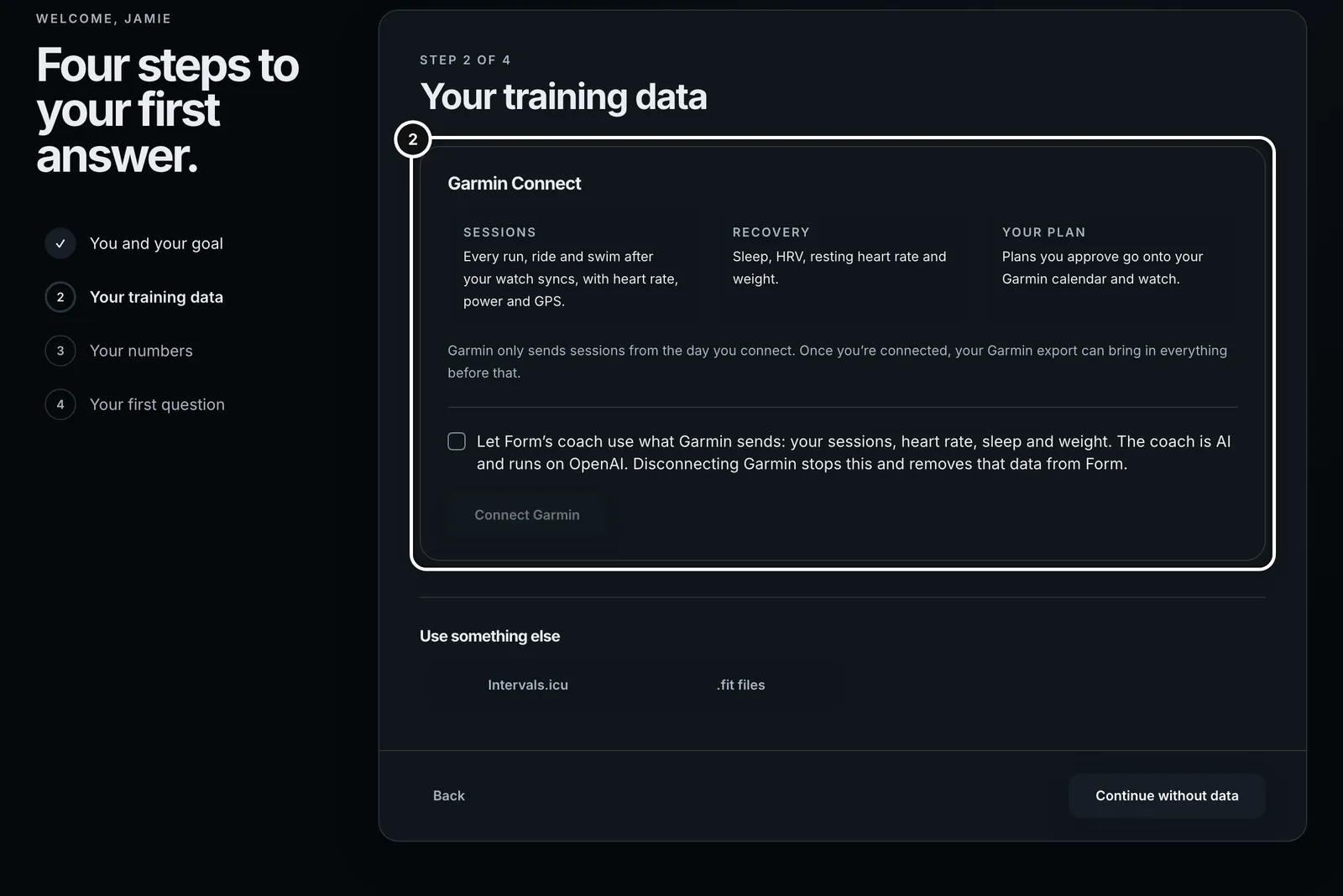
Every Continue saves what you have filled in so far, so closing the tab at step 3 does not lose step 1. You can go Back at any step. Steps you have already reached can also be opened from the list on the left.
Step 1: you and your goal
- Your sports. Tap any of Run, Ride, Swim, Triathlon, Strength and Other. This decides which numbers step 3 asks for.
- What are you training for? Up to 500 characters, for example “A sub-5:30 70.3 in April, on 8 to 10 hours a week.” If you applied for the beta, this is filled from your application and says so; edit it if it has changed.
- Remember this for my coach. Ticked by default. While it is ticked, your goal is kept as a coach memory (“Kept in Profile → Memory, where you can edit or delete it.”). Untick it if you’d rather the coach didn’t keep it.
- Target race. “No race right now” is the default. Choose “Add a race” to enter a name (required), a date and a distance, or pick one you have already saved. Form never picks a race for you just because its date is in the future.
- For your coach. “Optional. Adds context so your coach can be more specific to you.” Choose Female, Male or Prefer not to say (the default), and type your birth year as four digits, for example 1990. Both can stay blank.
The coach uses your sex and age quietly and mentions them only when they change the advice, for example spacing hard sessions further apart from about 40, or which warning signs of under-fuelling to look out for. Your own measured data always comes first: Form never lowers your thresholds, targets or goals because of sex or age. If you leave them blank, the coach doesn’t guess them from your name or photo. Friends never see either. The birth year has to make you between 10 and 100 this year; anything else shows “Write the year you were born as four digits, between …” under the box.
Step 2: your training data
The coach answers from your sessions, so this is the step that matters most.
- Garmin Connect is first. The panel says what Garmin sends (sessions, recovery, your plan), shows the consent tick box and the Connect Garmin button. The button stays grey until you tick the box. The full walk-through is in Connect Garmin.
- Use something else holds two tabs: Intervals.icu (paste an API key) and .fit files (drop or choose files). See Connect Intervals.icu and Upload .fit files.
- After you connect Garmin, the step shows “Waiting for your first session”. Garmin only sends sessions from the day you connect, so this fills in after your next workout and watch sync. Form re-checks every 10 seconds for up to 15 minutes while the page is open, then says “Nothing yet. It arrives after your next workout and sync; carry on with setup.”
- Add your history. Garmin only sends sessions from the day you connect. Once Garmin is connected, the step offers “Bring in your Garmin history”, which opens a page that reads the export Garmin emails you, with every older session and your sleep, resting heart rate, HRV and weight. Ask Garmin for the export straight away, because it can take from a few hours to a few days to arrive. See Bring in your Garmin history. For your last few sessions now, you can also drop in a single activity’s Export Original .zip from Garmin Connect on the web.
- If you press Continue with no data at all, the button reads “Continue without data”.
Step 3: your numbers
Only the fields for the sports you picked appear, and Triathlon shows all of them.
- Bike FTP in watts, between 50 and 1000.
- Run threshold pace per km, written as 4:30 or 4.30.
- Run threshold heart rate, between 60 and 240 bpm.
- Critical swim speed per 100 m, written as 1:45.
- Leave a field blank if you don’t know it. If Intervals.icu is connected, its value is shown as a grey suggestion and Form keeps following Intervals.icu until you type your own. Nothing is copied into your profile for you.
- Do you follow a training method? “No, my coach decides” is the default. “Yes, I’ll pick one” opens the method list and the season structure. Some method and structure pairs don’t fit and are greyed out. Training methods explains each.
A wrong value shows its message under the field and keeps you on step 3, for example “Write pace as minutes:seconds per km, like 4:30.”
Step 4: your first question
Form offers two or three starter questions, chosen from the sessions it actually holds. Pressing one finishes setup and asks it in a new coach chat.
- Your latest session, with it attached, appears only when that session is under a week old.
- A question about last month appears only once you have at least 21 days of history.
- Your race plan and “the week” are offered when there is a goal or a race to plan around. They also appear for a Garmin athlete whose first session hasn’t arrived yet, because they need no history.
- Go to my coach without asking finishes setup without sending anything.
- With no sessions and no connection at all, the step says “Your coach needs a session first” and offers Add training data, which takes you back to step 2, or Go to Form.
A summary under the starters, “What Form knows”, lists your sports, goal, target race, training data, numbers and method as they were saved. Check it before you ask.
Skipping setup
Skip setup, at the top right, finishes setup with whatever has been saved so far and opens the coach. Nothing is lost: every answer lives in Profile and can be changed there. The coach can say little until it holds at least one session, so connect or upload something soon.
If something goes wrong
- A step won’t continue. A field on that step has a message under it. Fix it and press Continue again.
- An error mentions a field from an earlier step. Form moves you to that step automatically.
- Garmin’s page sends you back with a notice. Setup reopens on step 2 with a one-line result, such as “Garmin wasn’t connected. You can try again any time.” Fix problems in the Fix common problems article.
- A file upload fails. Each file shows its own reason on its own row and the others still upload.
Common questions
- Can I sign up without an invite?
- Not yet. Form is in beta and access is by invite. Apply at formendurance.com/contact and we’ll be in touch as places open.
- Do I have to connect a training source to finish setup?
- No. You can finish with “Continue without data” or Skip setup. The coach answers from your sessions, so it has little to say until you connect Garmin or Intervals.icu, upload .fit files or record a session in Form.
- Can I change my answers later?
- Yes. Sports, sex and birth year, thresholds and training method are in Profile → Profile, memories are in Profile → Memory, and sources are in Profile → Connected data.
- I was sent back to setup after signing in. Why?
- Form keeps sending you to setup until you finish it or press Skip setup. It is the same setup, with your saved answers.
- Why does Form ask for my sex and birth year?
- To make the coach’s advice fit you more closely, for example recovery between hard sessions or your triathlon age group. Both are optional, and Prefer not to say is always a choice. You can change or clear them in Profile → Profile, or in the Form app under For your coach.
- Does Form ask me to verify my email?
- No separate verification step is part of registration. Your invite is tied to your email address, which is the check.