
Send a session to Strava
Connect Strava and send finished sessions one at a time. Form never reads from Strava.
Updated 4 November 2026
Form can send a finished session to Strava, including a gym session with its sets. It is send-only: Form uploads the sessions you choose, one at a time, and never reads anything back from Strava. Nothing about your Strava account, followers or activities reaches Form or the coach. This article covers connecting, sending, what gets sent, what to do when a send fails, and how to disconnect.
Where to find it
You connect once under Profile & settings, in Connected data, in the Send to section at the bottom. After that, every session you can send has a Send to Strava entry in the Session actions menu (the three dots) on its own page. A gym session has a Send to Strava button at the top of its page, and the trainer’s Finish your ride panel has one too.
Connect Strava, then send
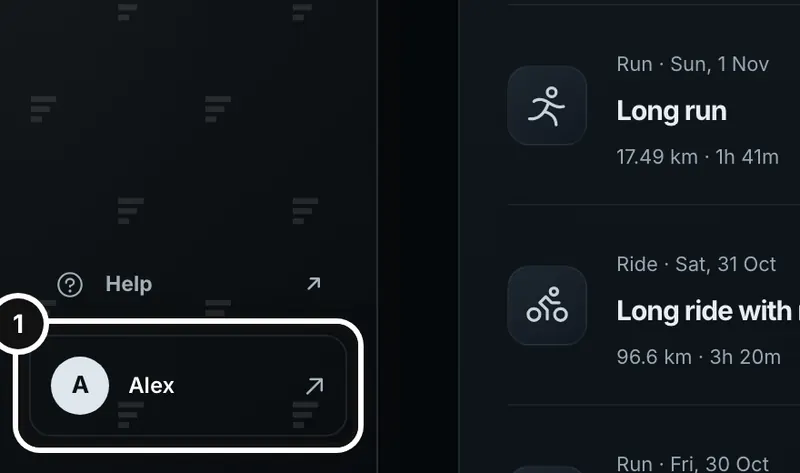
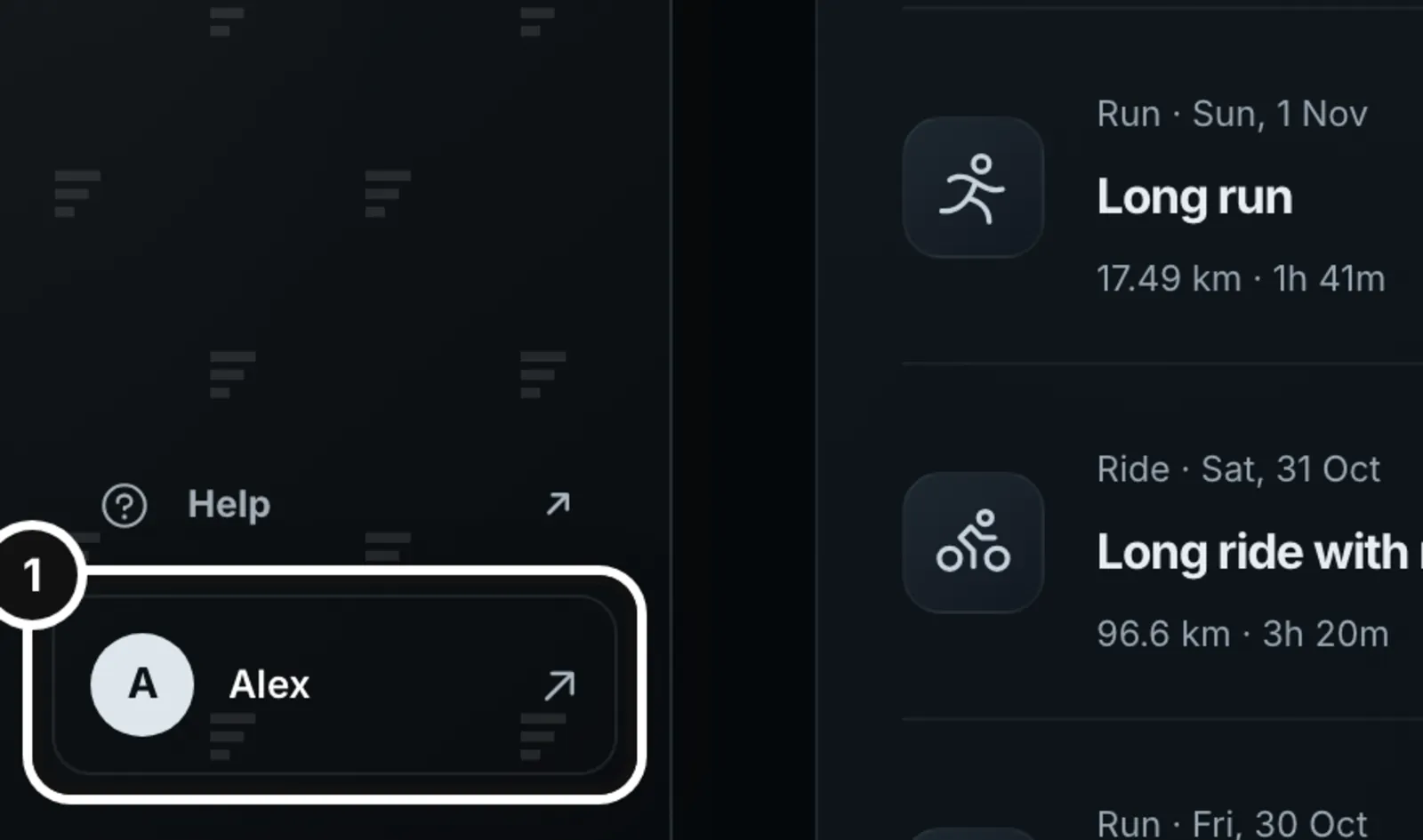
1Click your name at the bottom of the left sidebar to open Profile & settings.
2Open Connected data. Under Send to, press Connect Strava and approve on Strava’s page.

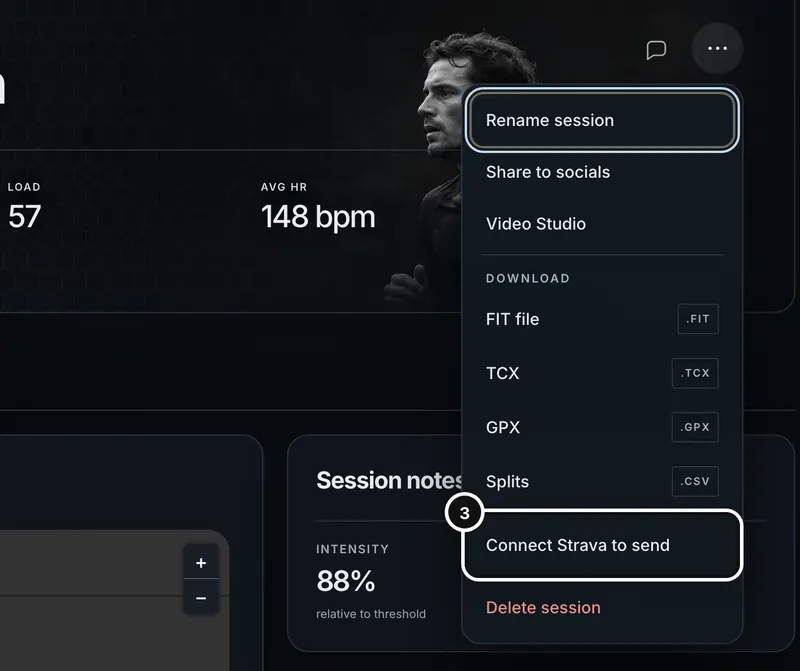
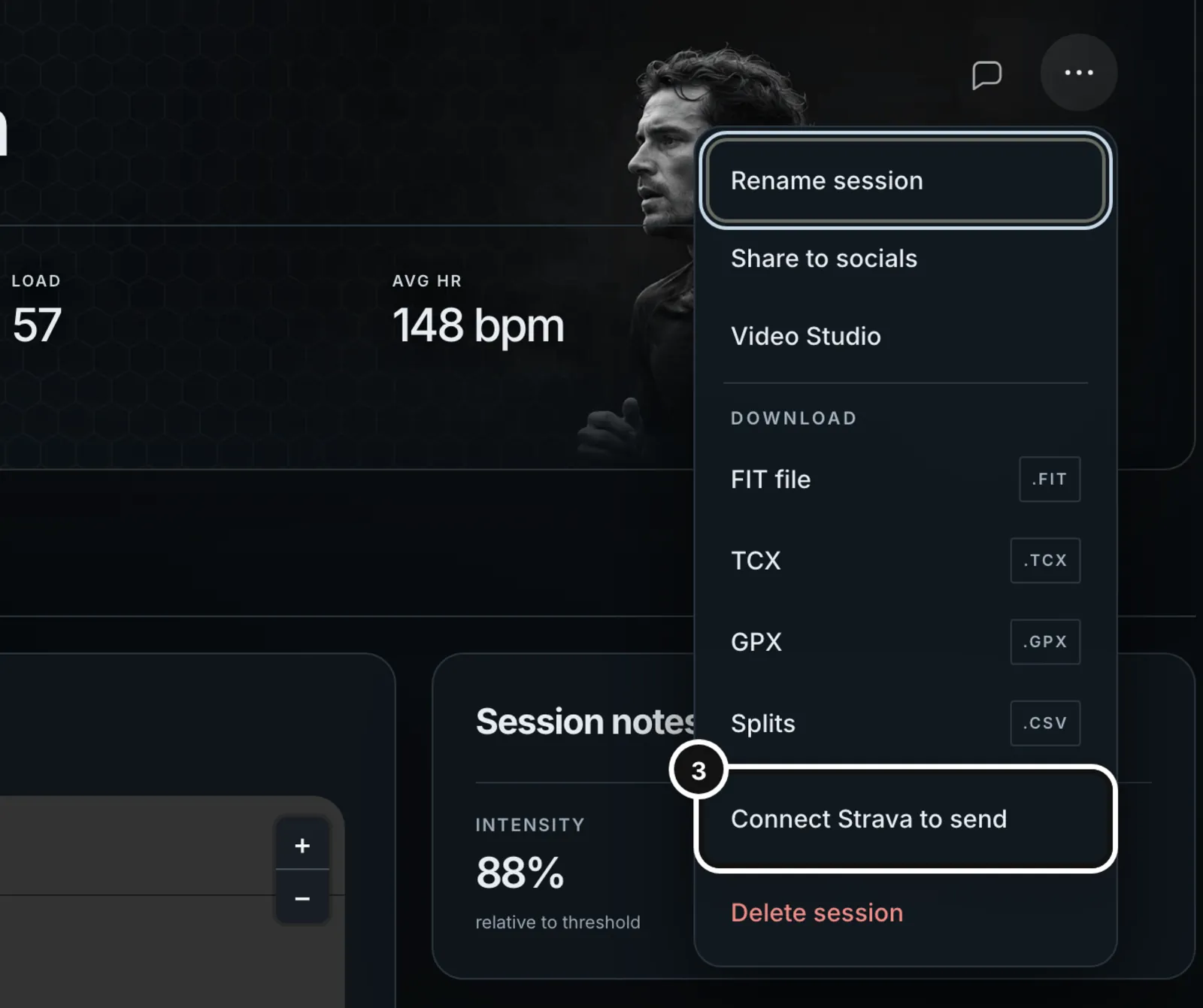
3On any session’s page, open the three-dot menu. The Strava entry sits below Download. Until you connect, it reads Connect Strava to send.

Connect Strava
- Open Profile & settings, then Connected data, and scroll to Send to.
- Press Connect Strava. Form opens Strava’s own approval page.
- Approve it. Form asks for one permission only: to upload activities for you. If you untick “Upload your activities” on Strava’s page, Form does not accept the connection.
- You land on a confirmation page that says nothing is sent until you choose to send a session. Go back to Form. The card now reads “Connected as [your Strava name]. Sessions go to Strava only when you press Send.”
The approval link is private to you and expires after 10 minutes. If it has expired, Form says “That link has expired” and you start again with Connect Strava. If you decline on Strava, Form shows “Strava was not connected” and you can try again any time. On the phone, Connect Strava opens the same approval page in your browser.
Send a session
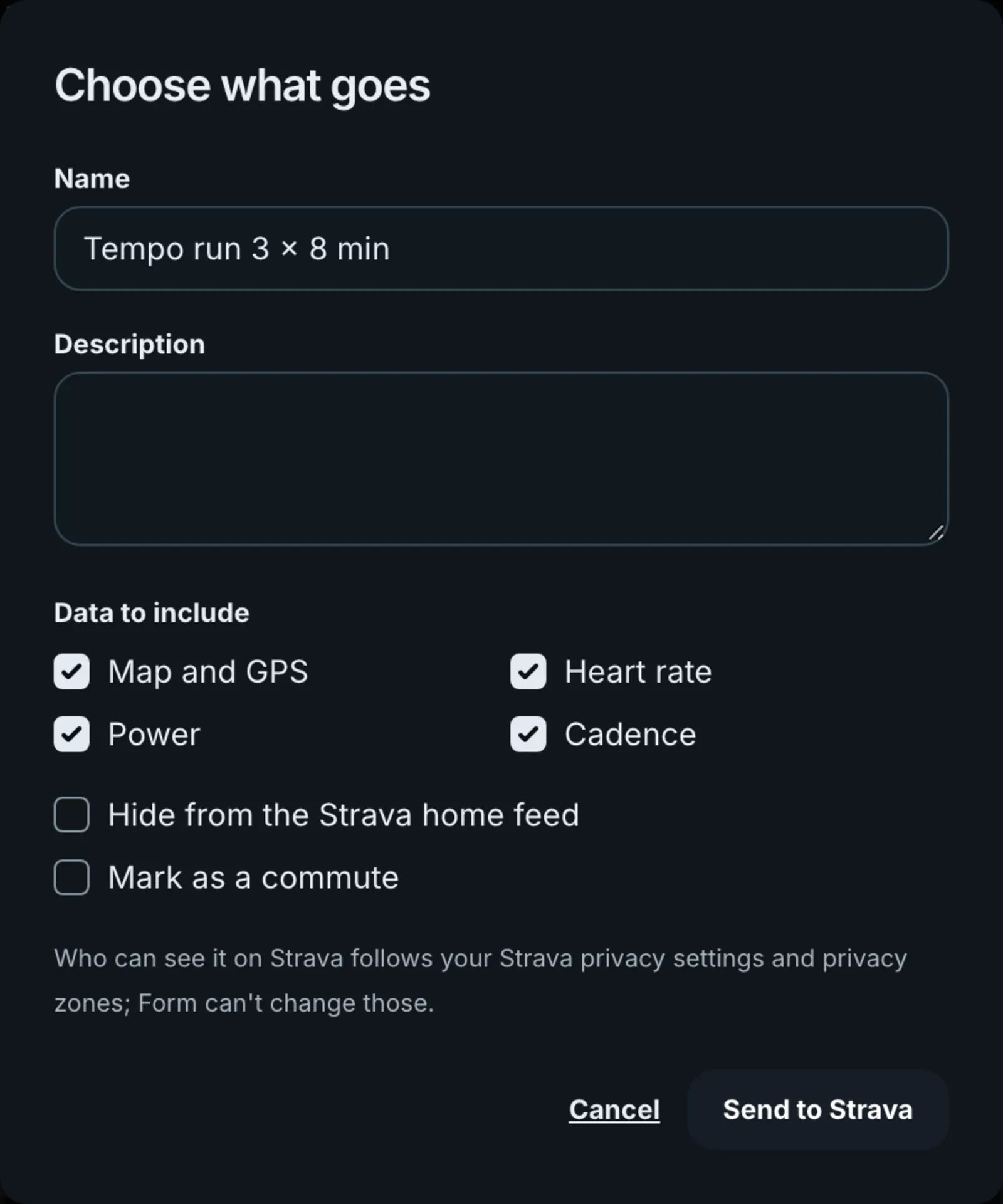
- Open the session and choose Send to Strava from the three-dot Session actions menu. On a gym session, press Send to Strava at the top of the page. On the phone, open the session in the Form app and press Send to Strava in its actions.
- The sheet “Choose what goes” opens. Nothing has been sent yet.
- Edit the Name and Description. For a run or ride, tick or untick Map and GPS, Heart rate, Power and Cadence, and choose whether to Hide from the Strava home feed or Mark as a commute.
- Press Send to Strava. The button shows “Sending to Strava…” and the status updates until Strava answers, then reads Sent to Strava with a View on Strava link.
Form remembers your last choices and starts the next sheet with them. If the session came from a planned workout, its description is added to the Description box. Form ends every description on Strava with “Sent from formendurance.com”.
Send a gym session
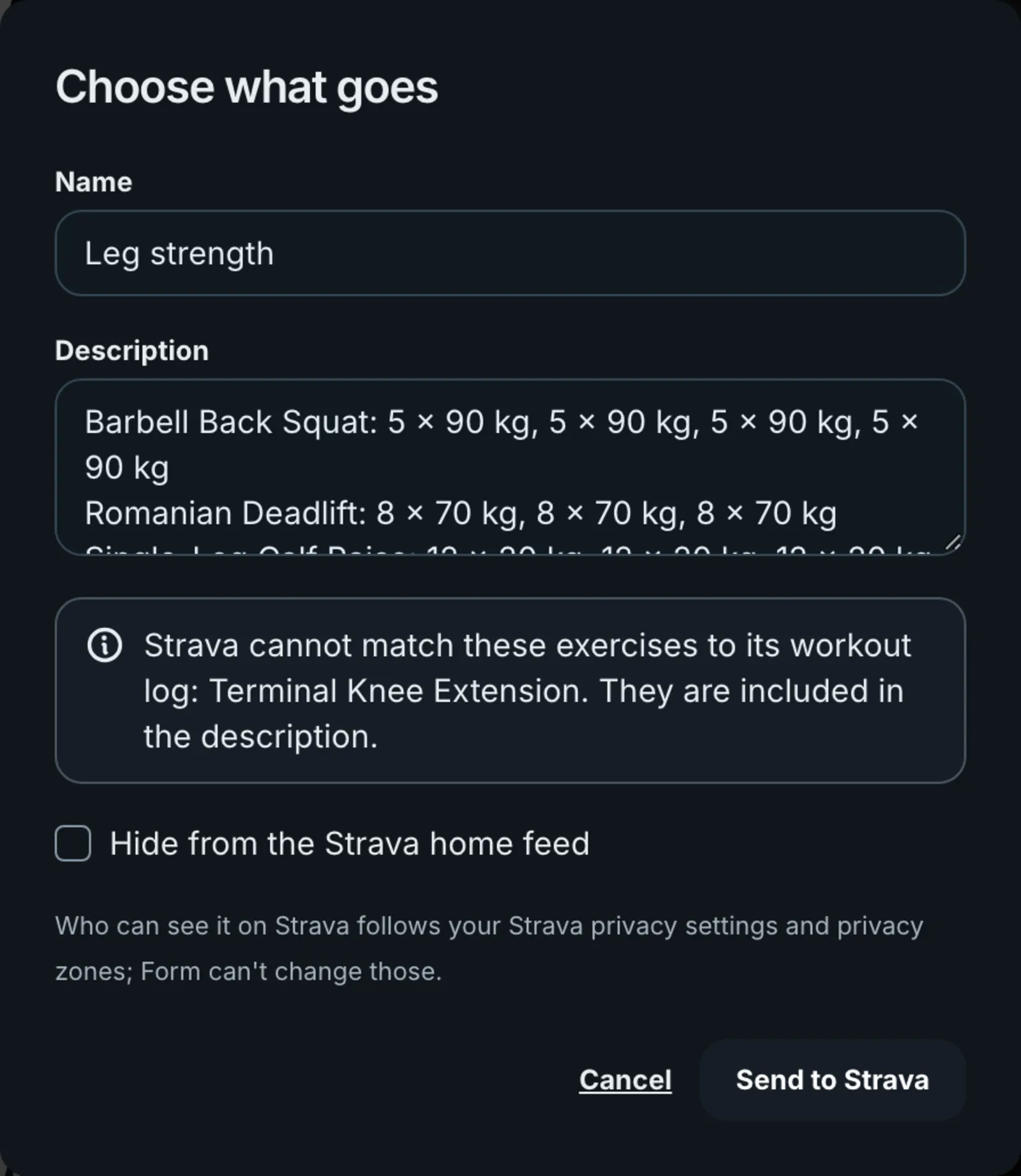
A gym session goes to Strava as a structured weight training session: each exercise, with its sets, reps and weights, lands in Strava’s own workout log. Warm-up sets are left out of the description. The sheet for a gym session has no data boxes and no commute option, only Hide from the Strava home feed.
- The Description starts with every exercise and its working sets, so the session reads well on Strava. Change it if you like.
- If Strava’s workout log has no match for an exercise, the sheet names it: “Strava cannot match these exercises to its workout log: … They are included in the description.” The rest still go as sets.
- If none of the exercises match, the sheet says “This session will be sent as a manual activity.” It still goes to Strava as weight training, with its time and the exercises in the description.
What gets sent
- Sessions recorded on your phone, or uploaded as a file, go as the original FIT file. If you untick some data, Form sends a TCX file with only the ticked data instead. Unticking something the file never had changes nothing, and ticking all four sends the original file unchanged.
- Sessions from Garmin go as the FIT file Garmin sent Form. If Garmin has sent the session’s summary but not its file yet, Form says “Garmin hasn’t sent the file for that session yet. Try again in a few minutes.” and sends nothing.
- Sessions from Intervals.icu can be sent too. Form uses the complete original file when Intervals makes it available, and otherwise builds a TCX file from the recorded streams, at the resolution Form stores them.
- Trainer rides go as a virtual ride on the trainer, as a TCX file.
- Gym sessions go as described above.
- A leg of a multisport race goes as a file of its own stretch.
One send per session
Each session can be sent once. Tapping Send twice sends it once. A session that has been sent shows Sent to Strava, with a View on Strava link. If Strava says it already has the same activity, Form shows “Already on Strava, probably from your watch.” with a link to the existing one.

Once you are connected, the bottom of the Activities page lists your ten most recent sessions that Form recorded and that haven’t gone to Strava, under “Recorded in Form, not sent”, each with its own Send to Strava button. That means runs and rides recorded on the Form app, rides on Form’s trainer and gym sessions. Sessions from Garmin, Intervals.icu or a file you uploaded aren’t listed, because the device or app that recorded them usually sends them to Strava itself; you can still send one from its own page.
If a send does not go through

When a send fails, the reason stays under the Send to Strava button on the session’s page, and in the list on the Activities page. Press Send to Strava again to retry; the sheet opens with your choices as before. When Strava gave a reason of its own for a file it couldn’t read, Form shows it on a second line starting “Strava:”.
- “Strava couldn't read that file.”: Strava received the file but couldn’t process it. Try again; if it fails the same way, the second line says what Strava objected to.
- “Strava couldn't take that session. Try again in a moment.”: Strava refused it for another reason.
- “Strava is taking too long to process that. Try again in a few minutes.”: Strava did not confirm the upload. Form checks about every ten seconds and gives up after 8 attempts.
- “Strava is busy, trying again.”: Strava is limiting requests. Form waits longer and retries on its own. If it still can’t, it says “Strava is busy right now. Try sending it again in a few minutes.”
- “Strava isn't connected any more. Connect it again from your profile.”: the connection was revoked on Strava or couldn’t be renewed. Form forgets it. Connect Strava again.
- The Strava entry is missing: the session’s source can’t be sent, or Strava isn’t available on this account.
Disconnect
Open Profile & settings, Connected data, and press Disconnect on the Strava card. Form calls Strava to revoke its permission and deletes the stored connection. Activities already on Strava stay there; deleting them is done on Strava. Deleting your Form account does the same revoke and deletion.
What Form never does with Strava
- It never reads your Strava activities, feed, profile or followers. The only things it fetches are the status of an upload it has just made, and Strava’s reason when that upload failed.
- It never sends anything on its own. A save, a sync or opening a session sends nothing.
- Strava is not a training source. Connecting it does not add or change any data in Form.
Common questions
- Does Form read my Strava activities?
- No. Form only uploads what you send. It does not fetch your Strava activities, and nothing from Strava is passed to the coach.
- Do my gym sets show on Strava?
- Yes. A gym session goes as weight training with its exercises, sets, reps and weights in Strava’s workout log. Any exercise Strava can’t match is listed in the description instead.
- Can I send a session that came from Intervals.icu?
- Yes. Form uses the original file from Intervals when it is available, or builds one from the recorded streams.
- Can I send the same session twice?
- No. One upload per session. Pressing Send twice sends it once. A failed send can be tried again.
- Can I choose who sees it on Strava?
- Not from Form. Visibility follows your Strava privacy settings and privacy zones.
- Does sending hide my map or heart rate?
- You choose. On the send sheet, untick Map and GPS, Heart rate, Power or Cadence and Form sends only what remains.
- Can anyone connect Strava now?
- The Connect Strava card only appears when Strava is set up on Form. If you do not see it, it is not available yet.