
Bring in your Garmin history
Bring in every session and your daily health from before you connected, from Garmin’s data export.
Updated 4 November 2026
Garmin only sends Form what you record after you connect. Everything from before that is in the data export Garmin emails you: every session, plus your sleep, resting heart rate, HRV and weight. The Garmin history page reads that export in your browser and brings your sessions and daily health into Form. The zip itself stays on your computer.
Where to find it
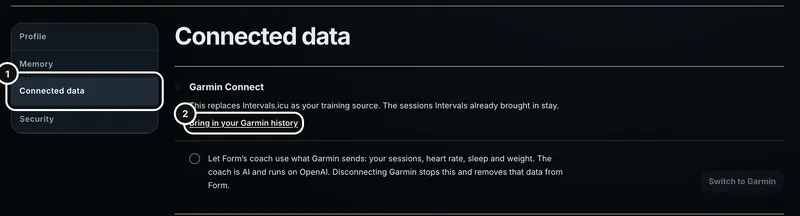
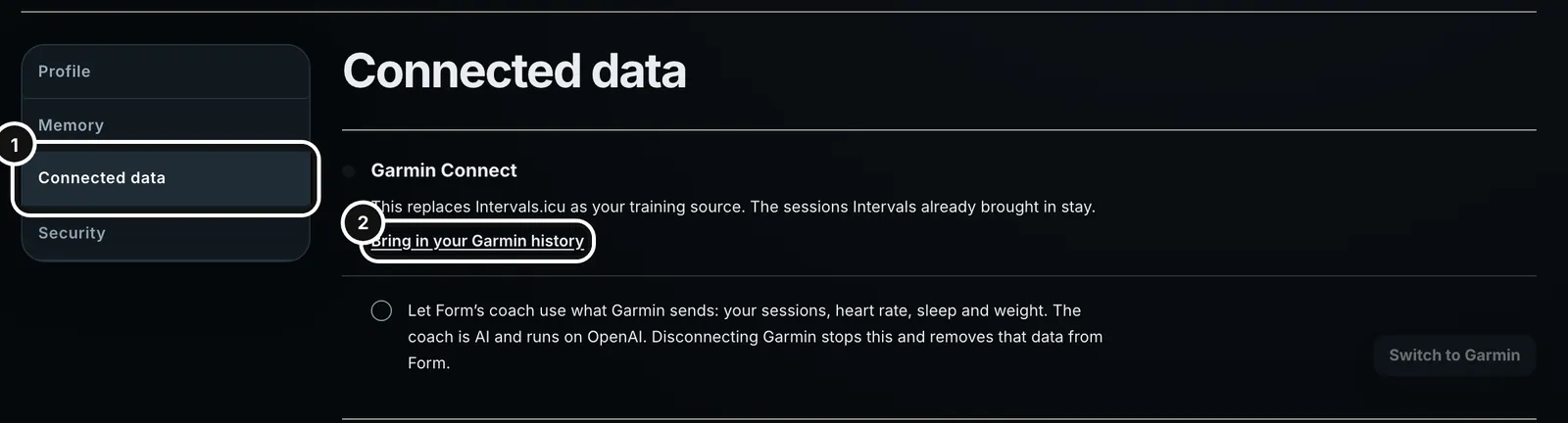
On the web at app.formendurance.com, open Profile (your name at the bottom of the sidebar), choose Connected data, and press Bring in your Garmin history on the Garmin Connect card. The link is there whether or not Garmin is connected, so you can import before you connect, after, or without connecting at all. Once Garmin is connected, setup step 2 links to the same page.
Profile → Connected data → Bring in your Garmin history
1In Profile → Connected data, press Bring in your Garmin history on the Garmin Connect card.
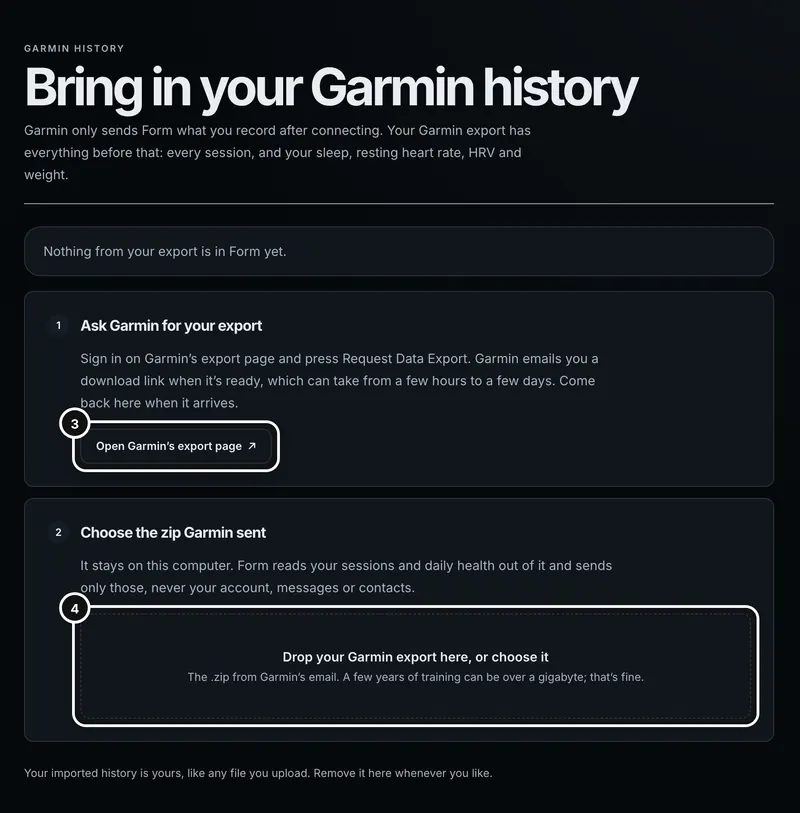
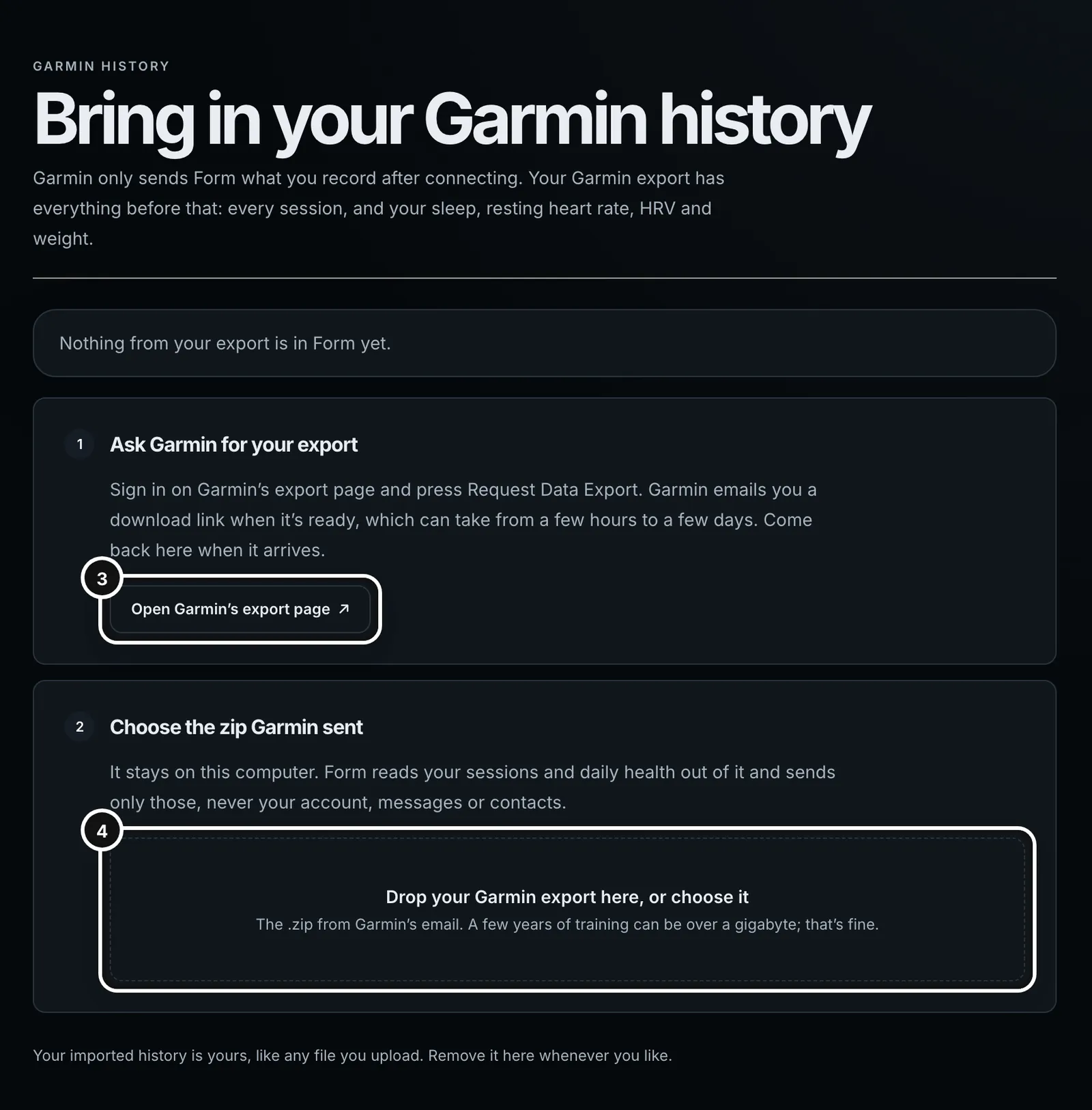
2The page has two steps: ask Garmin for the export, then choose the zip it sends you.
Step 1: ask Garmin for your export
- On the Garmin history page, press Open Garmin’s export page. Garmin’s export page opens in a new tab.
- Sign in with your Garmin account and press Request Data Export.
- Wait for Garmin’s email with the download link. It can take from a few hours to a few days, so ask now even if you plan to import later.
- Download the .zip from the link in the email. A few years of training can be over a gigabyte; that’s fine.
Step 2: choose the zip
Back on the Garmin history page, drop the zip onto “Drop your Garmin export here, or choose it”, or click that area and pick the file. Choose the .zip just as Garmin sent it.
- Form reads the zip on your computer and picks out two things: activity .fit files, and the daily health files (daily summaries, sleep, HRV and weight). Only those are sent to Form, one session at a time. Your account details, messages, contacts and the rest of the export never leave your computer.
- Thousands of the .fit files in an export are all-day health and device files, not sessions. Form recognises them on your computer and doesn’t send them.
- The page shows what it is doing (Reading your export…, Adding your daily health…, Adding sessions…, Finishing…), a progress bar, how many files it has checked, how many sessions it has added and how many were already in Form, and the session it is adding now.
- Keep the tab open until it finishes. If you try to leave mid-import, your browser asks first.
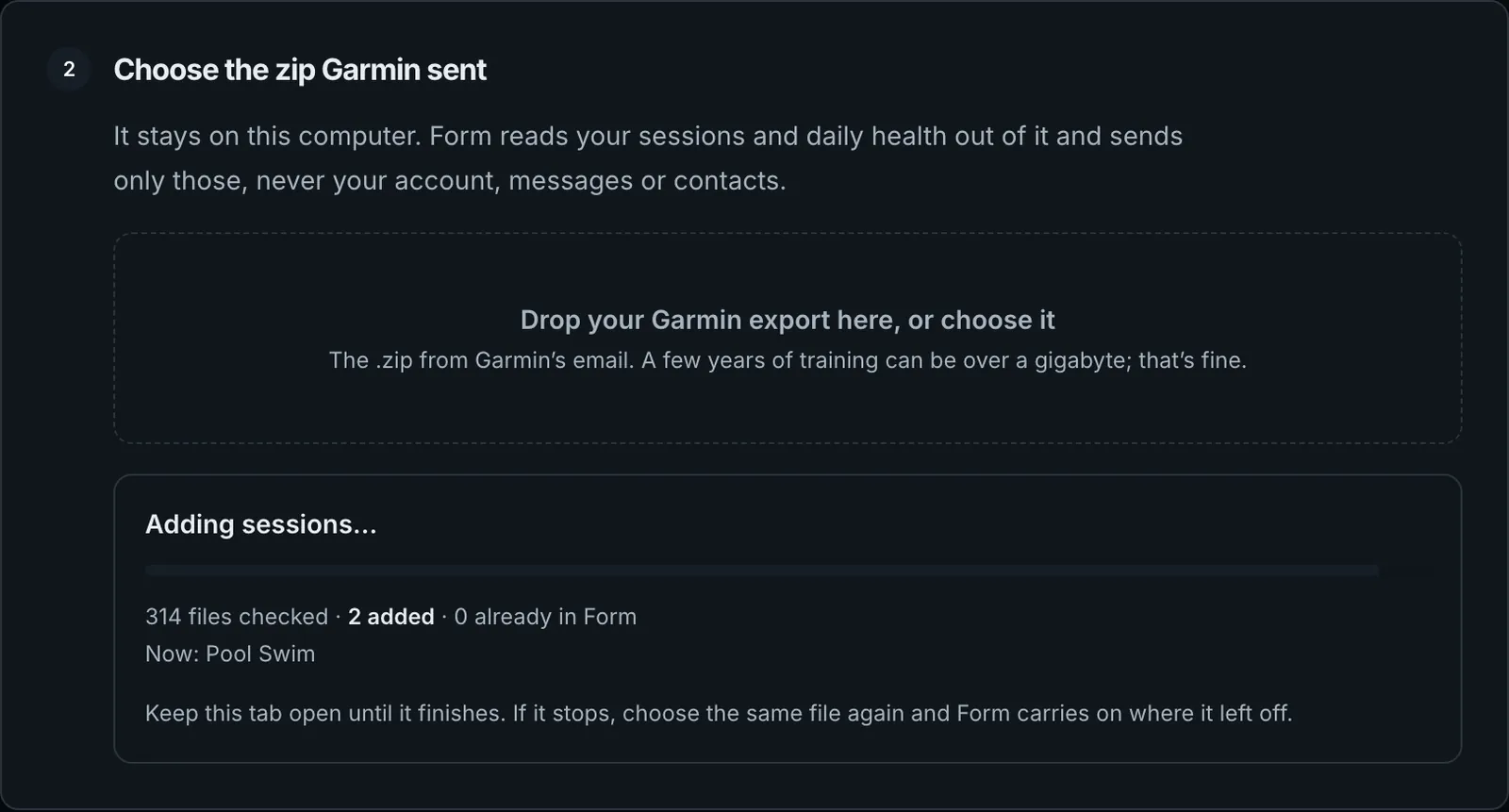
If the import stops part way, because the laptop slept or the tab closed, choose the same file again. Form carries on where it left off and skips every file it already has without sending it again. If the connection drops, the import pauses with “Form lost the connection, so the import is paused. Nothing is lost: press Resume when you’re back online.” Press Resume to carry on.
What comes across
- Sessions. Every activity .fit file in the export, named as Garmin named it in your activity list. A session Garmin’s list doesn’t name gets a name from its sport and date. They appear in Activities and on the Calendar like any uploaded file, with the heart rate, power, GPS and splits the file holds, and each gets a load the way an upload does. The coach can use them straight away.
- Daily health. Resting heart rate, HRV, weight, sleep time and sleep score go into your recovery data for each day. The day’s other numbers in the export, such as steps, stress and Body Battery, are kept with it.
- Only empty values are filled. A day Form already has from Garmin or Intervals.icu keeps the values it had.
- Left out, and counted in the result: sessions Garmin lists with no file (such as ones entered by hand), older .tcx and .gpx files (Form reads .fit), and any file over 25 MB.
Sessions Form already has
Form checks each session against what it already holds. If a session of the same kind (a run against a run, a ride against a ride) starts within 10 minutes of one already in Form, the file is skipped and counted as already in Form, and Form keeps the copy it had. That covers sessions Garmin sent after you connected, sessions from Intervals.icu, files you uploaded and recordings made in Form. A brick still comes in whole, because its swim and ride are different sports. If a watch and a bike computer both recorded the same ride, it comes in once.
Importing the same export again adds nothing new: the result says “No new sessions” and counts the rest as already in Form.
When it’s done
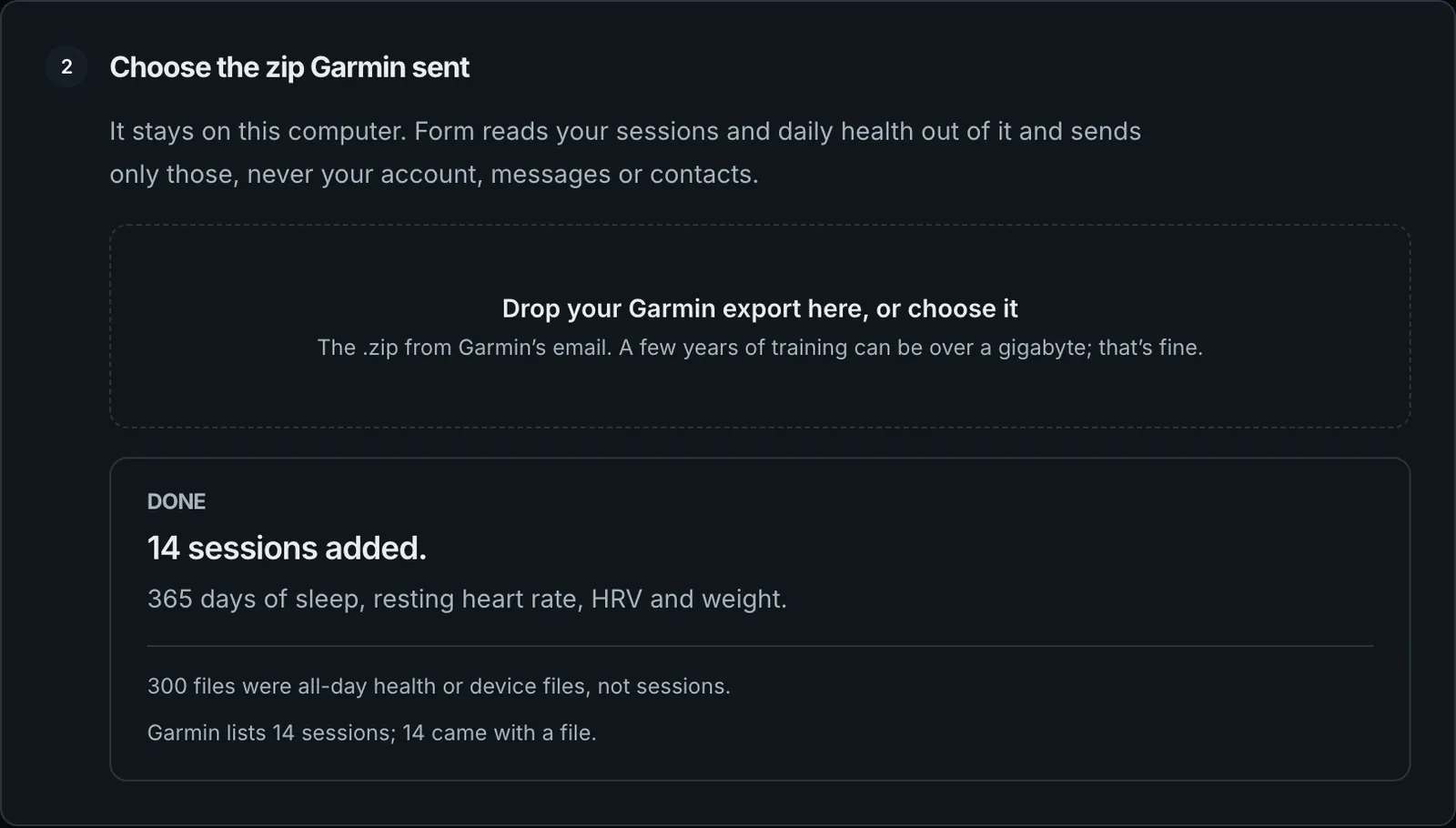
The summary at the top of the page then says what Form holds from your export, and how far back it goes.

If you connected Garmin recently, the coach is told for 42 days that a short Garmin history may be missing data rather than rest. Once your import brings in sessions from the week before you connected, or later, that note is dropped, because the coach can see your training for itself.
Remove imported history
Remove imported history, in the summary at the top of the page, asks first: “Every session and day of health data your Garmin export brought in is removed from Form. Sessions Form already had, and anything Garmin sends from now on, stay.” It deletes the imported sessions with their files and clears the health values the import filled in. You can import again afterwards.
If you disconnect Garmin
Your imported history stays, like any file you upload, and the Disconnect confirmation says so. One exception: Disconnect removes every day of recovery data Garmin sent after you connected, whole, so the export’s values for those days go with it.
If something goes wrong
- “This isn’t Garmin’s export. Choose the .zip you downloaded from the link in Garmin’s email.” The file isn’t a zip, or holds no .fit files and none of Garmin’s daily health files. A single activity’s Export Original zip does work.
- “This download looks incomplete. Download it again from Garmin’s email, then choose the new file.” The download stopped early.
- “This browser can’t read the export. Use a current version of Chrome, Edge, Firefox or Safari.” Your browser is too old to unpack the zip. The page says so before you choose a file.
- “N files couldn’t be read.” A damaged file in the export is skipped and the rest carry on.
- “Form couldn’t read anything from …” names a daily health file whose layout Form didn’t recognise. The sessions and other files still come in.
Common questions
- Does Form upload my whole export?
- No. The zip is read on your computer, or your phone in the app. Only activity .fit files and daily health records are sent, never your account details, messages or contacts.
- Do I need Garmin connected to import?
- No. The page works whatever your training source is. Sessions Form already has from another source are skipped, so nothing is counted twice.
- Why doesn’t Garmin send my history when I connect?
- Garmin only sends data recorded after you connect. Your own export is the one complete copy of what came before.
- I imported the same export twice. Do I have duplicates?
- No. Files Form already has are skipped, and the result says “No new sessions”.
- Can I undo it?
- Yes. Remove imported history takes out everything the export brought in, and leaves the sessions Form already had.