
Upload .fit files
Add a session from a file; it opens as soon as Form has read it.
Updated 4 November 2026
A .fit file is the recording your watch, bike computer or app makes. You can add one to Form by hand whatever your training source is. It is the way to bring in a session from a device Form doesn’t connect to, or a few sessions from before you connected Garmin. For your whole Garmin history at once, see “Bring in your Garmin history”.
Where to find it
On the web, at app.formendurance.com, uploads live on the Activities page. New athletes can also drop files in setup step 2.
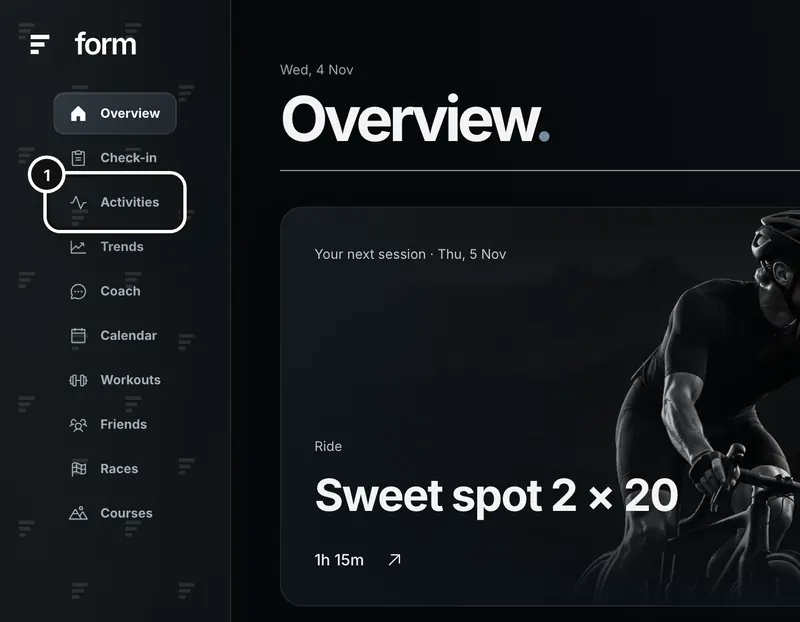
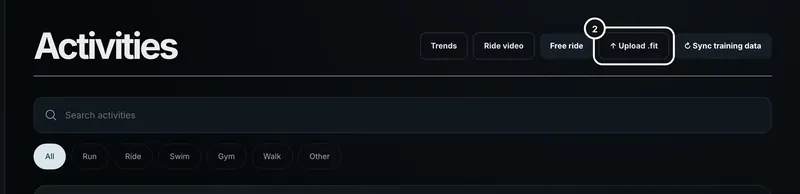
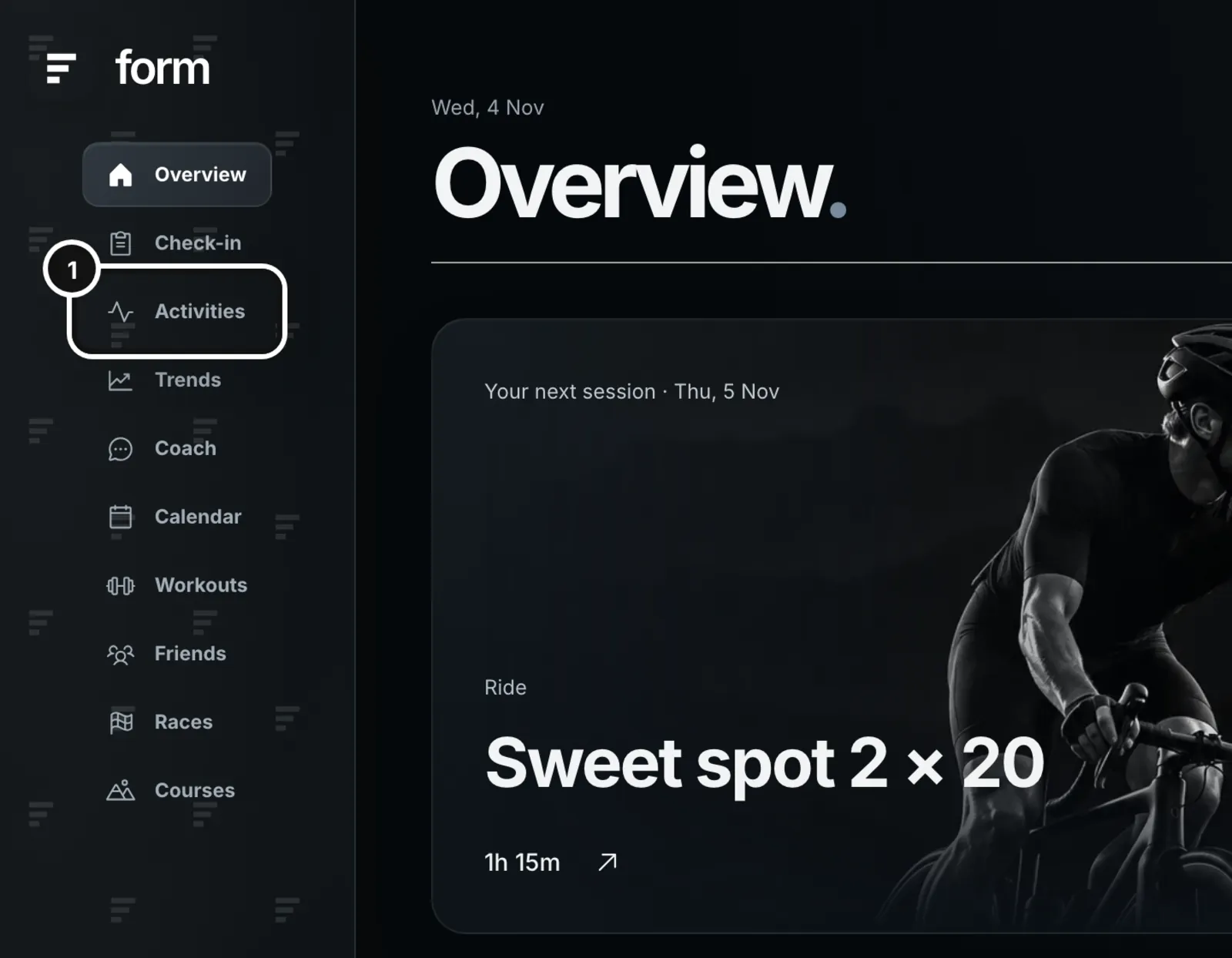
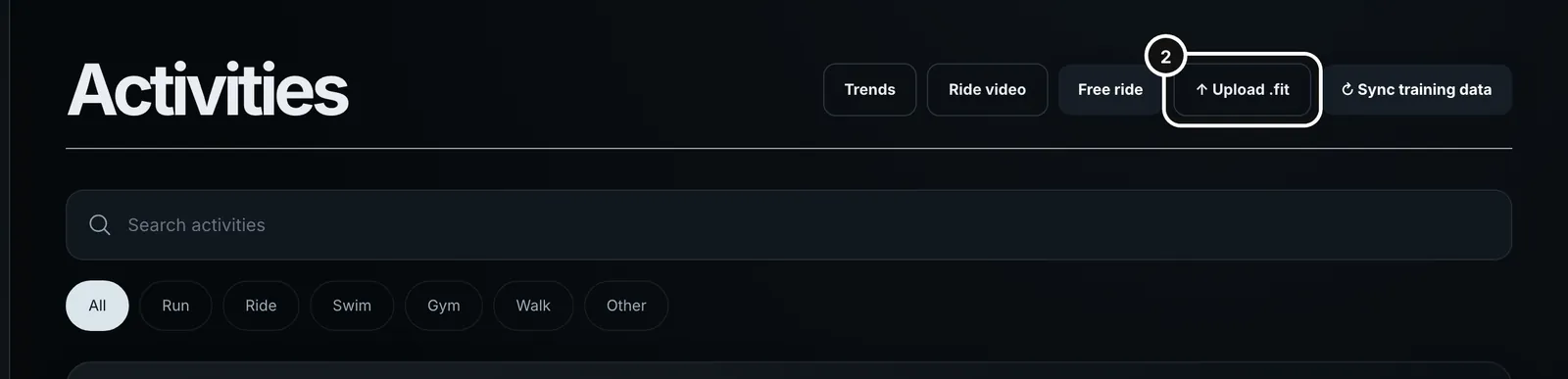
Activities → Upload .fit
1Click Activities in the left sidebar.
2Press Upload .fit at the top right.
In setup, step 2 has a “.fit files” tab under Use something else (and “Add your history” once Garmin is connected). Drop files on the dashed box, or choose them. It takes several files at once and uploads them one at a time, so one bad file never stops the rest.
Upload a file
- Press Upload .fit and choose the file. The button reads “Reading…” while Form decodes it.
- When Form has read it, the new session opens straight away, with its load scored. It is in your Activities list too.
- Look over the route, graphs, splits and load. See “Open a session”.
What is accepted
- A .fit file, up to 25 MB.
- A .gz file, which is a compressed .fit.
- Garmin Connect’s Export Original .zip, through setup step 2. In Garmin Connect on the web, open an activity, open the gear menu and choose Export Original. You get a .zip holding one .fit, and Form unpacks it for you.
- A .zip with more than one file, a .zip inside a .zip, an empty .zip, or one with no .fit inside is refused with a message saying what to upload instead. Garmin’s whole-account export is not a single-session upload; it has its own page. See “Bring in your Garmin history”.
Duplicates
- The same file twice. Form identifies a file by its contents, so uploading it again, even renamed, updates the same session instead of adding a second one. The same session as a .fit and as a .zip counts once.
- A session you already have from Garmin, Intervals.icu or the trainer, starting within 10 minutes. Form refuses it: “You already have “…” from … at that time. Upload it anyway only if it is a different session.” A banner offers Upload anyway. Use it only if it really is a different session, or you’ll count it twice.
- A Garmin file of a session you also recorded on your phone with the Form app replaces the phone recording, as a Garmin sync would, so you never end up with both.
Load on an uploaded session
Form scores the session as soon as it is saved, in this order, and stops at the first that works.
- The load stored in the file itself, if it has one.
- Power against your FTP, using the file’s own weighted power.
- Run pace against your threshold pace.
- Heart rate against your threshold heart rate.
A heart-rate load is an estimate, and the session page says “from heart rate” under it. Swims are scored by heart rate, because GPS distance in open water comes up short. For heart rate, Form uses the threshold in your profile, then the latest one Intervals.icu used for that sport, then for any sport. With none of those, or with no average heart rate, or under a minute of data, the session stays unscored rather than guessed. Unscored sessions are left out of your training load, and Trends says how many there are under Model & coverage. Gym sessions never get an endurance load.
Triathlons and other multisport files
A multisport file is stored as one session per leg, each scored for its own sport, but shown as one race: one row on Activities, and a race strip on each leg’s page. Deleting one leg of an uploaded race deletes the whole race.
If something goes wrong
- “Choose a .fit file.” The extension isn’t .fit, .gz or .zip.
- “That file could not be read.” or “That file is not a readable .fit activity.” The file is damaged, empty, or not an activity recording. Export it again from the device.
- “That file does not contain a usable start time.” Form needs the start time to place the session. Export the original from the device instead of a converted copy.
- A file over 25 MB is refused, and so is a .zip whose .fit is over 25 MB.
- “That .zip could not be opened. Upload the .fit file inside it instead.” Unzip it on your computer and upload the .fit.
- The session appeared but has no load. See the order above: it probably has no power, pace or heart rate to score from, or no threshold in your profile.
- On setup, each failed file shows its own reason on its own row, and the others still upload.
Deleting an uploaded session
Open the session and choose Delete session from its … menu. For an uploaded session, Form also removes the stored original file. Deleting it in Form does not remove a copy you already sent to Strava.
Common questions
- Do I need to upload anything if Garmin is connected?
- Not for new sessions, Garmin sends them. Garmin sends nothing from before you connected. Upload a few older sessions here, or bring in your whole history with “Bring in your Garmin history”.
- Is my original file kept?
- Yes. Form keeps the file of an uploaded session so you can download it again. It is removed when you delete the session or your account.
- Why was my upload refused as a duplicate?
- Form already holds a session from Garmin, Intervals.icu or the trainer that starts within 10 minutes of it. Upload anyway only if it is a different session.
- Can I upload from my phone?
- The Form app records runs, rides and gym sessions itself and saves them without a separate upload. To bring in a file from another device, use the web page.